Quick Start Guide ⭐
Gain a streamlined introduction to CyberFOX Password Manager with this Quick Start Guide. Discover the basics of CyberFOX Password Manager and get up to speed quickly.

Written by Owen Parry
Updated at September 12th, 2026
Table of Contents
Welcome to CyberFOX Password Manager!
You are only a few steps away from never having to worry about passwords again. Follow the steps, and you will be up and running quickly.
Sign in to the WebApp
Our WebApp version of CyberFOX Password Manager, your welcome email will simply point your browser to the login page to get started.
- WebApp - app.passwordboss.com
Download the version for your phone after you have signed into the webapp to setup your account.
- iOS - CyberFOX Password Manager in the Apple App Store.
- Android - CyberFOX Password Manager in the Google Play store.
Create your account
WebApp User
When you enter your email address into the WebApp, the wizard will walk you through setting up your account and creating your Master Password. Once you have your Master Password Created, you will sign in and get started creating or importing your passwords and exploring the app.
Add your passwords and notes.
CyberFOX Password Manager is where you store passwords and everything else you don't want to forget. You can save everything from Wi-Fi logins, member IDs, credit cards, insurance information, alarm codes, plus more. There are 28 different templates to make it easy to get started.
From within the WebApp or Desktop, tap the add item buttons 
 or
or  to start saving your items.

Install the extension
The CyberFOX Password ManagerThe Password Boss extension automatically fills in your website login details and credit card forms. Both the Desktop and WebApp versions use the extension for this feature. If the extension is not installed when you sign into Password Boss and open the browser, you will be prompted to add it.
-
You will see a prompt to install the Password Boss browser button when you open your browser. Confirm the installation; you will see an owl next to the address bar.
-
Click the owl, and you will see all of your passwords.
- Click the icons on the left side to see your saved items and access the password generator.
Login to a Website
-
Go to the login page for one of your favorite websites.
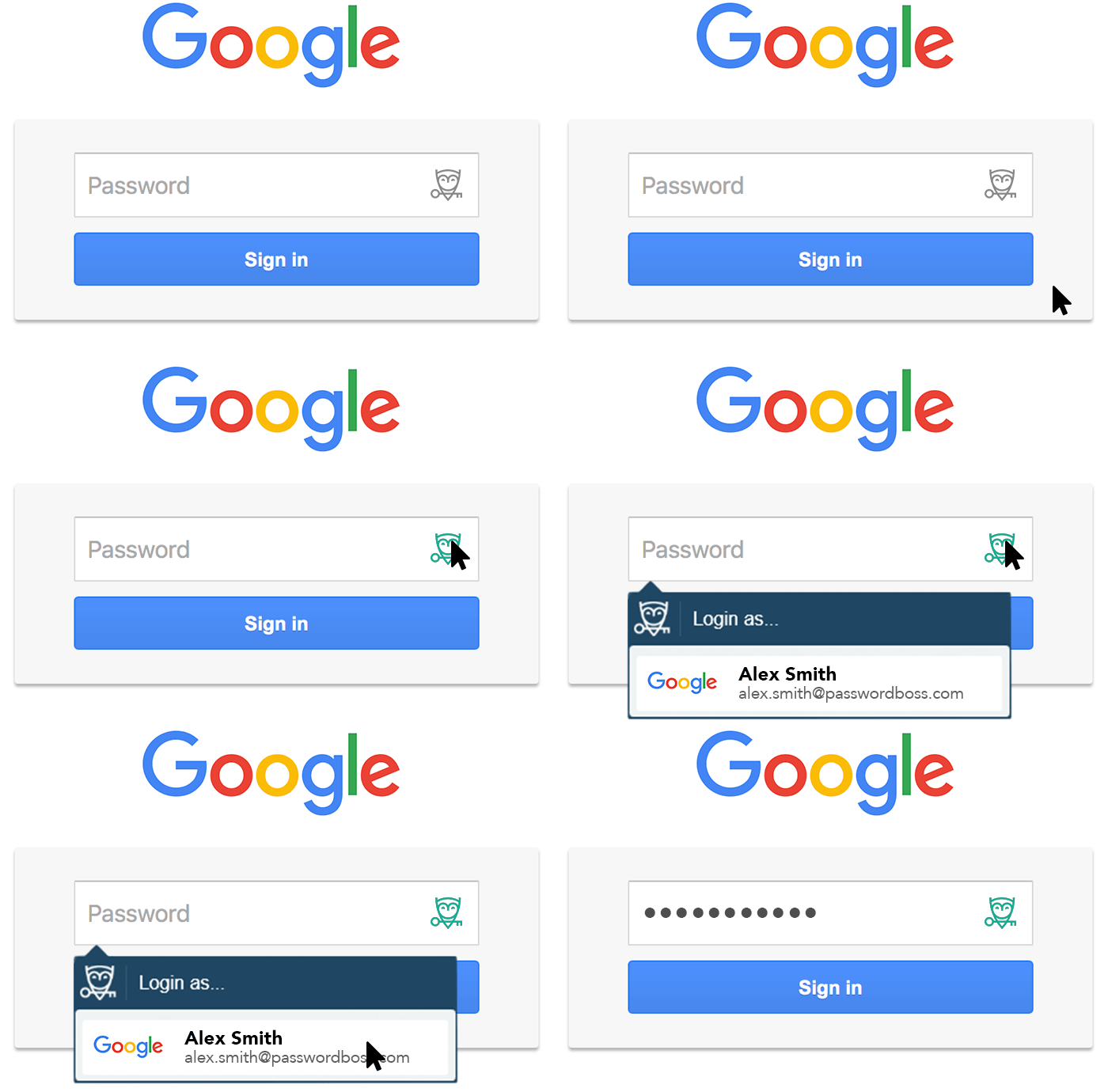
- Click the owl in the login field and choose your saved password or click the option to save a new password into CyberFOX Password Manager.
Try Auto-Fill
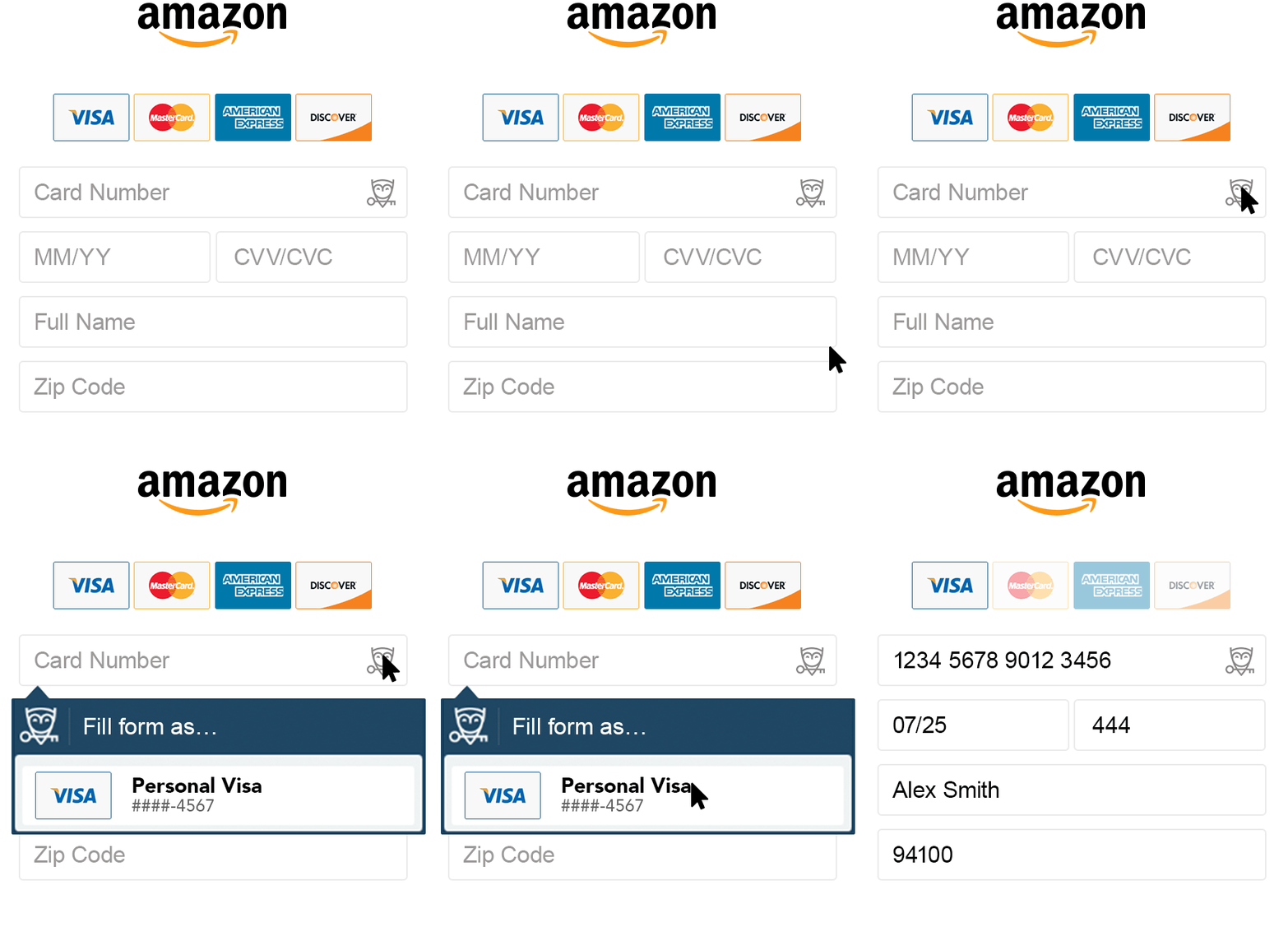
Auto-fill is an amazing time saver. It can fill in an entire form on a website with a single click. Auto-fill will fill in the information you store in the Personal Info and Digital Wallet sections of CyberFOX Password Manager.
- Go to the Personal Info section of CyberFOX Password Manager and add your name, address, phone number, credit card, etc.
- Now, go to a website where you usually have to type in the details, like a checkout form.
- Click the owl in one of the fields to fill in the fields automatically.
Share something with someone
Anything you save in CyberFOX Password Manager can be shared with anyone else. For example, you can share a website password with your coworkers or a credit card with your spouse.
Anything you share is encrypted and only you and the recipient can access the items.
Step-by-step Guides
Adding notes, IDs and digital records
Auto-fill on steroids - using Identities
Getting organized with folders
Sharing items with other people
Enabling 2-Factor Authentication
Have Questions?
-
Wondering how to do something?
-
Got stuck during setup and need to know what to do?
-
Want some ideas on how to organize your items?
-
Found a website that's not working with CyberFOX Password Manager?
- Just want to chat ;-)
No problem - We're here to help!
Use the Contact Us button at the top of the page and tell us what you need.