Use CyberFOX Password Manager as an authenticator for sites with 2-factor authentication.
Learn how to use Password Boss as a secure two-factor authentication method for your online accounts.

Written by Owen Parry
Updated at September 12th, 2026
Table of Contents
CyberFOX Password Manager can function as a built‑in authenticator for websites and apps that support time‑based one‑time passwords (TOTP). This allows you to store your login credentials and your 2FA codes in one secure location, making sign‑ins faster and more convenient.
What You Can Use CyberFOX Password Manager For
Supported 2FA Method
CyberFOX Password Manager supports TOTP-based 2FA, generating rotating 6‑digit verification codes that refresh every 30 seconds.
When to Use It
Use CyberFOX Password Manager as an authenticator when:
- You want your password and 2FA code stored together
- You need quick access across devices
- Your existing authenticator is unavailable or inconvenient
- You prefer a single, encrypted vault for all login-related data
Setup two-factor authentication for a website
Web App
-
Login to the website where you will be setting up 2-factor authentication.
- When prompted with a QR code or a secret code, copy the secret code.
-
Open your saved password in CyberFOX Password Manager.
-
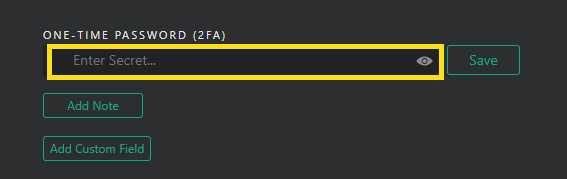
Paste the code from the website in the One-Time Password (2FA) field and click Save next to the field.
- You will now see the one-time password
- Click Save.
Mobile
-
Open CyberFOX Password Manager.
-
Tap the saved password for the website and tap the Edit button.
-
Tap the camera icon in the One-time Password (2FA) field.
-
Scan the QR code from the website. If you cannot scan the QR code, you can copy and paste the secret code provided by the website into CyberFOX Password Manager.
-
Tap Save.
Creating 8-digit one-time passwords
Most websites use 6-digit one-time passwords, but some require 8-digit one-time passwords. With CyberFOX Password Manager, you can easily create an 8-digit code.
To create 8-digit codes, all you need to do is append &digits=8 to the end of the secret code provided by the website. You can edit the secret code saved in CyberFOX Password Manager by choosing the Edit option.
Using Your 2FA Code During Login
Accessing Codes
When you open an item with 2FA enabled:
- The current 6‑digit code appears next to the 2FA section.
- A countdown indicator shows time remaining before it refreshes.
- You can copy the code with a single tap or click.
Auto‑Fill Behavior
If the site supports password + TOTP autofill workflows, CyberFOX Password Manager may fill the credentials automatically and present the 2FA code for quick copying.
Editing or Removing a 2FA Code
Editing
You can update a 2FA secret by:
- Opening the item
- Selecting Edit
- Removing or replacing the existing TOTP
- Saving the item
Removing
If you no longer want to use CyberFOX Password Manager as the authenticator:
- Open the item
- Select Edit
- Remove the 2FA configuration
- Save
Troubleshooting 2FA Setup
Code Not Accepted
- Ensure your device clock is synced; TOTP codes depend on accurate time.
- Make sure you scanned the correct QR code (some sites display multiple).
Can't Find the Secret Key
Some websites hide the manual key option behind an “enter code manually” link.
If unavailable, you must use the QR code.
Previously Used Another Authenticator
If you already used Google Authenticator, Authy, or another app:
- You must reset 2FA on the website to generate a new QR code or secret key.
- Most services do not allow transferring an existing key unless you still have the original secret.
Backup and Sync Considerations
Sync Across Devices
2FA codes generated in CyberFOX Password Manager sync securely to your other devices once added.
Backups
Because 2FA codes are stored inside your encrypted vault, a CyberFOX Password Manager backup will preserve your TOTP configuration.
Security Notes
Encryption
2FA secrets are encrypted using the same strong encryption as the rest of your vault. Only your Master Password can unlock them.
Sharing Items
If you share a login item, 2FA codes are shared.
Related Articles
-
Saving Items in CyberFOX Password Manager
-
Saving New Website Passwords
-
Items You Can Save in CyberFOX Password Manager
-
Organizing Items with Folders
-
Organizing Your Items with Tags
-
Tips for Using Tags to Organize Your Saved Items
-
Creating Custom Views
-
Password & Note History
-
Understanding Profiles
-
Importing from a CyberFOX Password Manager Export
-
Using CyberFOX Password Manager as an Authenticator (2FA)