Understanding profiles
Gain insight into how profiles in Password Boss

Written by Owen Parry
Updated at August 28th, 2026
Table of Contents
Overview
Profiles in Password Boss store your personal identity information so you can quickly and consistently autofill forms across websites and applications.
A profile contains information such as your name, email address, phone numbers, company information, and addresses. When Password Boss detects an online form, it can use this information to automatically populate the appropriate fields.
In Password Boss, profiles and identities are closely related. The information you create and manage as an Identity becomes a Profile that can be selected during autofill. If you create multiple identities, each identity becomes a separate profile that Password Boss can present when filling forms.
What Are Profiles?
Profiles are structured collections of personal information used for identity autofill.
Instead of manually entering your contact information every time you complete a registration form, checkout page, or account signup process, Password Boss can automatically fill those fields using information stored in a profile.
A profile can contain:
- Name information
- Email addresses
- Phone numbers
- Physical addresses
- Company information
- Custom identity details
Each profile represents a unique identity and can contain completely different information from another profile.
How Profiles Relate to Identities
Profiles and identities are effectively the same feature within Password Boss.
- An Identity is the information you create and manage.
- A Profile is how that identity appears when Password Boss offers autofill options.
- Creating a new identity creates a new profile for autofill.
- Editing an identity updates the corresponding autofill profile.
For example:
| Profile | Typical Use |
|---|---|
| Personal | Home address, personal email, personal phone |
| Work | Business address, company email, office phone |
| Travel | Temporary address and travel contact information |
| Alternate Contact | Secondary phone numbers or alternate addresses |
When Password Boss detects a form, it can present one or more profiles so you can choose which information should be used.
Why Profiles Are Useful
Profiles help you:
- Autofill forms consistently and accurately
- Prevent typing errors during registration or checkout
- Maintain separate personal and business information
- Reduce repetitive data entry
- Quickly switch between identities when needed
- Keep identity information synchronized across devices
Types of Information Stored in a Profile
Standard Fields
Profiles typically include core personal details:
- First, middle, and last name
- Primary and secondary email addresses
- Mobile, work, and home phone numbers
- Home and business addresses
- City, state, province, and postal code
- Company and job information
Additional Data
Depending on your workflow, profiles can store:
- Alternate mailing addresses
- International phone numbers
- Travel addresses
- Legal or preferred names
- Business-specific contact information
How Profiles Work with Autofill
Automatic Field Matching
When Password Boss detects a form, it analyzes the available fields and attempts to match them with information stored in your profiles.
Examples include:
- Name fields → Name information
- Email fields → Email addresses
- Address fields → Address information
- Phone fields → Phone numbers
Password Boss uses intelligent field recognition to match the appropriate data to supported form fields.
Switching Profiles During Autofill
If multiple profiles are available, Password Boss allows you to choose which profile should be used.
Examples:
- Using a Personal profile when shopping online
- Using a Work profile when registering for a conference
- Using a Travel profile when booking accommodations
Creating and Editing Profiles
Creating a New Profile
A profile is created by adding a new Identity in Password Boss.
- Open Password Boss.
- Navigate to Identities.
- Select Add New.
- Enter the information you want Password Boss to use for autofill.
- Save the identity.
Once saved, the identity becomes a profile that can be selected whenever Password Boss offers autofill options.
Editing an Existing Profile
- Open the profile or identity you want to modify.
- Select Edit.
- Update the desired information.
- Save your changes.
Changes are automatically synchronized across your Password Boss devices.
Frequently Asked Question: How Many Profiles Can I Create?
You can create multiple profiles (Identities) in Password Boss. Many users maintain separate profiles for work, personal, travel, or alternate addresses.
When Password Boss detects multiple profiles that match a form, it allows you to choose which profile to use for autofill.
Using Profiles for Autofill
When to Use Profiles
Profiles are especially useful for:
- Website registrations
- Online account creation
- Billing forms
- Shipping forms
- Contact forms
- Event registrations
- Travel reservations
Best Practice Example
Many users create separate profiles for:
- Personal information
- Business information
- Temporary travel information
- Alternative shipping addresses
This helps ensure the correct information is used for each situation.
Managing Multiple Profiles
Why Use Multiple Profiles
Separate profiles allow you to:
- Keep business and personal identities isolated
- Maintain different billing and shipping addresses
- Support household members with shared devices
- Use region‑specific information (e.g., U.S. vs. EU addresses)
Examples of Useful Profiles
- Work Profile — office info, corporate phone, business email
- Personal Profile — home address, personal email
- Travel Profile — temporary addresses, hotel/residence details
- Household Profiles — spouse, partner, child, household manager identities
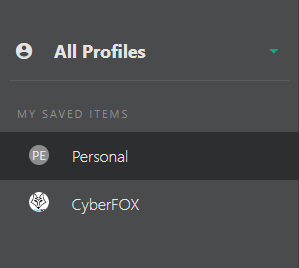
WebApp
-
Click the profile picker to expand the list of profiles.
- Click an individual profile to filter your items.
iOS
- From the bottom menu, tap More
-
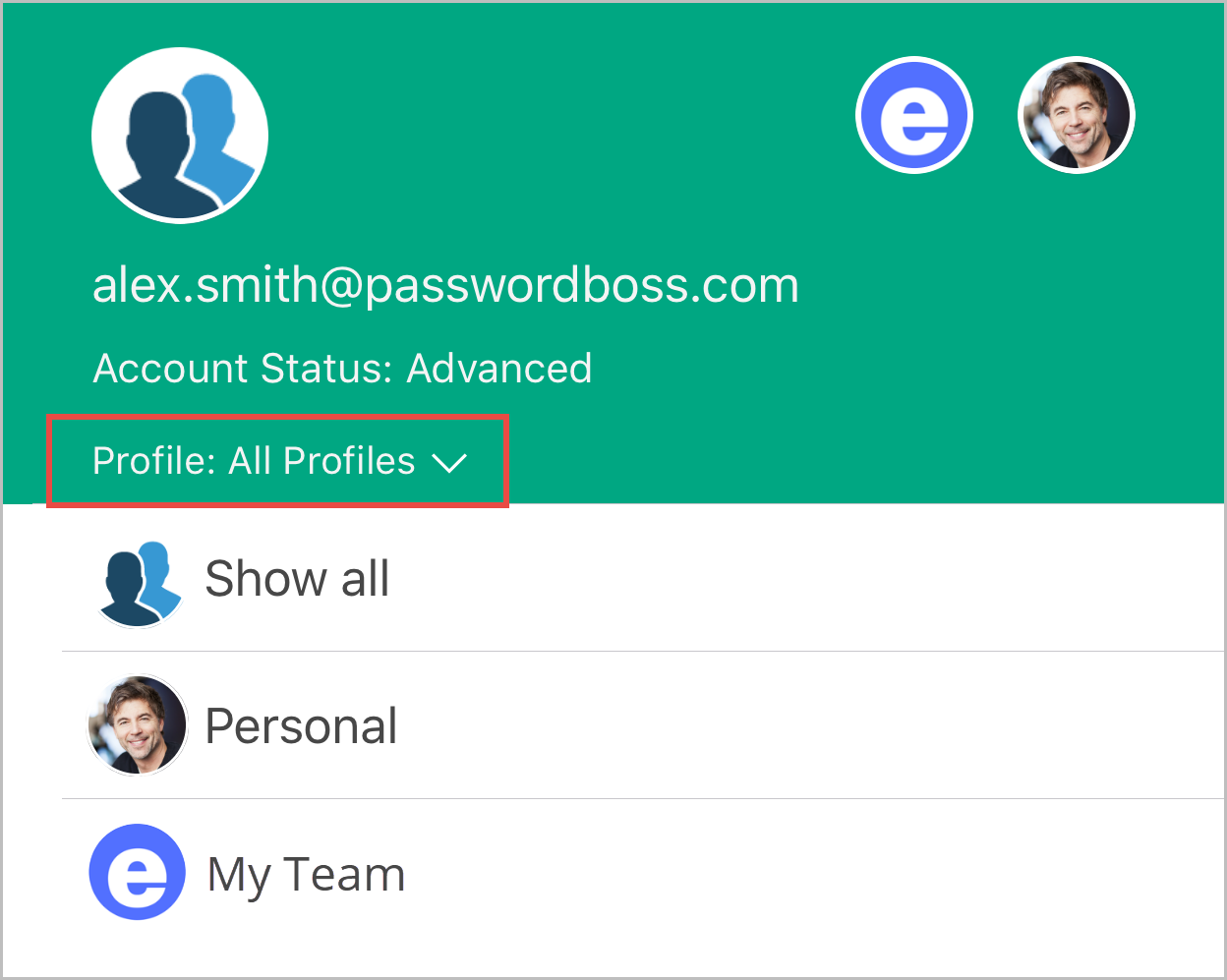
Tap the profile picker to expand the list of profiles.
- Tap an individual profile to filter your items or All Profiles to see all items. Tip: you can also tap the icons without opening the profile picker.
Android
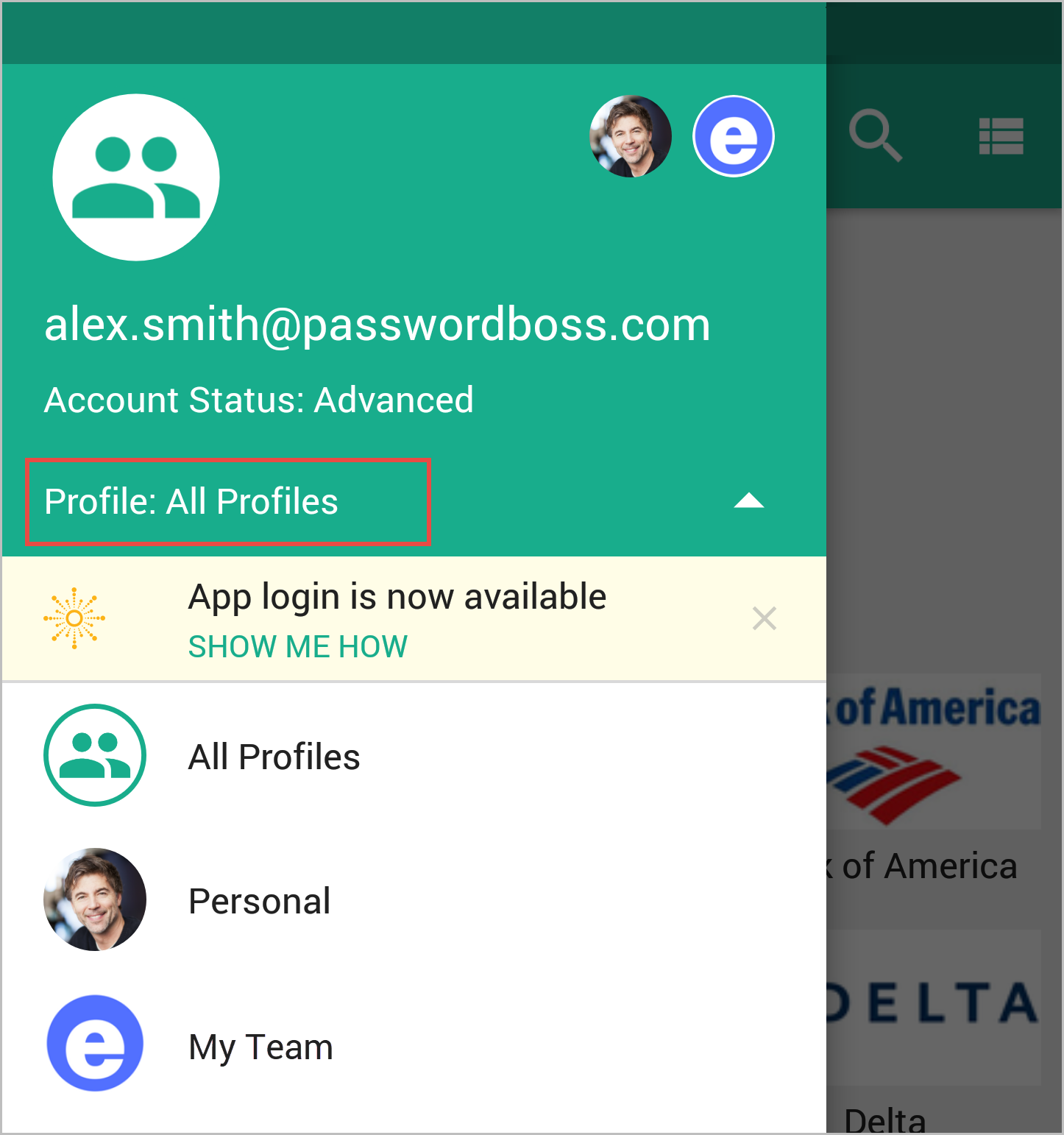
- From the top left tap the menu icon

-
Tap the profile picker to expand the list of profiles.
- Tap an individual profile to filter your items or All Profiles to see all items. Tip: you can also tap the icons without opening the profile picker.
Syncing Profiles Across Devices
Multi-Device Access
Profiles automatically sync across:
- Password Boss WebApp
- Desktop applications
- iOS applications
- Android applications
Changes made on one device are synchronized to your other devices after the next sync.
Encryption and Security
All profile information is encrypted and protected by your Password Boss account security.
Profile data remains encrypted while stored and synchronized.
Moving items between profiles
Items can be moved between profiles in multiple ways.
WebApp
- Click on the 3 vertical dots for that item.
- Click on Edit and change the profile in the top right.


iOS and Android
-
Tap an item to open it.
- Tap the Edit button.
-
Change the profile and save the item.
Best Practices for Managing Profiles
Keep Information Updated
Regularly review profiles for:
- Address changes
- New phone numbers
- Updated email addresses
- Company information changes
Use Clear Profile Names
Good examples:
- Personal
- Work
- Travel
- Home Office
- Temporary Residence
Test Autofill Periodically
After creating or modifying profiles:
- Test common forms
- Verify address formatting
- Confirm phone numbers populate correctly
- Validate regional address information
Troubleshooting Profile Autofill
Fields Not Filling
- Ensure the information exists in the profile
- Verify the field type matches the stored data
- Try selecting another profile if multiple exist
Wrong Profile Suggested
- Rename profiles more clearly
- Remove outdated profiles
- Prioritize commonly used profiles
Incorrect Address Formatting
- Adjust region settings for the address
- Ensure postal code formats (U.S., UK, EU) match expected input
Profiles and Security Policies
The account administrator has several options for using the security policies to configure the level of security on profiles that is appropriate for your business and team. Here are links to the articles to review:
Remove business profile items when users are removed
Force business items into the business profile
Restrict business items from emergency access
Related Articles
-
Saving Items in Password Boss
-
Saving New Website Passwords
-
Items You Can Save in Password Boss
-
Organizing Items with Folders
-
Organizing Your Items with Tags
-
Tips for Using Tags to Organize Your Saved Items
-
Creating Custom Views
-
Password & Note History
-
Understanding Profiles
-
Importing from a Password Boss Export
-
Using Password Boss as an Authenticator (2FA)