Creating strong passwords with CyberFOX Password Manager
Learn how to create secure passwords with the help of Password Boss.

Written by Owen Parry
Updated at September 12th, 2026
Table of Contents
One of the main benefits of using CyberFOX Password Manager is the ability to create strong, unique passwords for your accounts. Creating different passwords for every account improves your overall security and lowers your potential risk in case one of your sites has a security breach.
If one site has a security breach and your password is stolen from that site, the damage can be limited to just that site if you use different passwords for every site.
Creating a password for an account not in CyberFOX Password Manager
CyberFOX Password Manager is designed to show you the password generator when needed automatically. The app does this by looking at the web page you are on and looking for fields for new or updated passwords. You can also access the password generator from the owl icon near the address bar in the browser. Click the owl icon and then click the Password Generator button.
Creating a new account and Password in the CyberFOX Password Manager WebApp
- In your browser, go to the account creation page for the website where you want to save a password.
-
Click the owl in the username/email or password fields to create a new account in CyberFOX Password Manager.
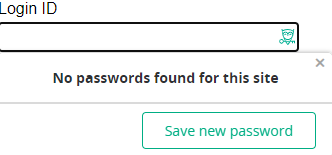
- Click Save new password
- The Save new password window will open up.

- The domain name of the site you are on will be put in the Item Name field - you can change this name to anything you like.
- Enter the account username/email address. CyberFOX Password Manager will show you any saved email addresses to choose from, or you can type a different username.
- You can choose which folder to place the new password item or leave it blank.
- Click the Create Password button to have CyberFOX Password Manager create a strong 24-character password.
- When you are done, click Save, and the new password will be added to your CyberFOX Password Manager account, automatically entering into the web page for you.
Other CyberFOX Password Manager Platforms
Other versions of CyberFOX Password Manager use different but similar methods to help you create new credentials with a strong password. Pick the platform to see how:
iOS
- Open CyberFOX Password Manager
- From the bottom menu, tap More
-
Go to the account creation web page for the website you want to save a password for.
-
Tap either the username/email field or the password field. This starts the process of creating a new account in CyberFOX Password Manager.
- On the Add to CyberFOX Password Manager screen tap Yes.
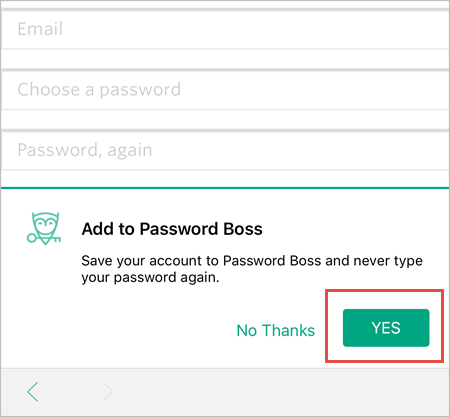
- The add new password screen appears. Enter a Name and a Username.
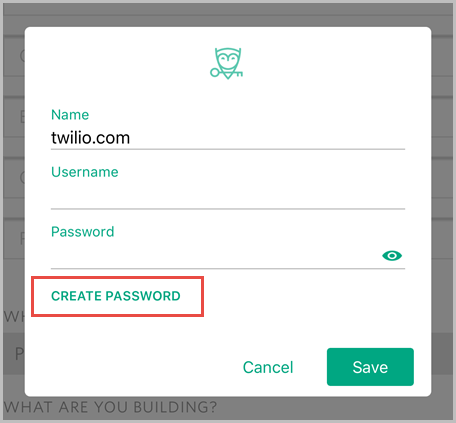
- Tap Create Password.
- Use the slider to change the length of the password if needed.
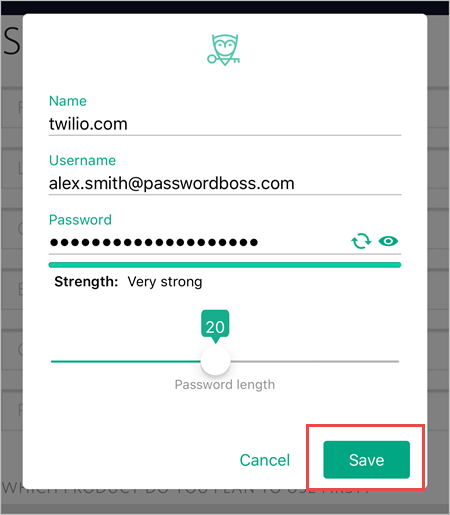
- Tap Save
- The new password will be saved in CyberFOX Password Manager and entered into the web page for you.
Android
- From the top left, tap the menu icon

-
Go to the account creation web page for the website you want to save a password for.
-
Tap either the username/email field or the password field. This starts the process of creating a new account in CyberFOX Password Manager.
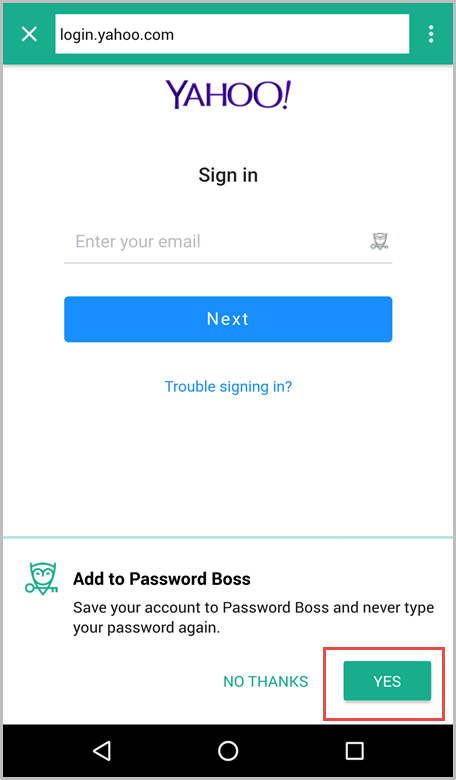
- On the Add to CyberFOX Password Manager screen, tap Yes.
- The add new password screen appears. Enter a Name and a Username.
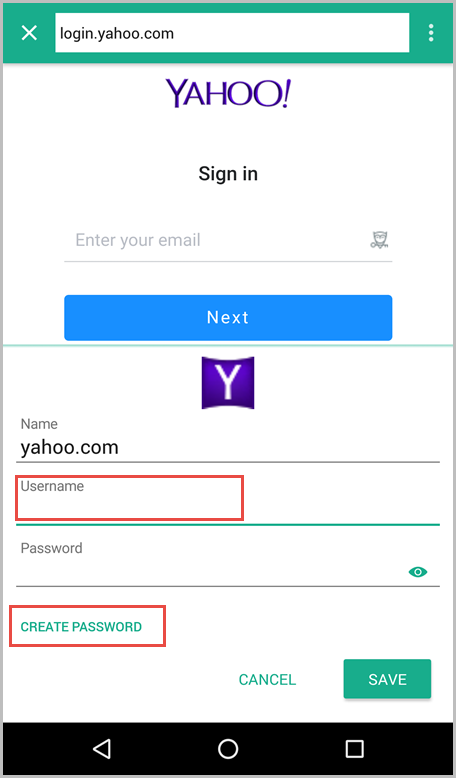
- Tap Create Password.
- Use the slider to change the length of the password if needed.
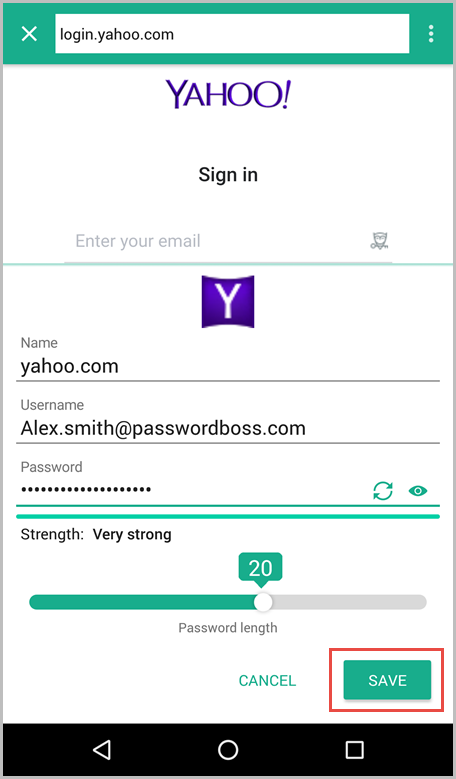
- Tap Save
- The new password will be saved in CyberFOX Password Manager and entered into the web page for you.
Creating a new password for an account already in CyberFOX Password Manager
WebApp
-
Go to the change password page for the website where you want to update the password. You will typically need to login to the website to change your password.
- Many websites require you to enter your current password before changing your password. Click the owl in the current password field and have CyberFOX Password Manager fill in the current password for you.
-
Click the owl in the New Password field. This starts the process of creating a new password.
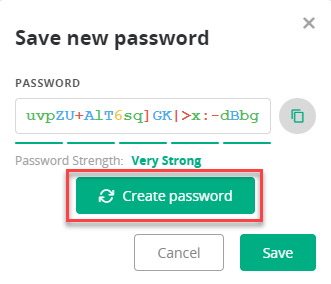
- Generally, all you need to do is to click the Create Password button to create a new 24-character password. You can type in a new password if you do not want to use the password generator. The Password Strength indicator will tell you the strength of your new password.
-
If you have multiple accounts saved for the same site, you will see an option to select which account the password should be saved for. Generally, this is already selected to your account, but be sure to check it before you save the new password.
- Click Save when you are done. The new password will be saved in your CyberFOX Password Manager account and automatically entered into the web page for you.
iOS
- From the bottom menu, tap More
- Tap Settings.
- Tap Security.
- Tap Password Generator.
- Set the options for the new password and tap Copy when done.
- You can now paste the new password on a saved item in CyberFOX Password Manager or into an app or website.
Android
- From the top left tap the menu icon
- Tap Settings.
- Tap Security.
- Tap Password Generator.
- Set the options for the new password and tap Copy when done.
- You can now paste the new password on a saved item in CyberFOX Password Manager or into an app or website.