System Overview – System Agent
Discover the key functions and roles of the System Agent!

Written by Owen Parry
Updated at September 30th, 2026
Table of Contents
The AutoElevate software is referred to as the "AutoElevate System Agent" and gets installed on each computer. It monitors, reports, and responds to all UAC privilege events and LOTL attacks. The AutoElevate Agent operates in either Audit, Policy or Live Elevation mode. In addition, there are Blocker Modes that operate in either Disabled, Audit or Live mode. Upon installation, Agents are placed in Audit for Elevation mode and Disabled for Blocker mode by default. This variable can be changed within the deployment script. If you set a persistent Elevation Mode or Blocker Mode, new computers move to that mode after they check in. See Persistent Elevation and Blocker Modes.
How to Change Elevation Modes
In the Admin Portal (https://msp.autoelevate.com) from the Computers tab, select the check box next to the computer(s) you would like to change, and then from the Actions menu, select Set Elevation Mode to Live, Audit, or Policy under Elevation Mode. You are ready to test once the Agent checks in and picks up the setting (check-in happens every 10 minutes). Please click the "Refresh Data" button in the top right-hand corner to refresh your view, and then look at the 'Agent Mode' column to see if the Agents have picked up the new Agent mode setting. See the below image from the actions menu:
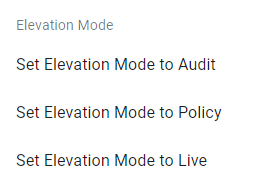
Note: Choosing a mode from the Actions menu creates an override for the selected computers, and AutoElevate keeps them in that mode, even if a different mode is set at the company or location level. To return a computer to its Level Setting, select Remove Mode Override under Elevation Mode. To set a mode for many computers at once, see Persistent Elevation and Blocker Modes.
Elevation Modes Defined
-
Audit - All UAC events are logged, but the Agent does not respond to or apply defined rules and, therefore, no change to the user experience.
-
Policy - Policy mode will apply and process any defined rules. Still, for any event with no corresponding rule, it will NOT invoke the Real-Time evaluation process but instead allow the UAC to appear to the user. Policy mode will allow you to make and apply rules for critical applications with an immediate use case benefit. Still, it will not prompt the user or technician to evaluate anything unknown.
-
Live - All UAC events are intercepted, and rules that have been defined are applied (to either elevate with privilege or block). For any event with no corresponding rule, the end user will be given the choice to proceed with a privilege request. The privilege request causes any company-access technician to be notified and open a ticket (if you have an integrated PSA ticketing system). The technician is presented with information on who is making the request, what they are requesting, the basic security disposition of the machine, and whether the application or action they want is safe, along with the ability to respond to the user's request in real-time.
How to Change Blocker Modes
In the Admin Portal (https://msp.autoelevate.com) from the Computers tab, select the check box next to the computer(s) you would like to change, and then from the Actions menu, select Set Blocker Mode to Live, Audit, or Disabled under Blocker Mode. You are ready to test once the Agent checks in and picks up the setting (check-in happens every 10 minutes). Please click the "Refresh Data" button in the top right-hand corner to refresh your view, and then look at the 'Blocker Mode' column to see if the Agents have picked up the new Agent mode setting. See the below image from the actions menu:
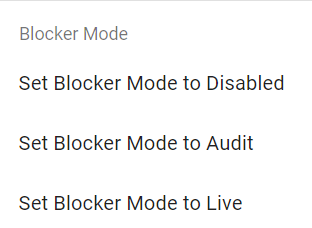
Note: These modes are found in the actions menu of the Computers screen. More on Blocker here.
Choosing a Blocker Mode from the Actions menu also creates an override for the selected computers. To return a computer to its Level Setting, select Remove Mode Override under Blocker Mode.
Blocker Modes Defined
-
Disabled - The Agent's filter driver is not installed or is uninstalled if previously installed. As a result no Windows process is monitored in this state and no existing Blocker Rule is applied. Since Blocker is disabled there is no change in the user experience.
-
Audit - The Agent's filter driver is installed. Windows process for binaries that are used in LOTL attacks are monitored and their usage is analyzed to generate Blocker Recommendations. The AE Agent does not apply any defined Blocker Rules and, therefore, there is no change in the user experience.
-
Live - The Agent's filter driver is installed. Windows process for binaries that are used in LOTL attacks are monitored and their usage is analyzed to generate Blocker Recommendations. The AE Agent blocks or allows Windows processes based on any defined Blocker Rules.
Persistent Elevation and Blocker Modes
Instead of changing modes one computer at a time, you can set a persistent Elevation Mode and Blocker Mode from the Settings screen for all your companies, a single company, or a single location. New computers pick up the mode automatically, and computers that drift away from it are moved back, so modes stay set after reboots and agent updates.
To set a persistent mode:
- In the Admin Portal, open the Settings screen.
- Select the "+" icon at the top of the grid to add a new setting.
- Choose the level: Global, Whole Company, or Whole Location. For a company or location, select it from the list.
- Choose Persistent Elevation Mode (Audit, Policy, or Live) or Persistent Blocker Mode (Audit, Disabled, or Live), select the mode, and SAVE.
How persistent modes work:
- These settings are not in your Settings grid until you add them. Until then, the mode shows as Not Managed and computers keep whatever mode was set manually.
- The most specific level wins: a Whole Location setting takes precedence over the Whole Company setting, which takes precedence over Global.
- A computer override from the Actions menu takes precedence over the Level Setting. Remove Mode Override (under Elevation Mode or Blocker Mode) returns the computer to its Level Setting.
- The Persistent Elevation Mode and Persistent Blocker Mode columns in the Computers grid show each computer's mode and where it comes from, for example "Audit (Global)", "Live (Company)", "Policy (Location)", "Live (Override)", or "Not Managed". If you don't see the columns, add them from the grid's column chooser.
- AutoElevate checks persistent settings during the agent's status check-in, which runs about every 2 hours, and then sends any change at the next regular check-in. A new computer can take up to two status check-ins to move to its mode. Changes you make from the Actions menu are not affected and still apply at the regular check-in.
- Technician Mode sessions are never interrupted. AutoElevate applies the setting at the next status check-in after the session ends.
- A computer that is offline is updated the next time it comes online and checks in.
- Persistent modes apply to Windows computers only. Mac and Linux computers show n/a in these columns. Persistent Blocker Mode only applies to computers whose agent supports Blocker.
Note: A persistent UAC Level setting is also available. See Settings Overview for all three persistent settings.
Technician Mode
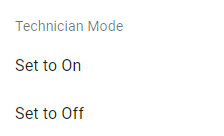
This is a special mode that enables onsite Technicians to interact with the computer's UAC prompts. Please see the: Technician Mode documentation on our support site for a more in depth explanation. This is what the setting looks like below from the Computers Action's Menu:
The AutoElevate Agent Components
The components that make up the System Agent are the AutoElevate Agent service, which is set to start automatically at Windows startup and then spawns the AEAlert and AEUACAgent applications once a user is logged in. When the AutoElevate Agent service is stopped, the computer resumes standard, UAC functionality, and UAC events are no longer tracked.
Please take a look at the System Agent Installation document for more detailed instructions on Agent deployment options.
The AutoElevate Blocker Component
The component that makes up the Blocker is the AEAutoBlocker application which runs once Blocker is enabled in either Audit or Live mode. The filter driver is also not installed until Blocker is enabled. See more here: Managing Blocker.
How to Update the Agent
Agents update automatically. At each check-in, the Agent picks up the newest build published to the update channel it follows, so there is no need to push updates to your fleet. Manual agent updates are no longer available; to receive new builds sooner, move the computer or company to the Beta channel as described below.
Agent Update Channel
Two update channels are available: Stable and Beta. New tenants follow Stable by default.
From the Settings screen, locate Agent Update Channel and select Edit (Pencil icon), or create a new Level Setting (Whole Company, Location, or Computer) using the "+" icon from the top of the grid. Choose Stable or Beta and SAVE.
To set a channel for specific computers, from the Computers tab select the check box next to the computer(s) you would like to change, and then from the Actions menu, select Agent Update Channel > Set to Stable, Set to Beta, or Remove Override. An override takes precedence over the Level Setting. Remove Override returns the computer to its Level Setting (Stable if none is set). The Agent Update Channel column in the Computers grid shows each computer's current channel and where it comes from, for example "Stable (Default)", "Stable (Company)", or "Beta (Override)".
Note: Agents move to the newest build on their channel at the next check-in and are never downgraded to an older build. Changing the channel requires the Setting Edit permission. Update channels apply to both Windows and Mac Agents.