Creating and Using Custom Views
Learn how to create custom views in the Password Boss desktop client to customize your filters

Written by Owen Parry
Updated at August 13th, 2026
Table of Contents
Custom Views allow you to filter your saved items based on tags, helping you create personalized lists that match your workflows. Use Custom Views to quickly access grouped items without manually searching or filtering each time.
What Custom Views Are
Overview
A Custom View is a saved filter that displays items matching specific tags.
- Custom Views update automatically as items are tagged.
- You can create multiple views for different projects, clients, or categories.
- Views are available on WebApp, Desktop, and Mac.
When to Use Custom Views
Use Custom Views when you want to:
- Organize items by project or client
- Quickly revisit items tied to tasks or workflows
- Build filtered dashboards based on tag combinations
- Simplify access to frequently used item sets
Creating a custom view
Desktop
- Click Settings->Custom Views.
- Click Add.
- Add a name for the view. From the list of available tags in the left column, select the tags to include in the custom view and click Add >
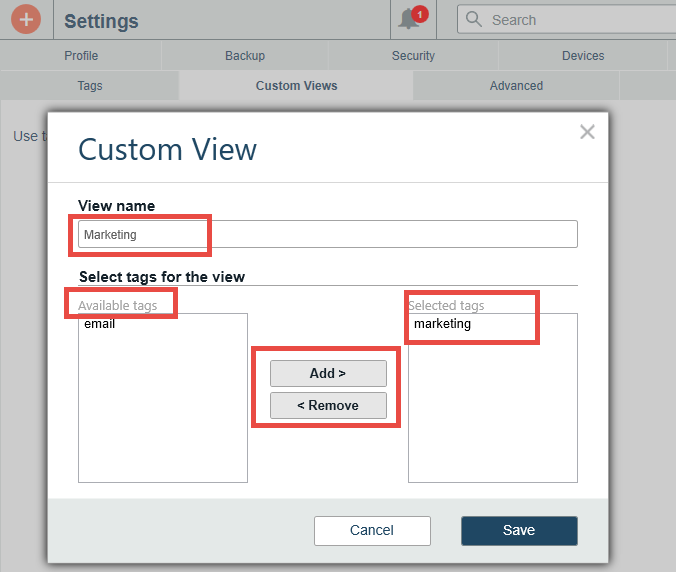
- Click Save
WebApp
- Click Tools & Settings -> Custom Views.
- Click Add.
- Add a name for the view. From the list of available tags in the left column, select the tags to include in the custom view and click > Add
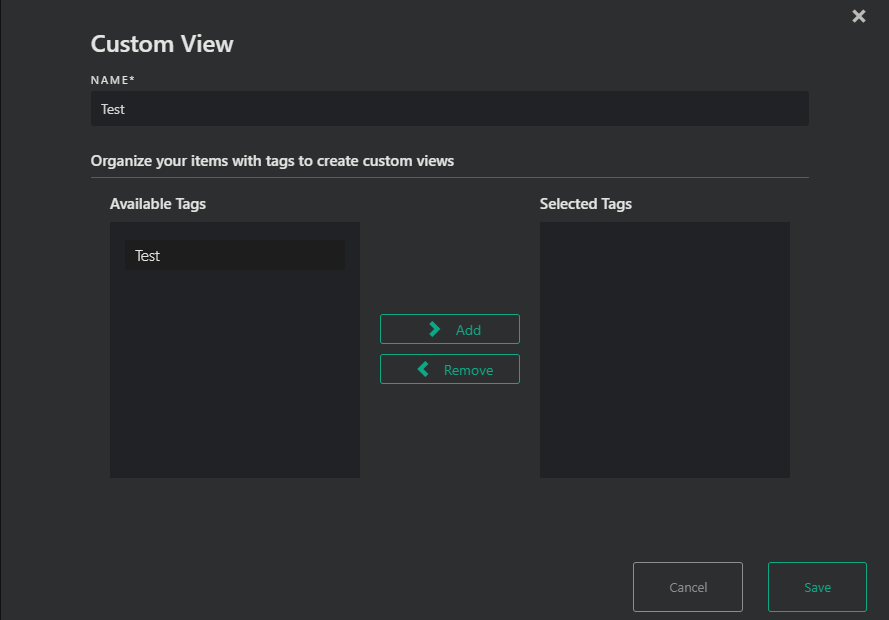
- Click Save
Editing or Removing a Custom View
Editing a View
- Go to Settings → Custom Views.
- Select the view you want to modify.
- Update the name or tag selection.
- Save the changes.
Deleting a View
- Open Settings → Custom Views.
- Select the view.
- Choose Delete to remove it permanently.
Using custom views
Accessing Your Views
Custom Views appear in your navigation alongside other item categories.
Selecting a Custom View instantly filters your items based on the tags you included.
Auto‑Updating Behavior
If you tag new items with tags included in a Custom View:
- They will automatically appear in that view
- No manual updates are required
If tags are removed from items:
- Those items will disappear from the view the next time the list refreshes
WebApp
- Click the View By menu.
- Custom views appear at the bottom of the list of view options.
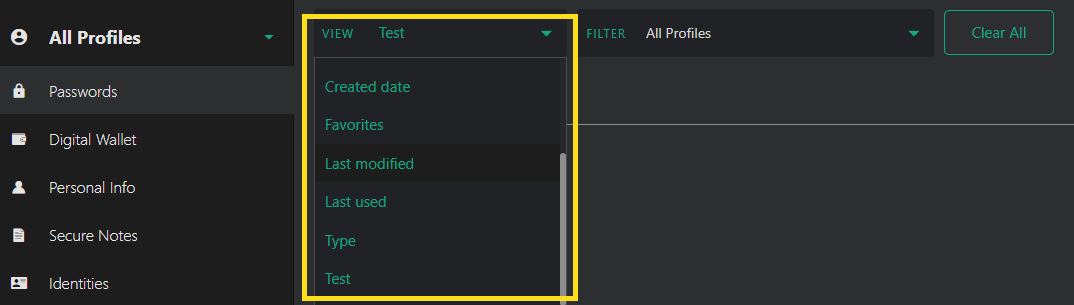
-
Select a custom view.
- The custom view will show you just the items that include the tags that are included in the custom view.
Desktop
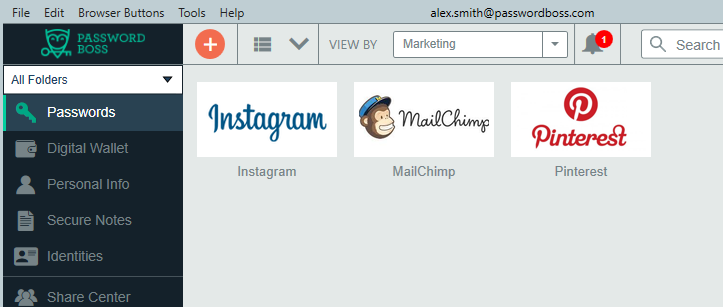
- Click the View By menu.
- Custom views appear at the bottom of the list of view options.
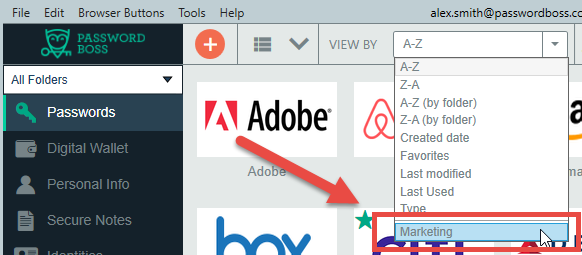
-
Select a custom view.
- The custom view will show you just the items that include the tags that are included in the custom view.
Best Practices for Custom Views
Use Consistent Tagging
Custom Views depend on tags — consistent naming ensures your views work correctly.
Create Task‑Specific Views
Examples include:
- #ClientA + Finance
- #ProjectX
- Audit Prep
- Travel Accounts
Keep Views Focused
Use a small number of tags per view to keep lists relevant and easy to scan.
Troubleshooting Custom Views
Missing Items
If an item does not appear in a Custom View:
- Confirm it has all required tags used by the view
- Check for tag spelling inconsistencies
- Review recently removed tags
Empty Views
If a view shows no results:
- Make sure the tags are still in use
- Check that the tags weren’t deleted or renamed
- Review tag choices under Settings → Tags
Related Articles
-
Saving Items in Password Boss
-
Saving New Website Passwords
-
Items You Can Save in Password Boss
-
Organizing Items with Folders
-
Organizing Your Items with Tags
-
Tips for Using Tags to Organize Your Saved Items
-
Creating Custom Views
-
Password & Note History
-
Understanding Profiles
-
Importing from a Password Boss Export
-
Using Password Boss as an Authenticator (2FA)