Best practices for sharing passwords in Password Boss (Legacy)
Gain insight into strategies for successful collaboration and learn how to successfully share passwords across a team.

Written by Owen Parry
Updated at April 17th, 2026
Table of Contents
Use sharing - it is an excellent way for your team to collaborate
Sharing is one of the most powerful features in Password Boss, and it gives you a secure way to collaborate with your team.
Sharing items in Password Boss
How Sharing Works
Share Permissions
Editor
- View all item details, including passwords.
- Edit fields.
- Add items to the share.
- Remove the Owner.
- Convert the share to a vault.
Read‑Only / Password Visible
- View everything, including passwords.
- Use autofill.
- Edit or delete.
- Add items.
Read‑Only / Password Hidden (Invisible)
- Use autofill to log in without seeing the password.
- Access non‑sensitive metadata (if allowed).
- View or copy the password.
- Access hidden fields.
- Extract credentials via extension or API.
Updated Behavior
- Copy Password is fully suppressed in the WebApp and Browser Extension.
- Autofill remains available.
-
Invisible access does not migrate when converting to a vault
How to share items
Shared items normally appear in the recipient's account a few minutes after creating the Share. Recipients will receive an in‑app prompt to accept the share.
WebApp
-
Open CyberFOX Password Manager.
- From the left menu, choose Share Center.
- Click on the Add Share button
 to create a new Share.
- The Create a new Share window will open.
-
Select the profile you want to share items from.
- Check the box next to each item or folder you want to share.

7. Click Next.
8. Enter a Name for the Share, add recipients, pick a permission (Invisible, Read, Editor), and click Add, use the How Long Should the Items be Shared feature (optional), and Save Share.


The recipient can then open the Share Center, and on the Shared with Me tab they can Accept or Decline the Share.
iOS
-
Open CyberFOX Password Manager.
- From the bottom menu, tap More

- Tap Share Center.
- Tap the green and white circle

- Tap Individual Items or Entire Folder.
-
Tap the items you want to share.
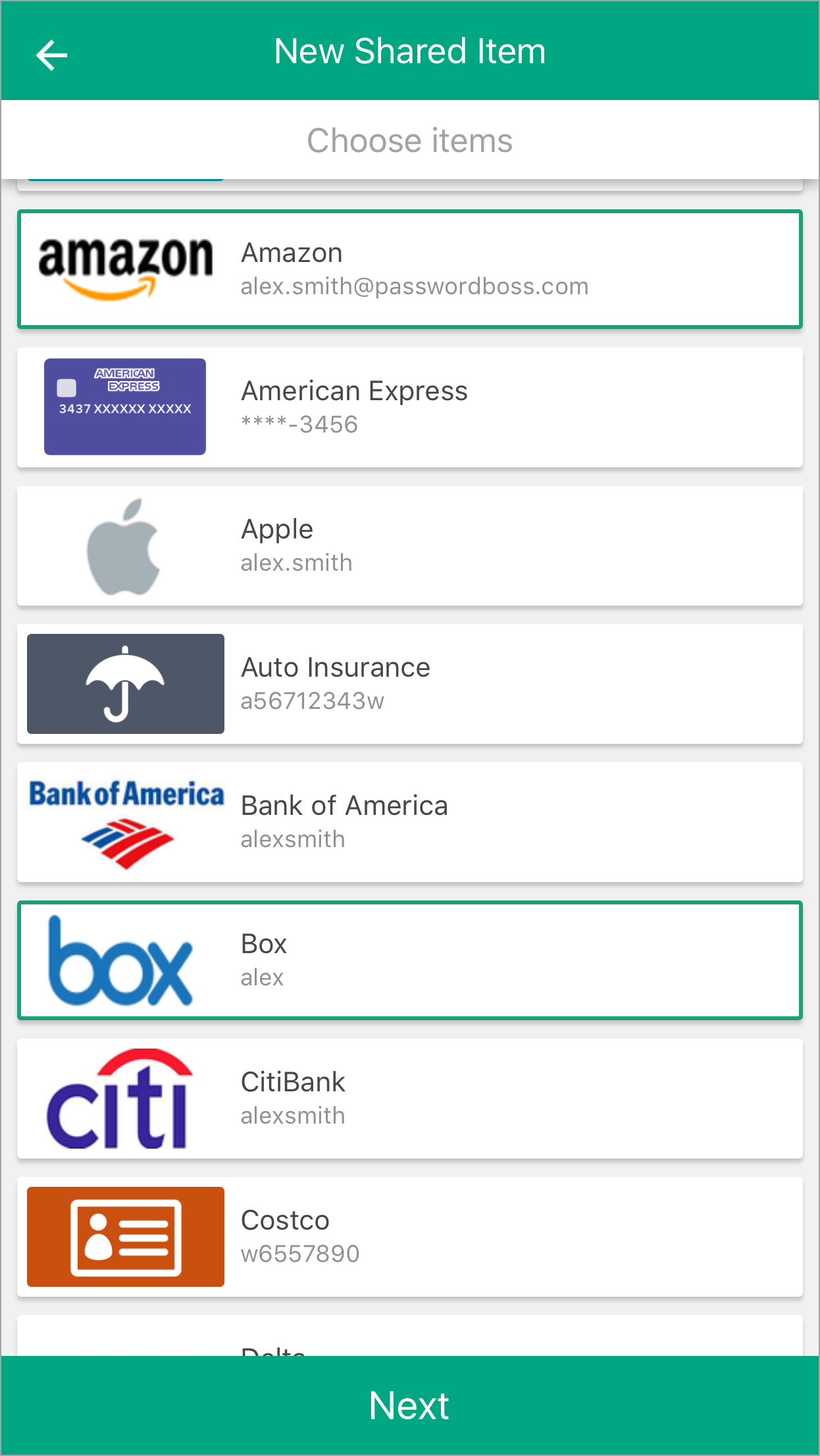
- Tap Next.
- Enter a Name for the Share, add recipients, pick a duration, and tap Share item.
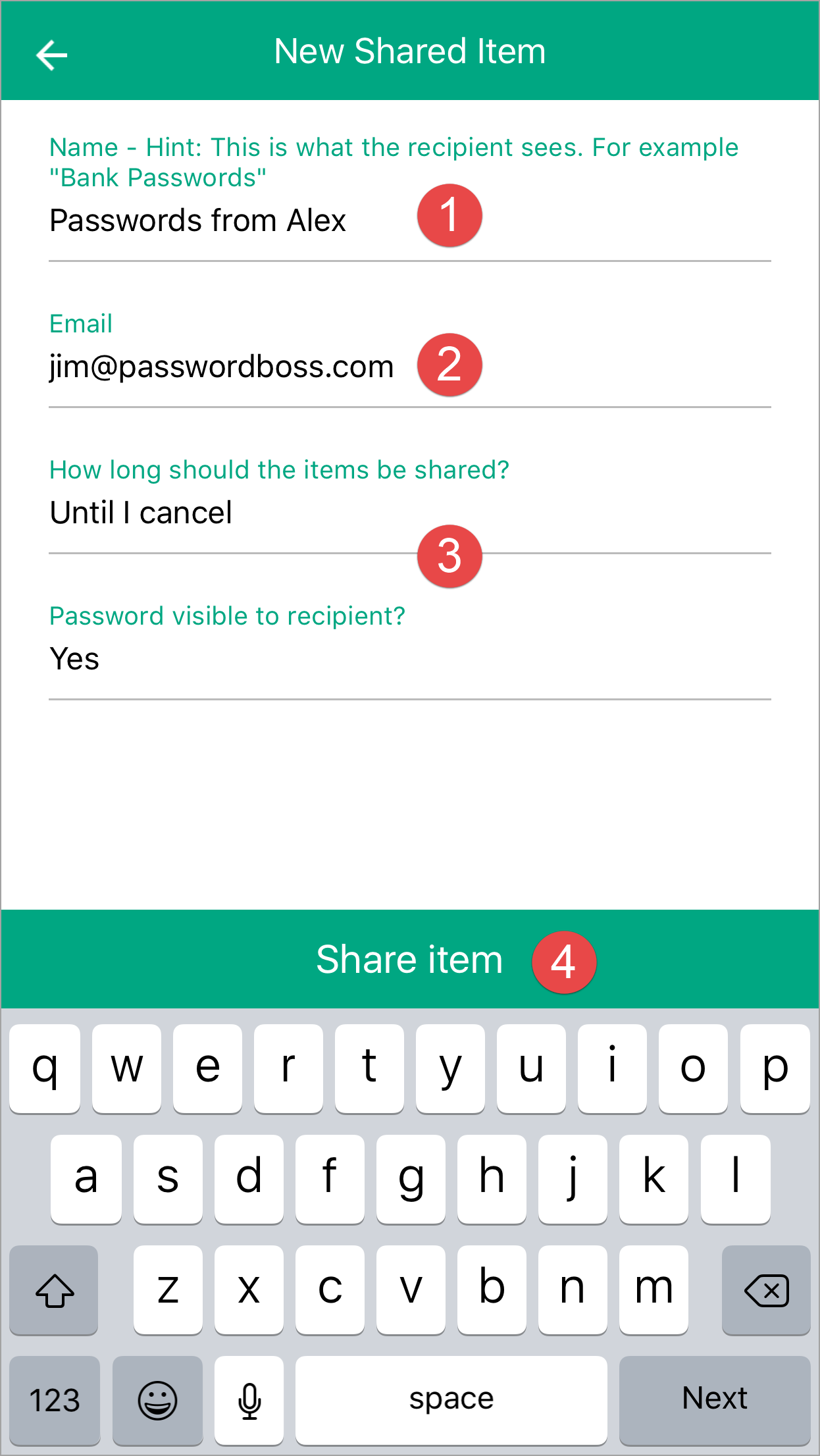
- The recipient can then open the Share Center and on the Shared with Me tab, they can Accept or Decline the Share.
Android
-
Open CyberFOX Password Manager.
- From the top left tap the menu icon

- Tap Share Center.
- Tap on the orange circle

- Tap Individual Items or Entire Folder.
-
Tap the items you want to share.
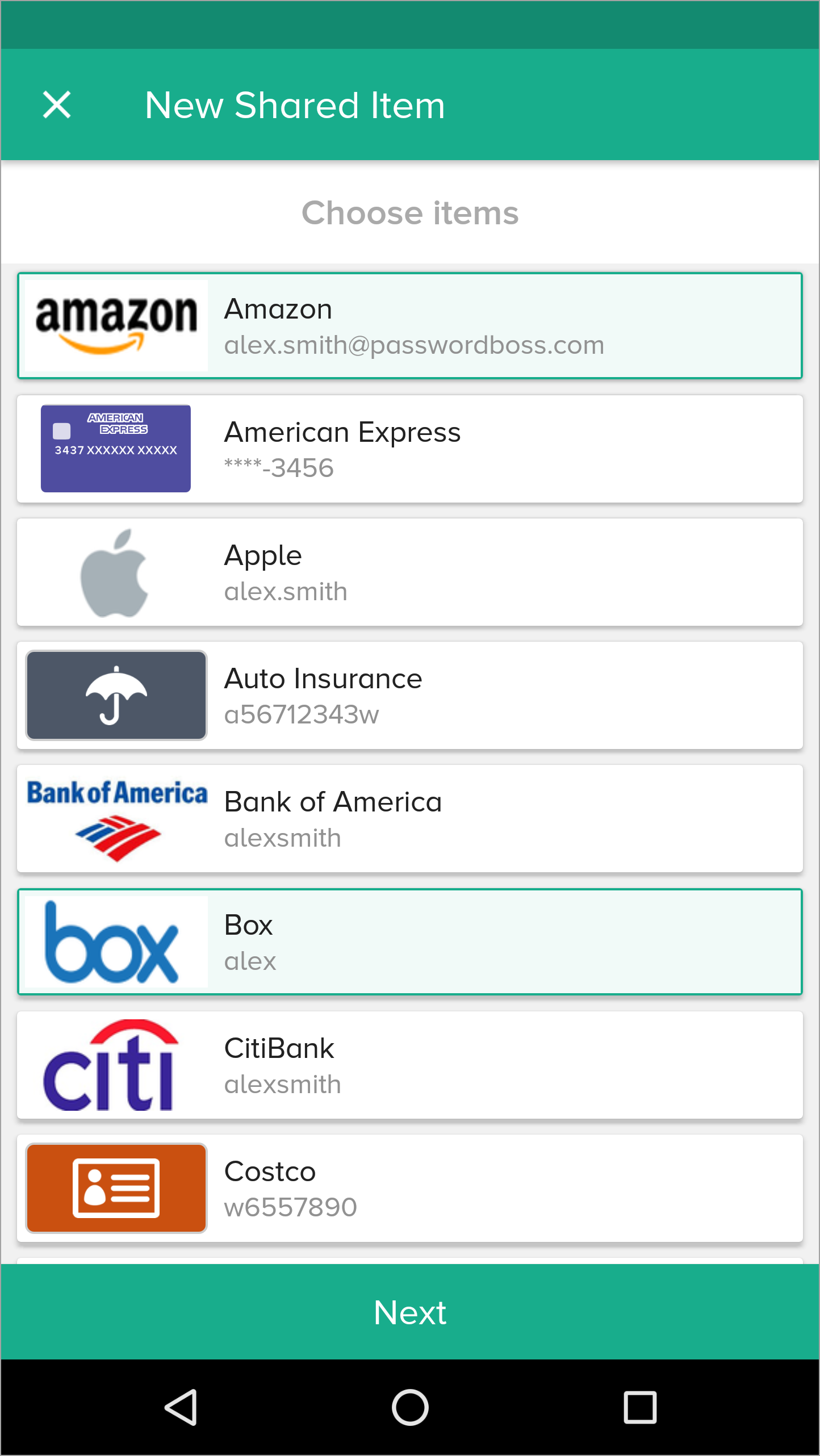
- Tap Next.
- Enter a Name for the Share, add recipients, pick a duration, and tap Share item.
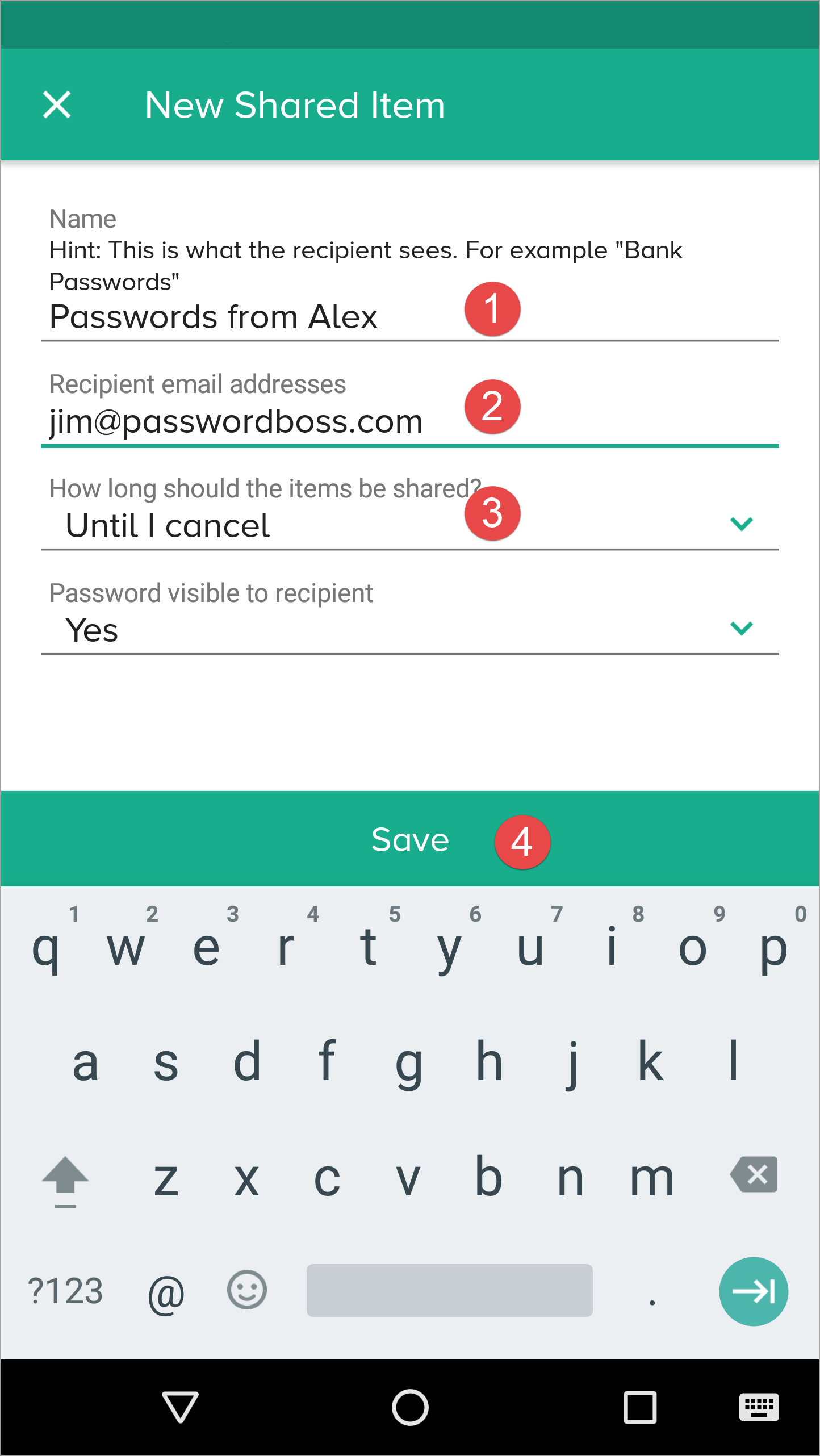
- The recipient can then open the Share Center and on the Shared with Me tab,they can Accept or Decline the Share.
Managing Existing Shares
Actions Include:
- Changing roles (Invisible → Reader → Editor).
- Removing a recipient.
- Reviewing activity logs.
Converting a Share to a Vault
When to Convert
- Multiple people need ongoing access.
- You want role‑based management.
- You want the ability to assign multiple Owners.
Important Rules
- Items are moved to the vault.
- Clone items in other shares stop being shared elsewhere.
- Invisible recipients are not added to the vault.
- Former recipients must be assigned Vault roles manually.
Behavior in the Browser Extension
- Editor: Full view, editing shortcuts.
- Read‑Only Visible: View and autofill.
- Invisible: Autofill only; no copy, no reveal.
Behavior on Mobile Apps
- Password visibility follows permission level.
- Invisible users attempting to reveal a password see a Not permitted message.
- TOTP is shown only if visibility is part of the assigned role.
Security Considerations
- Sharing uses Zero‑Knowledge encryption.
- Only the Owner and approved recipients can decrypt items.
- Invisible mode exists to allow login use without exposing secrets.
- Activity Logs track role changes, recipient additions/removals, and vault migration.
Summary
- Sharing supports granular permissions.
- Invisible users have the strictest restrictions and cannot migrate to vaults.
- Role changes take effect instantly everywhere.
- Converting shares to vaults centralizes control and enhances team management.
Use groups to share items
An administrator for your team can create groups of users on the portal—for example, Marketing, Finance, HR, etc. When users are added or removed from your team, have the admin update the group membership on the portal.
When you create shares, choose groups instead of individuals as recipients. When groups are used, you will not need to edit the share when your team membership changes. As long as the user's team members are added to the groups on the portal, they will automatically receive the shared data when they login to their Password Boss account.
Use groups to manage users
Why you should use groups
Groups are designed to make it easy to manage recipients of shared items. The benefits of using groups include:
- Shares sent to groups are automatically updated as the membership changes. If shares are sent to individuals, each must be manually edited as the recipient list changes.
- It is quicker to manually choose groups as recipients then add each recipient individually.
- If you need to review a share and who has permission to share, you do not need to scroll through long lists of recipients.
The Everyone group
All teams have an Everyone group that is automatically created for your team. The Everyone group contains all team members from your account. The membership of the Everyone group is maintained automatically by Password Boss.
The Everyone group includes everyone in your account. Only share to the Everyone group as a recipient when all team members need access to the shared items. If only some team members need access to the shared items, create a new group with limited membership.
Use meaningful names for groups
- Use names for your groups that describe the group so that other team members can identify the group. Group names that identify the group, project, or department make it easy for other team members to know what the group is for. Examples: Marketing, Finance, Project Alpha.
- Consider adding the permissions to the name of the group.
- Depending on your team structure, it may be useful to create groups that will be used to assign read-only permission and other groups with editor permissions. Examples: Marketing-Read Only, Marketing-Editor, Sales-Read Only, Sales-Editor, Admin-Read Only, Admin-Editor.
Avoid duplicating groups
Keep your list of groups concise and avoid making groups that duplicate the membership in an existing group.
How to create groups
- Login to the Password Boss portal as an admin for your team.
-
Click Users & Groups from the left menu.
- Scroll down to the Groups section.
- Click +Create New Group.
-
Enter a group name and click save.
How to add or remove users from a group
- Login to the Password Boss portal as an admin for your team.
-
Click Users & Groups from the left menu.
- Scroll down to the Groups section.
-
Find the group you want to change.
- From the blue Actions button
 Choose Edit.
-
Add or remove users from the group. You can also edit the name of the group from this screen.
-
Click Save when you are done.
How to delete groups
- Login to the Password Boss portal as an admin for your team.
-
Click Users & Groups from the left menu.
- Scroll down to the Groups section.
-
Find the group you want to change.
- From the blue Actions button Choose Delete.
- On the confirmation screen, click Delete group.
Understand Roles and Permissions
When you create a share, you can use permissions to control the visibility of password items in the share.
Roles and permissions for recipients of shared items
Roles Available When Sharing Items or Managing Vaults
Owner
- View and edit all item fields, including passwords.
- Add or remove items from the share or vault.
- Change any recipient’s role (Editor, Read‑Only, Invisible).
- Revoke access for any recipient.
- Move items into or out of a Vault.
- Convert a Share to a Vault (when applicable).
- Manage Vault membership and Vault roles (Owner, Editor, Reader).
- Bypass Zero‑Knowledge rules (they cannot view hidden content if they do not possess the required encryption keys).
- Be removed by other recipients—only another Vault Owner (in multi‑owner vaults) or the system administrator (for Business accounts) can replace/remove an Owner.
Differences Between Owner of a Share vs. Owner of a Vault
- Share Owner: The person who originally shared the item(s). They control roles and access but do not have Vault‑level management options.
- Vault Owner: Controls the entire Vault, its contents, and membership. Vault Owners can add/remove multiple items at once, invite members, and set roles for each member.
- Converted Shares → Vaults: After conversion, Vault Owner(s) inherit full control; former share recipients do not automatically become Vault Owners.
Editor
- View all item fields, including passwords.
- Edit any field on the item.
- Add new items to the share.
- See updates from all recipients immediately.
- Remove the original share owner.
- Change vault ownership or convert sharing models.
Read‑Only / Password Visible
- View all fields, including the password.
- Use autofill and browser extension suggestions.
- Edit any part of the item.
- Add items to the share.
- Delete the item.
Read‑Only / Password Hidden (Invisible)
- Use the item to log into websites using CyberFOX Password Manager autofill.
- See non‑sensitive metadata fields if permitted.
- View the password field.
- Copy the password from anywhere in the UI.
- Reveal or export any hidden field.
- View or interact with password content via API‑driven tools.
Updated Behavior (Browser Extension + WebApp)
- Copy Password is now entirely suppressed for Invisible shares.
- The Browser Extension does not surface a Copy option when an item is Invisible.
- Users can still autofill the credentials, but cannot extract the password.
Behavior Across Platforms
WebApp
- Permissions are enforced consistently across item details pages, vaults, and the new multi‑folder navigation.
- All hidden fields remain masked for Invisible shares.
- Vault Owners see additional management controls.
Browser Extension
- Displays only fields allowed by the permission level.
-
For Invisible shares:
- Autofill is allowed.
- No Copy Password option appears
- Quick actions appear only when allowed.
Mobile Apps (iOS & Android)
- Password visibility rules match the WebApp.
- Attempting to copy a password from an Invisible item triggers a “Not permitted” notice.
- TOTP is available only if the share includes TOTP visibility.
How Permissions Affect Item Management
Sharing Changes
- Owners and Editors can add items; Read‑Only roles cannot.
- Role changes update permissions immediately for all platforms.
Interaction With Shared Vaults
- Vault permissions override share‑level permissions.
- Vault Owners control membership, roles, and item movement.
- Invisible behavior continues inside Vaults if the Vault role is restrictive.
Security Considerations
Why Invisible Mode Removes Copy Password
- Allow operational use (autofill) without exposing credential secrets.
- Prevent copying, exporting, or revealing passwords.
- Enforce Zero‑Knowledge principles consistently across WebApp, extension, and mobile.
Auditing Changes
-
The Activity Log records:
- Role updates
- Ownership changes
- Vault migrations
- Permission restrictions
Summary
- Owner: Full control over items and vaults, including roles, membership, and conversion of shares to vaults.
- Editor: Full visibility and editing, but no ownership or role-management privileges.
- Read‑Only / Password Visible: View‑only, including password.
- Read‑Only / Password Hidden (Invisible): No password visibility; autofill only; Copy Password suppressed.
- Vaults can override share permissions depending on Vault roles