Compartiendo las mejores prácticas
Obtenga información sobre estrategias para una colaboración exitosa y aprenda cómo compartir contraseñas con éxito en un equipo.

Written by Owen Parry
Updated at June 9th, 2025
Utilice el uso compartido: es una forma excelente para que su equipo colabore.
Compartir es una de las funciones más poderosas de Password Boss y le brinda una forma segura de colaborar con su equipo.
Sharing items in Password Boss
How Sharing Works
Share Permissions
Editor
- View all item details, including passwords.
- Edit fields.
- Add items to the share.
- Remove the Owner.
- Convert the share to a vault.
Read‑Only / Password Visible
- View everything, including passwords.
- Use autofill.
- Edit or delete.
- Add items.
Read‑Only / Password Hidden (Invisible)
- Use autofill to log in without seeing the password.
- Access non‑sensitive metadata (if allowed).
- View or copy the password.
- Access hidden fields.
- Extract credentials via extension or API.
Updated Behavior
- Copy Password is fully suppressed in the WebApp and Browser Extension.
- Autofill remains available.
-
Invisible access does not migrate when converting to a vault
How to share items
Shared items normally appear in the recipient's account a few minutes after creating the Share. Recipients will receive an in‑app prompt to accept the share.
WebApp
-
Open CyberFOX Password Manager.
- From the left menu, choose Share Center.
- Click on the Add Share button
 to create a new Share.
- The Create a new Share window will open.
-
Select the profile you want to share items from.
- Check the box next to each item or folder you want to share.

7. Click Next.
8. Enter a Name for the Share, add recipients, pick a permission (Invisible, Read, Editor), and click Add, use the How Long Should the Items be Shared feature (optional), and Save Share.


The recipient can then open the Share Center, and on the Shared with Me tab they can Accept or Decline the Share.
iOS
-
Open CyberFOX Password Manager.
- From the bottom menu, tap More

- Tap Share Center.
- Tap the green and white circle

- Tap Individual Items or Entire Folder.
-
Tap the items you want to share.
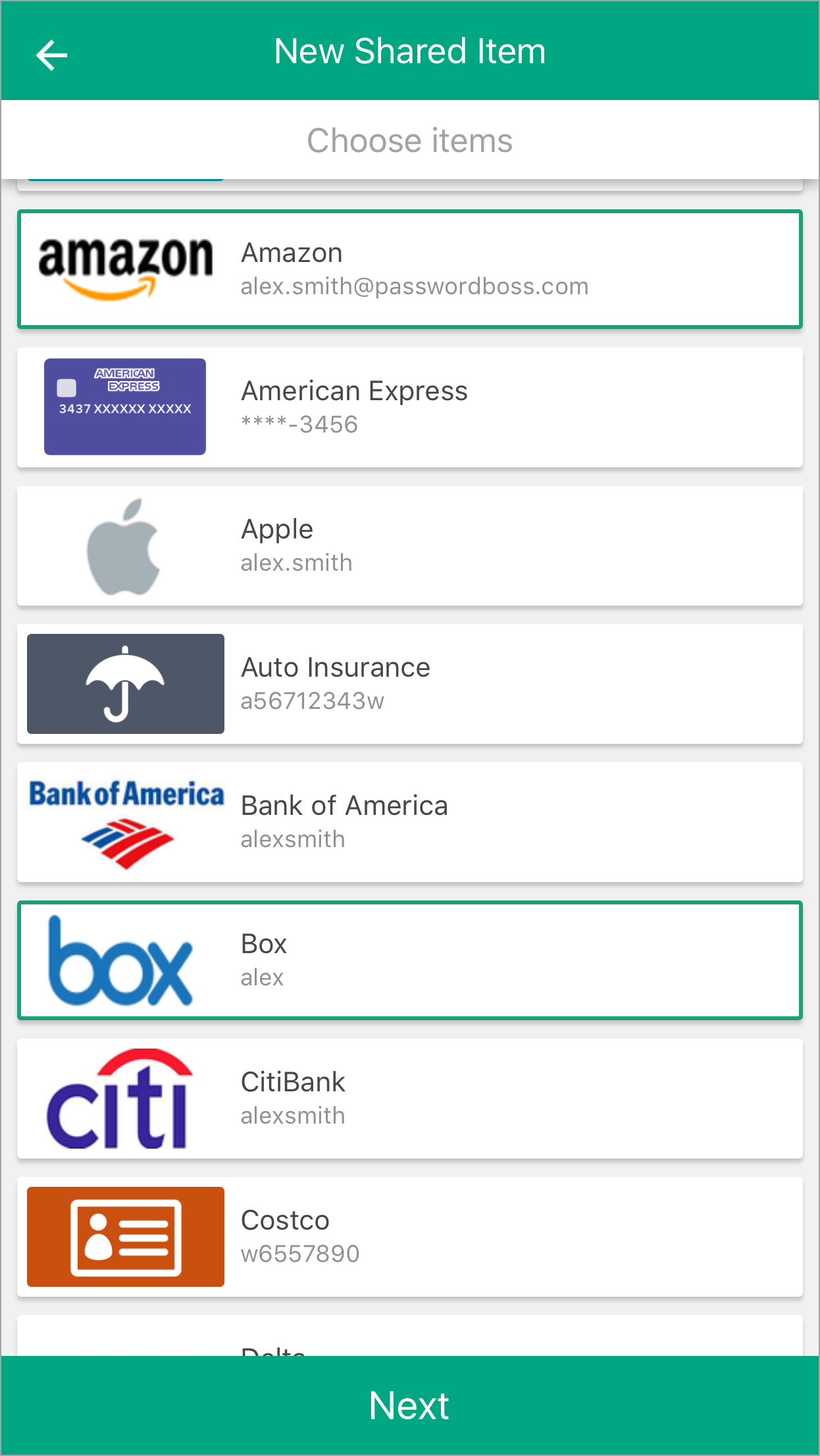
- Tap Next.
- Enter a Name for the Share, add recipients, pick a duration, and tap Share item.
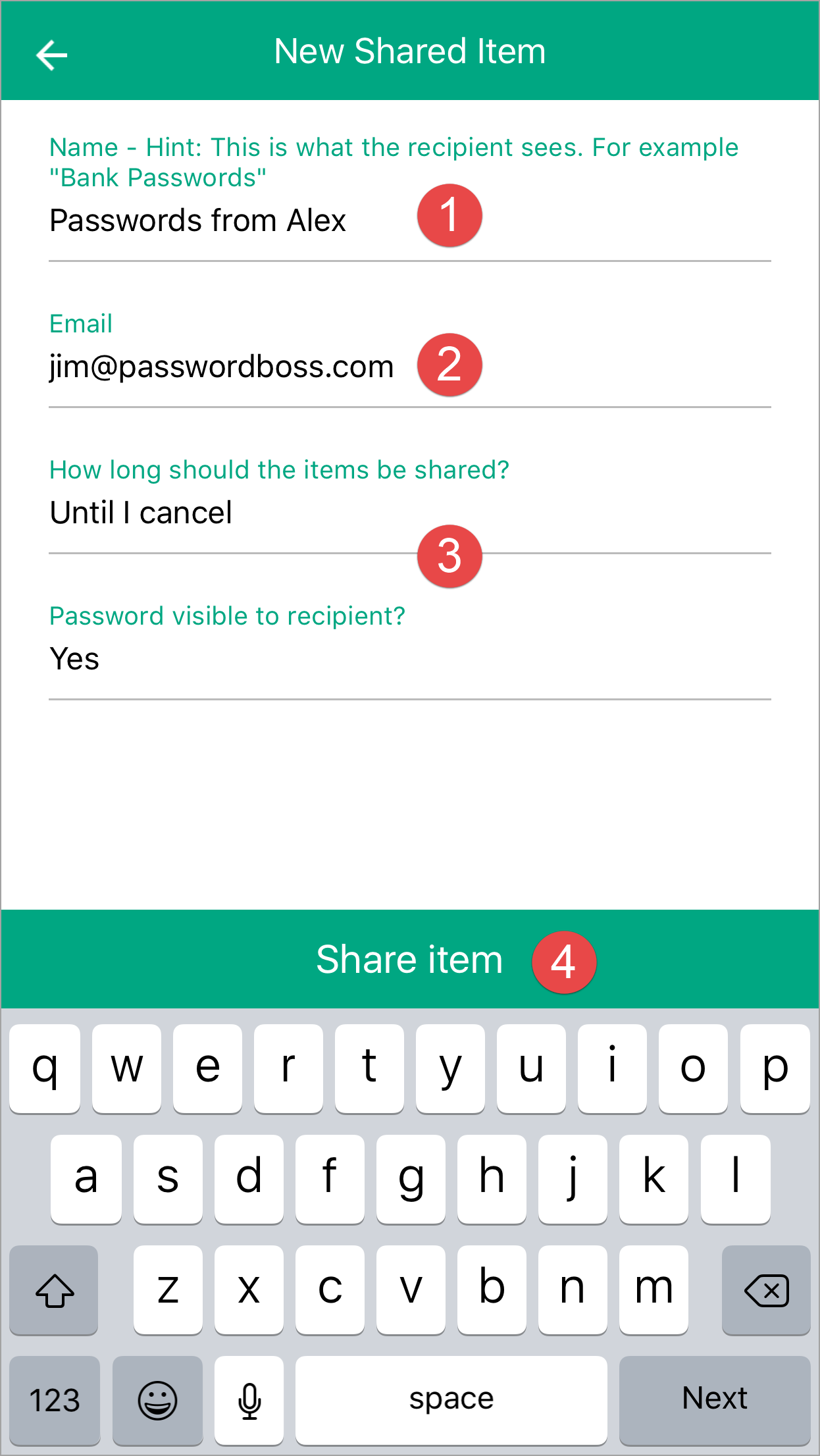
- The recipient can then open the Share Center and on the Shared with Me tab, they can Accept or Decline the Share.
Android
-
Open CyberFOX Password Manager.
- From the top left tap the menu icon

- Tap Share Center.
- Tap on the orange circle

- Tap Individual Items or Entire Folder.
-
Tap the items you want to share.
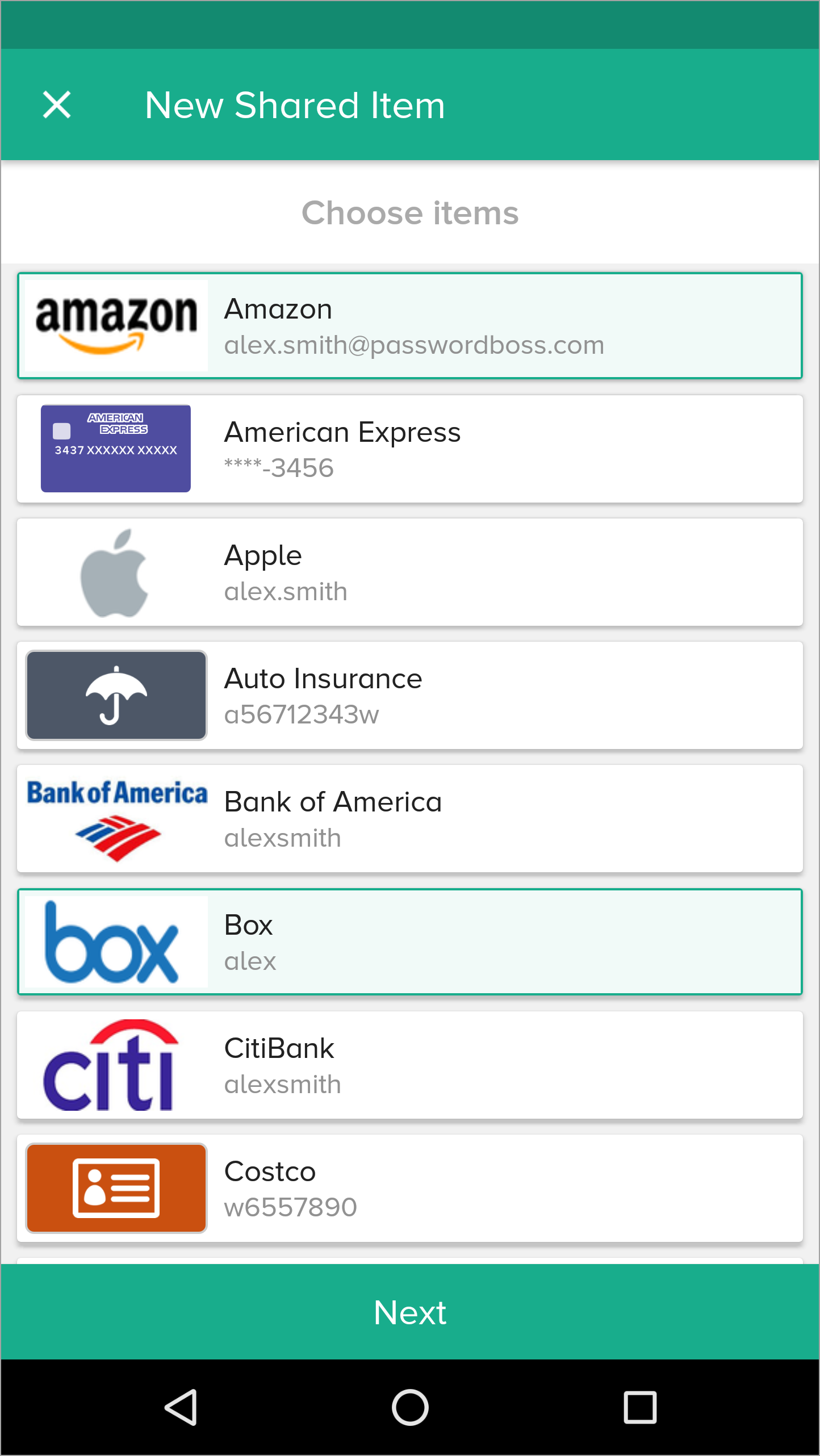
- Tap Next.
- Enter a Name for the Share, add recipients, pick a duration, and tap Share item.
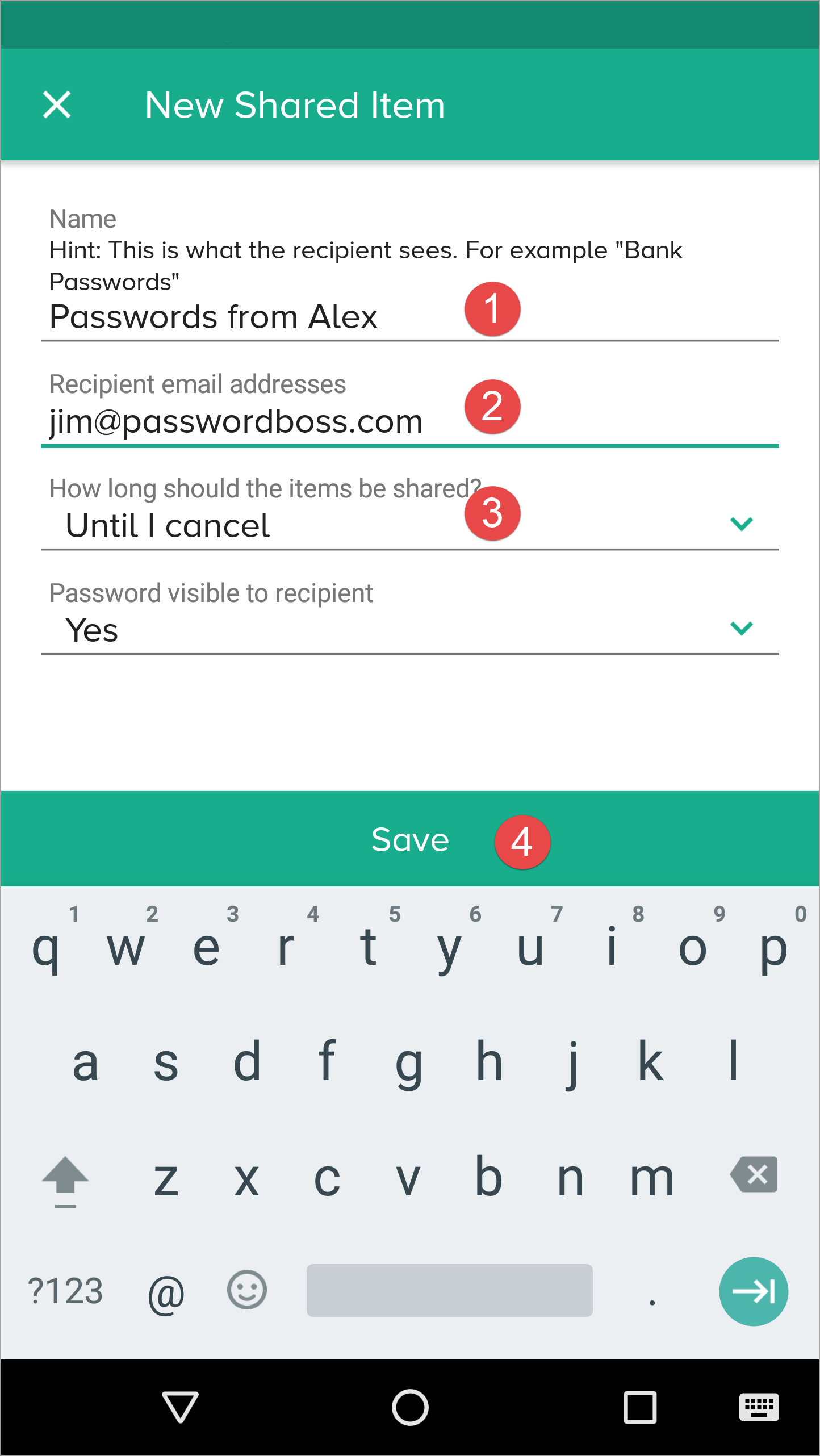
- The recipient can then open the Share Center and on the Shared with Me tab,they can Accept or Decline the Share.
Managing Existing Shares
Actions Include:
- Changing roles (Invisible → Reader → Editor).
- Removing a recipient.
- Reviewing activity logs.
Converting a Share to a Vault
When to Convert
- Multiple people need ongoing access.
- You want role‑based management.
- You want the ability to assign multiple Owners.
Important Rules
- Items are moved to the vault.
- Clone items in other shares stop being shared elsewhere.
- Invisible recipients are not added to the vault.
- Former recipients must be assigned Vault roles manually.
Behavior in the Browser Extension
- Editor: Full view, editing shortcuts.
- Read‑Only Visible: View and autofill.
- Invisible: Autofill only; no copy, no reveal.
Behavior on Mobile Apps
- Password visibility follows permission level.
- Invisible users attempting to reveal a password see a Not permitted message.
- TOTP is shown only if visibility is part of the assigned role.
Security Considerations
- Sharing uses Zero‑Knowledge encryption.
- Only the Owner and approved recipients can decrypt items.
- Invisible mode exists to allow login use without exposing secrets.
- Activity Logs track role changes, recipient additions/removals, and vault migration.
Summary
- Sharing supports granular permissions.
- Invisible users have the strictest restrictions and cannot migrate to vaults.
- Role changes take effect instantly everywhere.
- Converting shares to vaults centralizes control and enhances team management.
Utilice grupos para compartir elementos
Un administrador de su equipo puede crear grupos de usuarios en el portal (por ejemplo, Marketing, Finanzas, RR. HH., etc.). Cuando se agreguen o eliminen usuarios de su equipo, haga que el administrador actualice la membresía del grupo en el portal.
Al crear recursos compartidos, seleccione grupos en lugar de individuos como destinatarios. Al usar grupos, no necesitará editar el recurso compartido cuando cambie la membresía de su equipo. Siempre que los miembros del equipo del usuario se agreguen a los grupos en el portal, recibirán automáticamente los datos compartidos al iniciar sesión en su cuenta Password Boss .
Use groups to manage users
Why you should use groups
Groups are designed to make it easy to manage recipients of shared items. The benefits of using groups include:
- Shares sent to groups are automatically updated as the membership changes. If shares are sent to individuals, each must be manually edited as the recipient list changes.
- It is quicker to manually choose groups as recipients then add each recipient individually.
- If you need to review a share and who has permission to share, you do not need to scroll through long lists of recipients.
The Everyone group
All teams have an Everyone group that is automatically created for your team. The Everyone group contains all team members from your account. The membership of the Everyone group is maintained automatically by Password Boss.
The Everyone group includes everyone in your account. Only share to the Everyone group as a recipient when all team members need access to the shared items. If only some team members need access to the shared items, create a new group with limited membership.
Use meaningful names for groups
- Use names for your groups that describe the group so that other team members can identify the group. Group names that identify the group, project, or department make it easy for other team members to know what the group is for. Examples: Marketing, Finance, Project Alpha.
- Consider adding the permissions to the name of the group.
- Depending on your team structure, it may be useful to create groups that will be used to assign read-only permission and other groups with editor permissions. Examples: Marketing-Read Only, Marketing-Editor, Sales-Read Only, Sales-Editor, Admin-Read Only, Admin-Editor.
Avoid duplicating groups
Keep your list of groups concise and avoid making groups that duplicate the membership in an existing group.
How to create groups
- Login to the Password Boss portal as an admin for your team.
-
Click Users & Groups from the left menu.
- Scroll down to the Groups section.
- Click +Create New Group.
-
Enter a group name and click save.
How to add or remove users from a group
- Login to the Password Boss portal as an admin for your team.
-
Click Users & Groups from the left menu.
- Scroll down to the Groups section.
-
Find the group you want to change.
- From the blue Actions button
 Choose Edit.
-
Add or remove users from the group. You can also edit the name of the group from this screen.
-
Click Save when you are done.
How to delete groups
- Login to the Password Boss portal as an admin for your team.
-
Click Users & Groups from the left menu.
- Scroll down to the Groups section.
-
Find the group you want to change.
- From the blue Actions button Choose Delete.
- On the confirmation screen, click Delete group.
Comprender los roles y permisos
Cuando crea un recurso compartido, puede usar permisos para controlar la visibilidad de los elementos de contraseña en el recurso compartido.
Roles y permisos para los destinatarios de elementos compartidos
Los destinatarios de elementos compartidos, ya sean carpetas o elementos individuales, pueden tener tres permisos posibles. Este artículo explica cada uno de ellos.
Editor
- El permiso más poderoso
- Los usuarios pueden ver todos los campos y cambiar todos los campos.
- Los usuarios pueden agregar nuevos elementos al recurso compartido.
- Todos los cambios realizados por un editor se envían directamente a todos los destinatarios. No es necesario que los cambios pasen por el propietario del recurso compartido.
Sólo lectura / Contraseña visible.
- Los usuarios pueden ver la contraseña y todos los demás campos de un elemento.
- El usuario no puede cambiar ningún campo del elemento ni del recurso compartido.
Sólo lectura / Contraseña no visible.
- Permiso más restrictivo
- Los usuarios no pueden ver la contraseña pero pueden iniciar sesión en un sitio.
- El usuario no puede cambiar ningún campo del artículo.
🚧 Nota importante sobre "Solo lectura / Contraseña no visible"
"Solo lectura - contraseña no visible" no impide que el destinatario acceda a la contraseña. Este permiso impide que el destinatario acceda a la contraseña en la aplicación Password Boss . Una vez ingresada la contraseña en un sitio web, Password Boss ya no puede impedir que el usuario la obtenga directamente desde la página web.