Logging into websites (Legacy)⭐
Learn how to securely log into websites and protect your personal information.

Written by Owen Parry
Updated at April 17th, 2026
Table of Contents
We take your privacy seriously!
Our extension strictly adheres to rigorous privacy standards and does not collect, store, or track user information. Our primary function is to enhance your browsing experience by providing relevant password items based on the current website. This process is conducted locally on your device, ensuring no user data is transmitted to our servers or any third parties without encryption before transmission. The extension operates in a manner that respects user privacy, with no mechanisms to gather personal information or monitor browsing activity.
Also, we would like to emphasize that the extension does not retain a history of the websites accessed by the user. The matching of password items to websites occurs in real-time, with no records of the websites being stored after this operation. All data collection is utilized solely to store and access passwords and is managed through a connection to the local Password Boss installation, where data is encrypted with your master password before transmission.
How to log in to websites
With Password Boss, logging into a website is fast and easy. It automatically logs you in every time you visit a website. To make it easy, make sure you have the Password Boss extension in your browser.
Clicking on the Username or Password field on the website.
Once you open the website's login page, click on the username or password field. The login menu will appear. Click your saved login, and you will be logged in automatically.

Visit the website and click on the owl.
You can access a website by using bookmarks in your browser or typing in the address. Any method is acceptable. Once you get there, click the Password Boss owls in the login fields, and you'll be all set.

Right-click on the page for an alternative way to fill
Some websites do not allow Password Boss to add the icon to the login fields; however, you can use this alternative method to copy or fill in details for a website. (1) Right-click on the webpage and look for the (2) Password Boss menu. Password Boss will display the detected Password Items that you can use to fill in the fields on the page. (3) Click on the item you want to use, then click on (4) Fill or Copy values.
Some websites block the use of autofill on password forms. If the fields do not populate, try copying the values instead.

Desktop
Using the Password Boss desktop app, multiple ways to log in to websites exist. The main difference is how you navigate to the website. Choose the option below that works best for you.
Once you open the website's login page, click on the username or password field, and the login menu will appear. Click your saved login, and you will be logged in automatically.
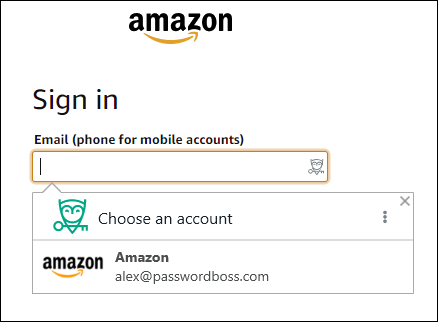
- Click the green Password Boss owl next to the address bar in your browser. Find the website you want to log in to and click the website
 icon - see the image below.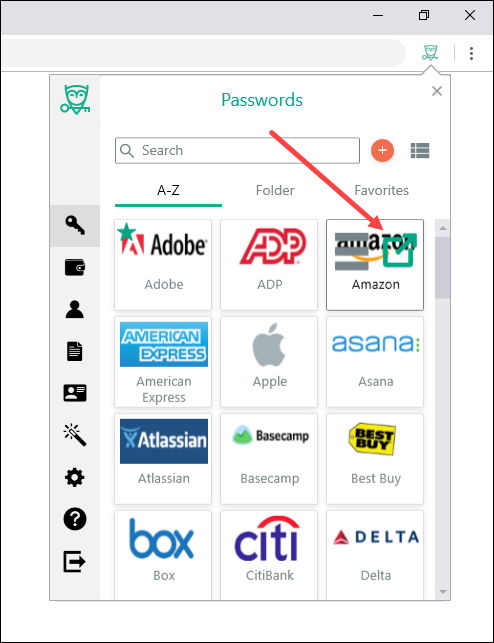
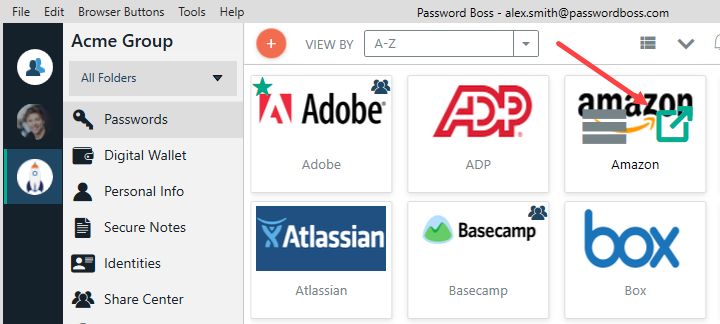
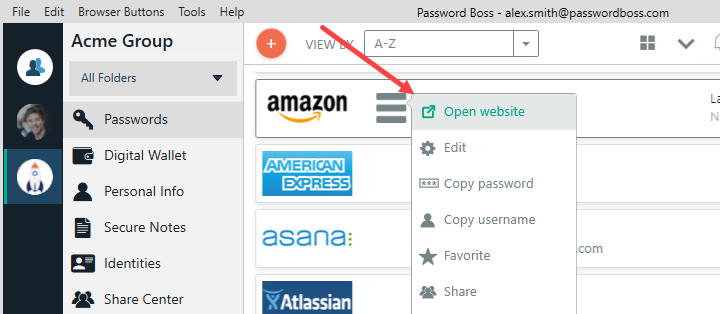
- Open the Password Boss app, find the website you want to log in to, and either double-click the item or click the open website Icon. See the images below for both Grid View and List View of items.
- Use bookmarks in your browser or type in the address of a website. Any way that you get to a web site is fine. Once you get there just click the Password Boss owls in the login fields and you are all set.
iOS
- Open Password Boss.
-
Find the site you want to log in to and tap it.
- Tap the open website
 icon.
icon.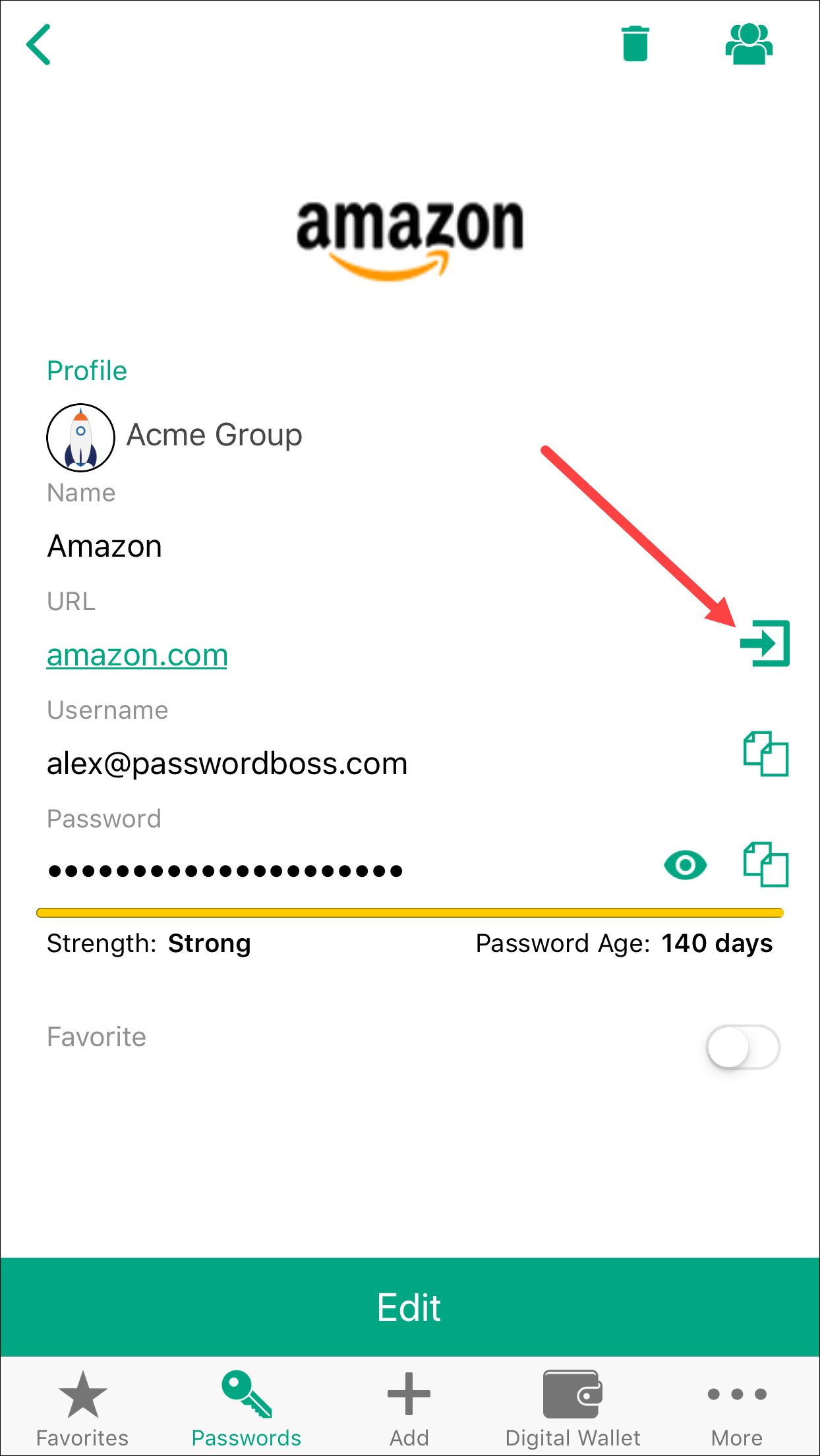
Android
- The web site will open. Navigate to the login page if you are not there already. Your saved passwords will appear on the bottom of the screen. Tap your saved password and the username and password will be typed into the web page for you.
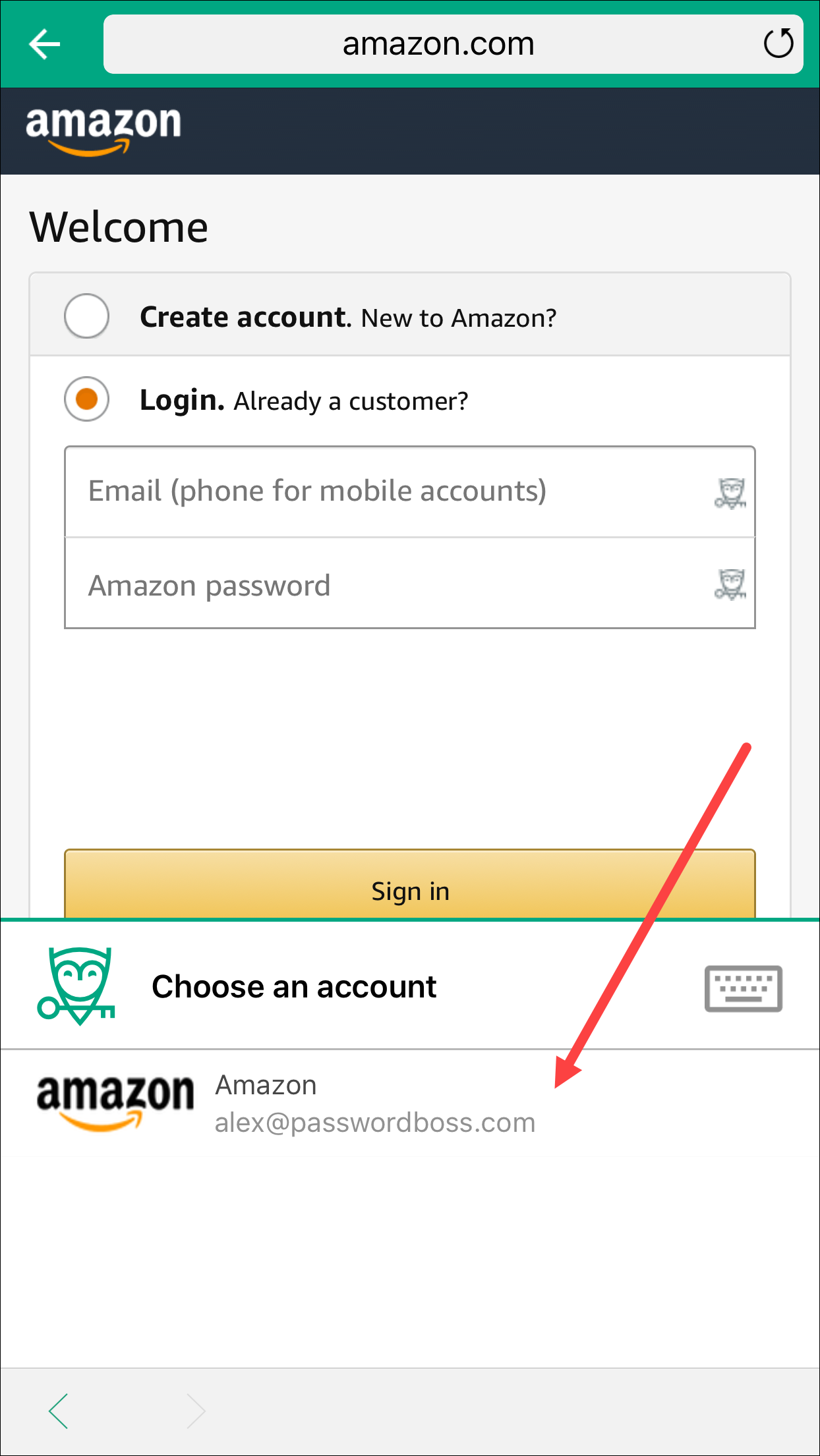
-
Tap the login button on the site.
- Open Password Boss.
-
Find the site you want to login to and tap it.
- Tap the open web site icon.
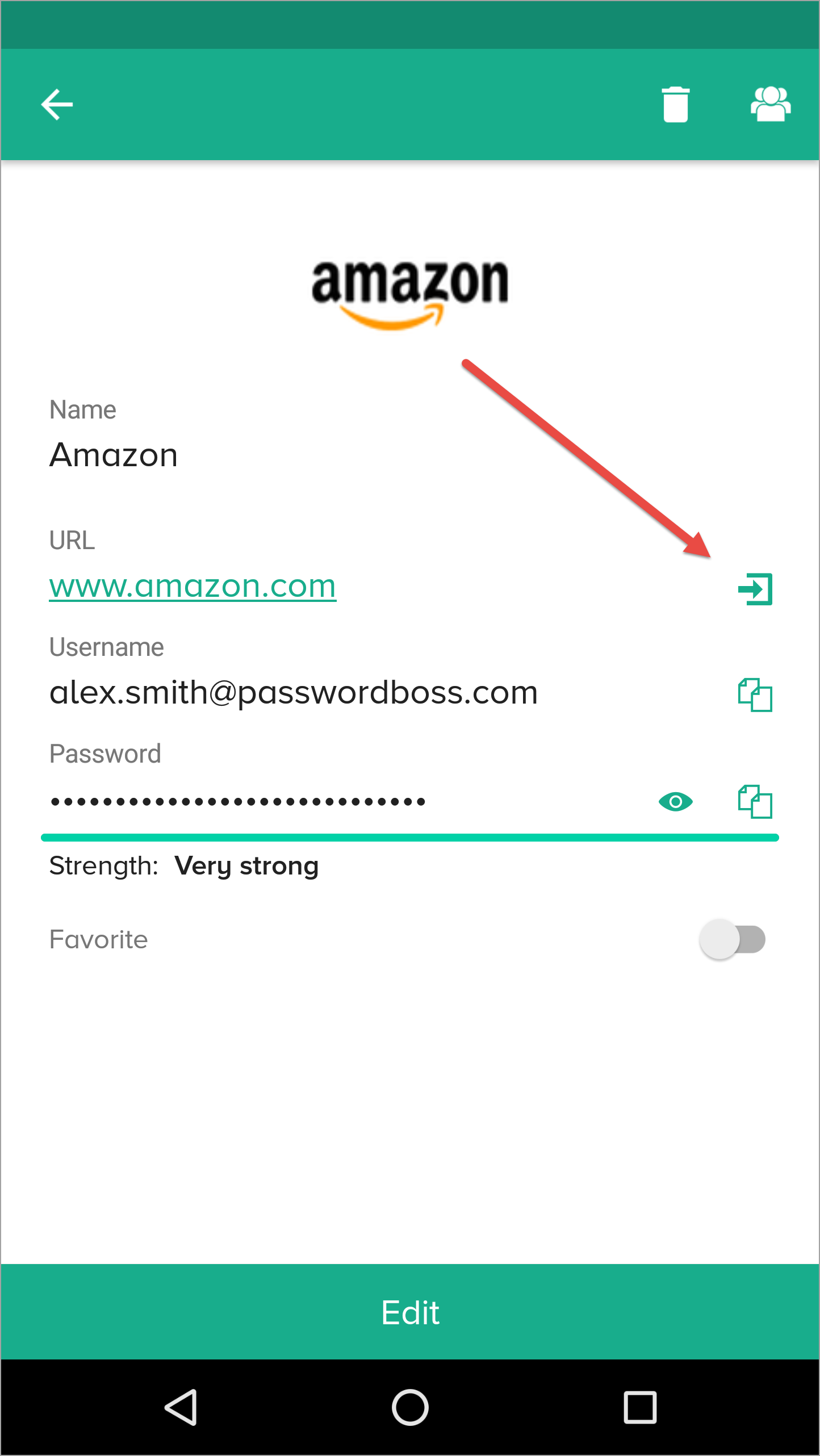
- The web site will open. Navigate to the login page if you are not there already. Your saved passwords will appear on the bottom of the screen. Tap your saved password and the username and password will be typed into the web page for you.
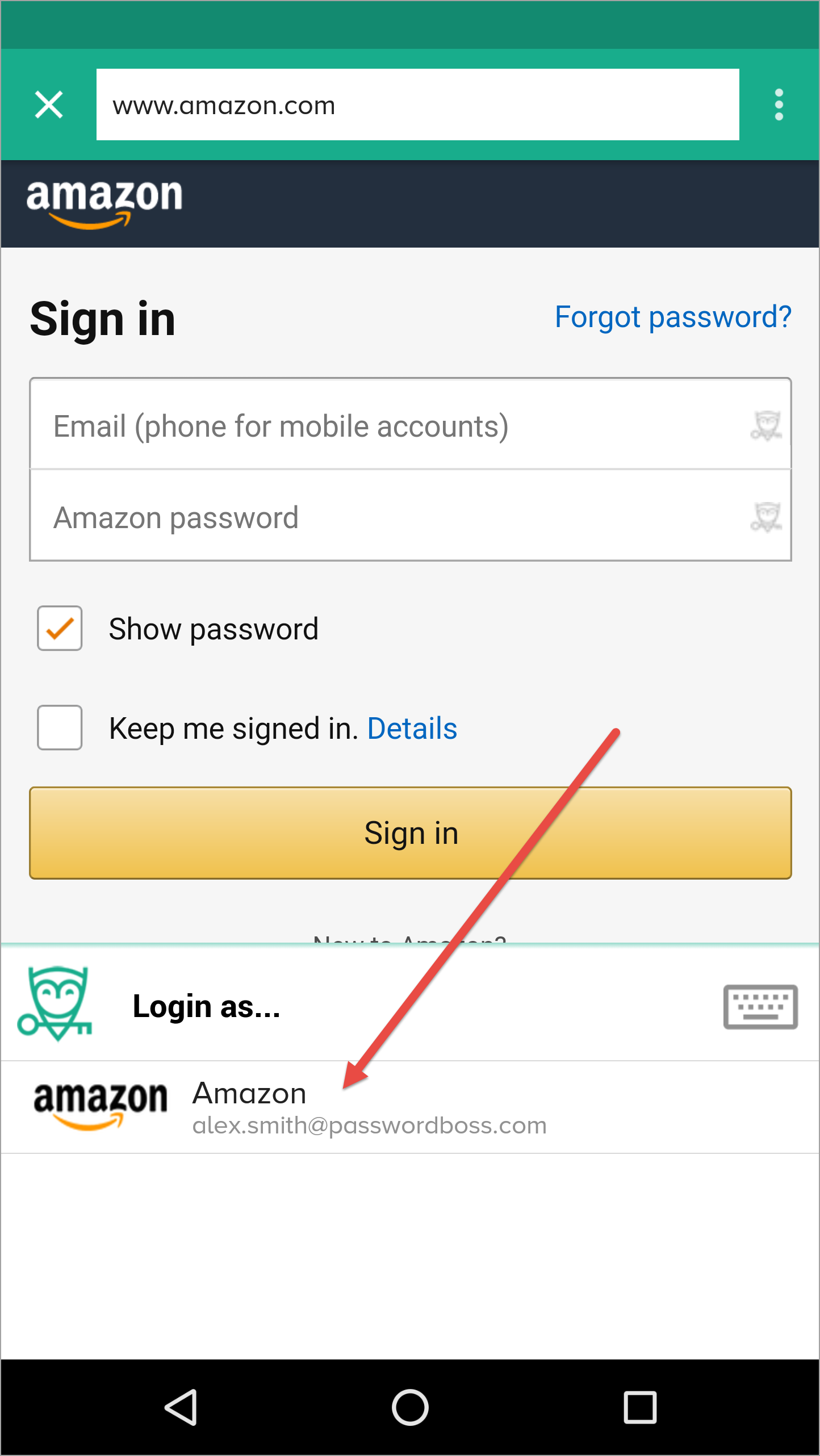
- Tap the login button on the site.
Safari on iOS
- In Safari, open the login page for the website. Tap the action button
 (bottom middle).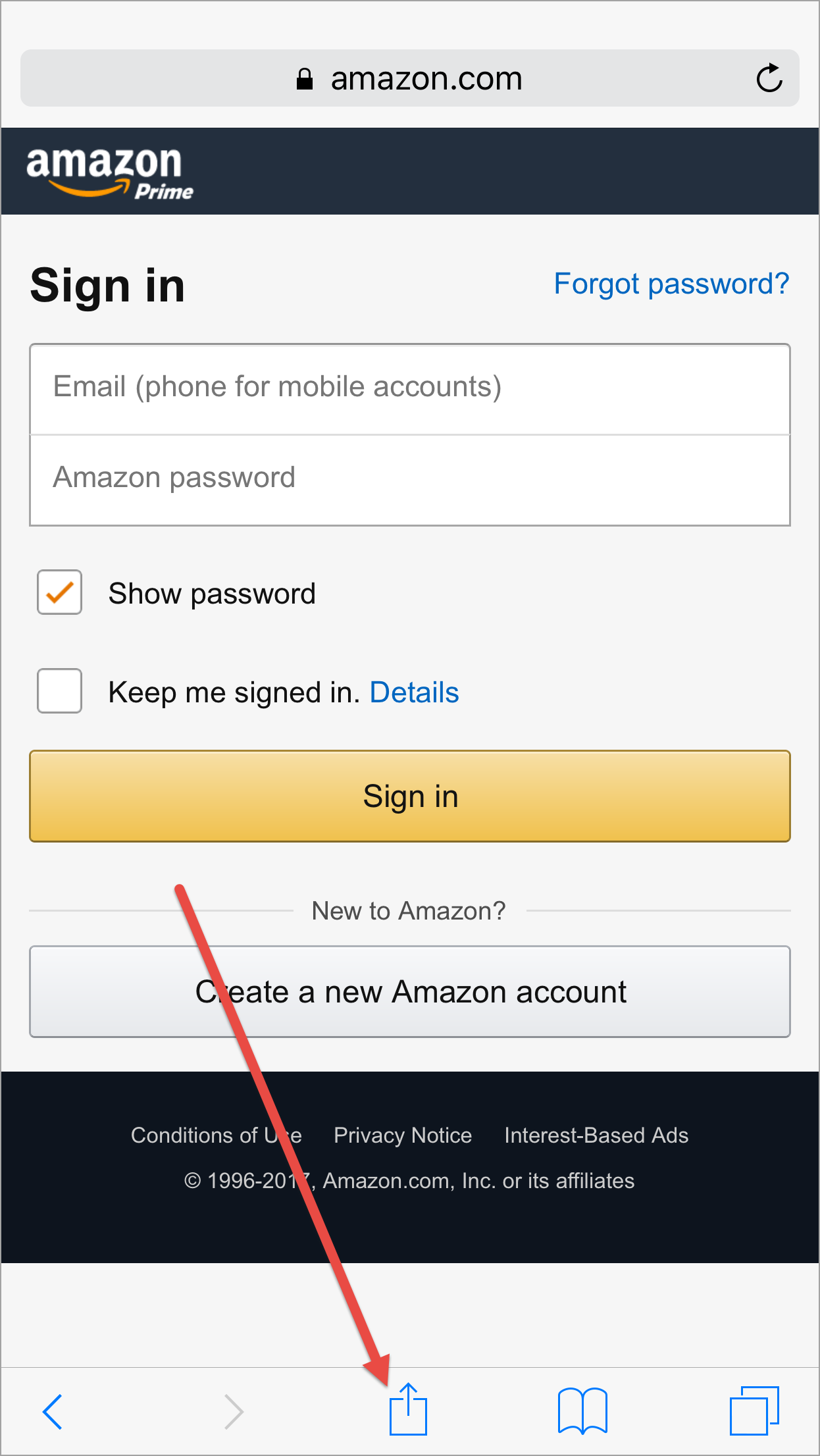
- Tap Password Boss
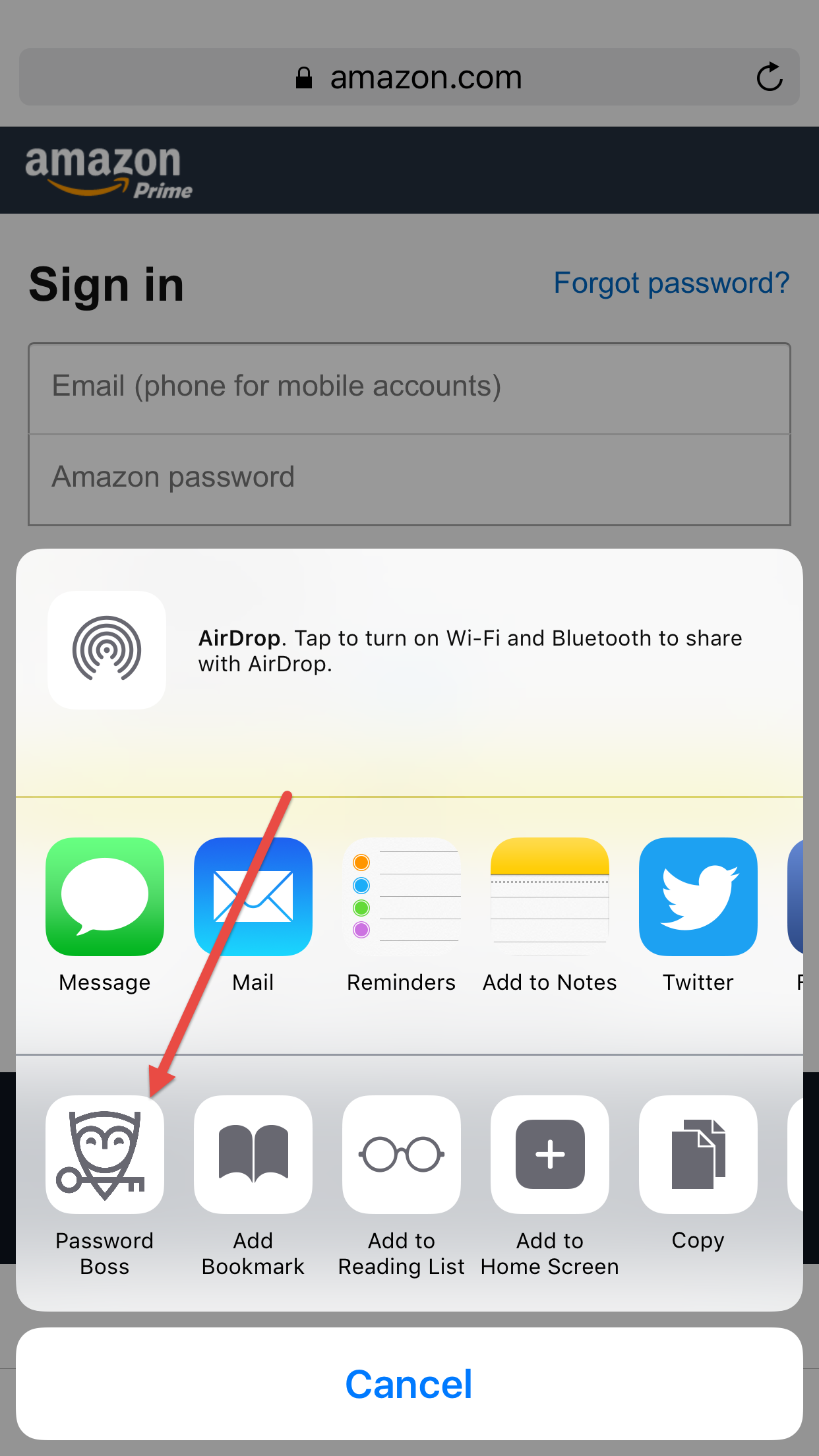
- You will be prompted to login to Password Boss using touch ID, PIN or Password, whichever you have configured.
- Tap your saved password.
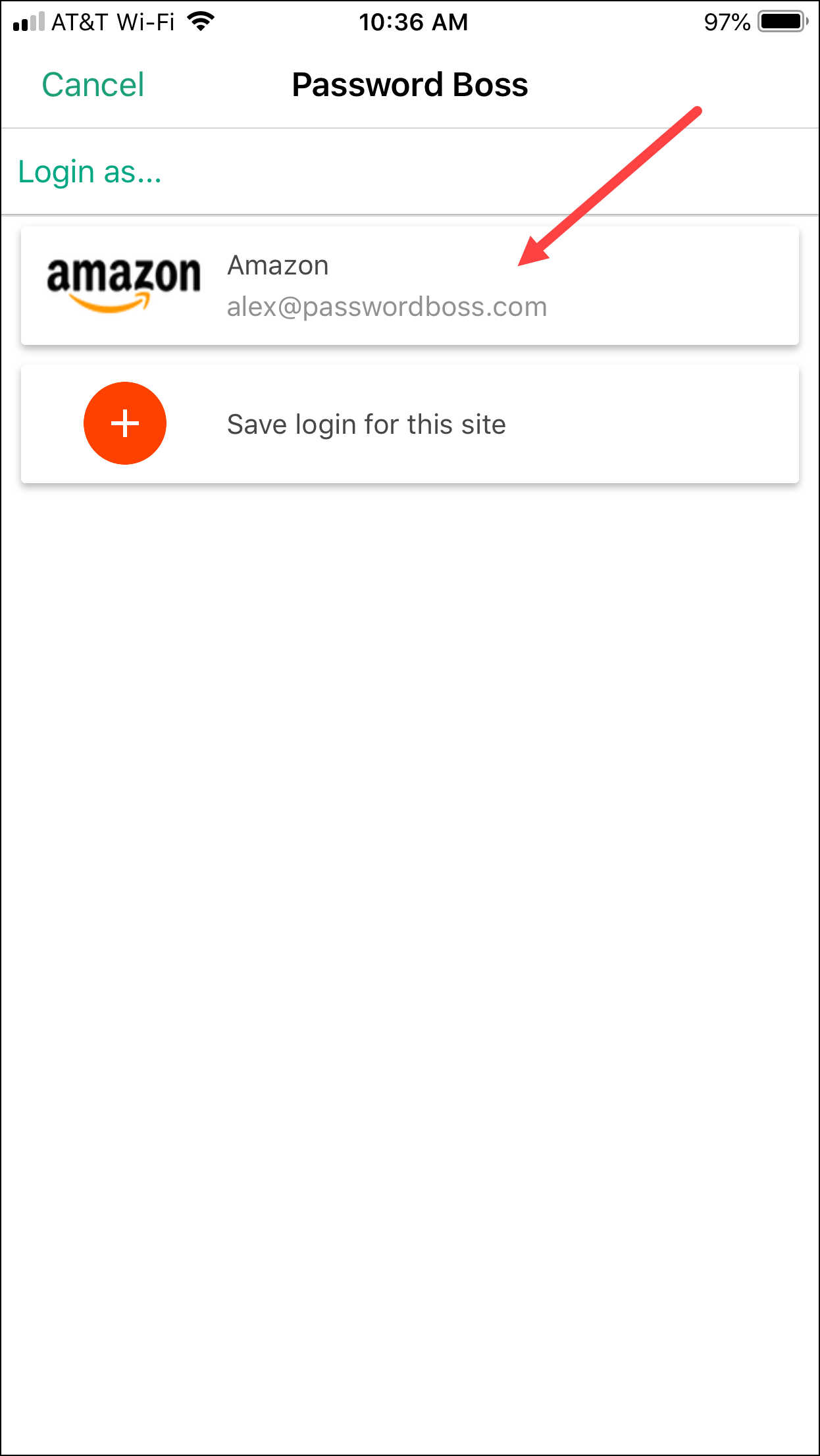
- Your username and password will be entered into the webpage.
-
Tap the login button on the site.
Chrome on Android
Make sure you have enabled App Login in the Password Boss Android app.
- In Chrome open the login page for the website.
- Tap the Password Boss Login Helper.
- Tap your saved password.
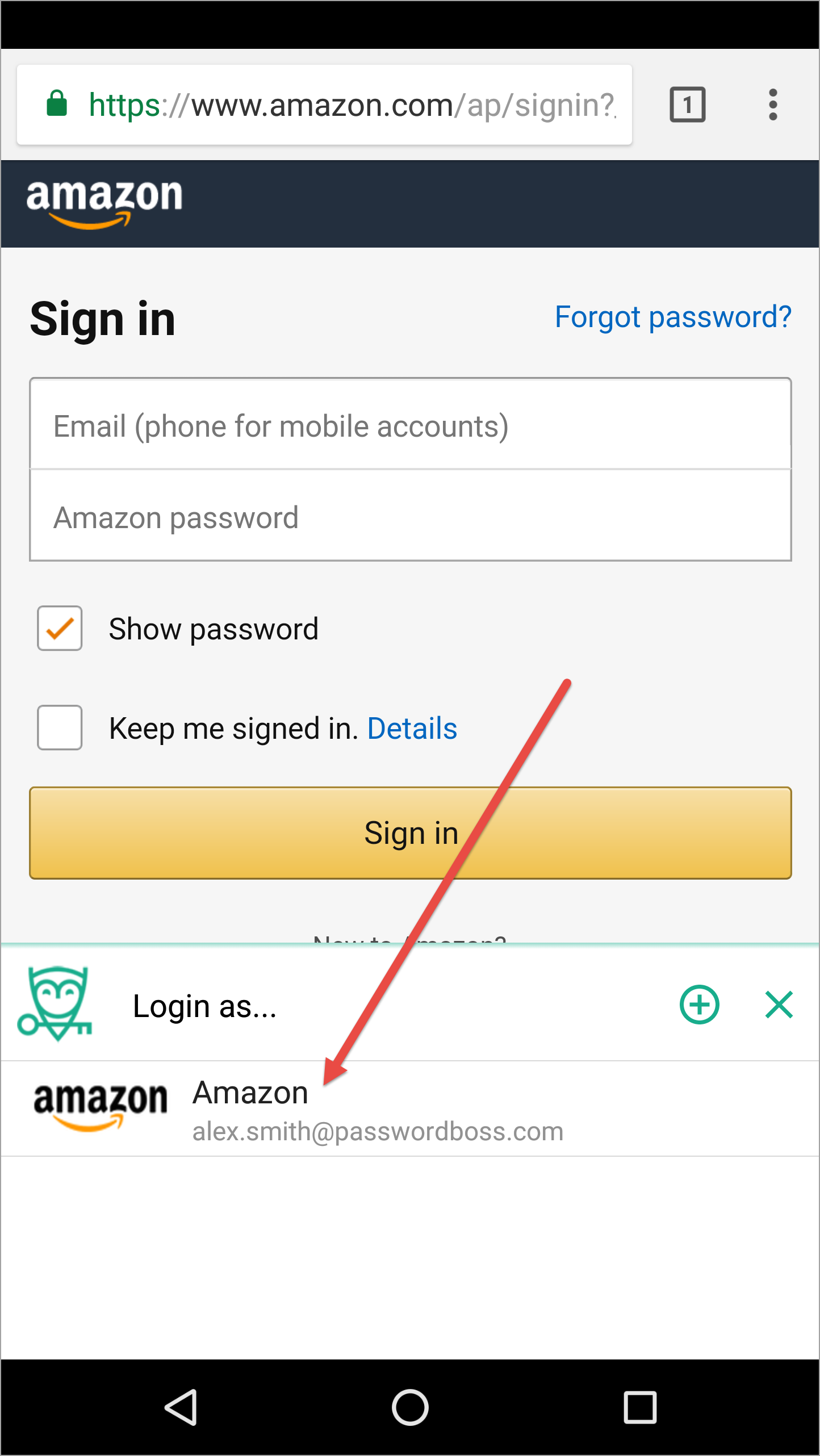
- Your username and password will be entered into the webpage.
-
Tap the login button on the site.
Password Boss makes it easy to access your essential login details
No matter what, we offer numerous ways for you to access your important login information. Even if our extension fails to detect the login field on a website or if automatic form filling is blocked, you can still retrieve your details from the extension, web app, or by using our right-click menu.