Importing passwords from Chrome and Chromium Based Browsers
Learn how to easily import passwords from Chrome into another browser.

Written by Owen Parry
Updated at August 28th, 2026
Table of Contents
Overview
Password Boss can import every password you have saved in Google Chrome — and in other Chromium-based browsers such as Microsoft Edge, Brave, and Vivaldi — so your logins live in one encrypted vault instead of scattered across browsers. The move takes two short phases: export your passwords from the browser as a CSV file, then import that file into Password Boss from the Desktop App or the Web App. This article walks through both phases for each browser. Password Boss can also pull passwords directly from some browsers without a CSV file — see Related Articles for that method.
How the Import Works
Every Chromium-based browser exports passwords the same way: a CSV file containing your saved website names, URLs, usernames, and passwords. Password Boss reads that file and turns each row into a password item in your vault. Because Edge, Brave, and Vivaldi are built on Chromium, their export files share Chrome's format — which is why, during the Desktop App import, you select Chrome as the source application no matter which of the four browsers the file came from.
Step 1 — Export Your Passwords from Your Browser
Open the section for your browser. Each browser asks you to confirm your computer's login password before it will export — that is expected, and it protects your passwords from being exported by someone else using your unlocked machine.
Chrome
- Open Chrome and click the menu icon
 near the address bar, then select Settings.
 - Click Autofill and Passwords, then click Google Password Manager to open the password manager in a new tab (or go directly to
chrome://password-manager/passwords). - Click Settings in the left menu, then click Download file in the Export Passwords section.
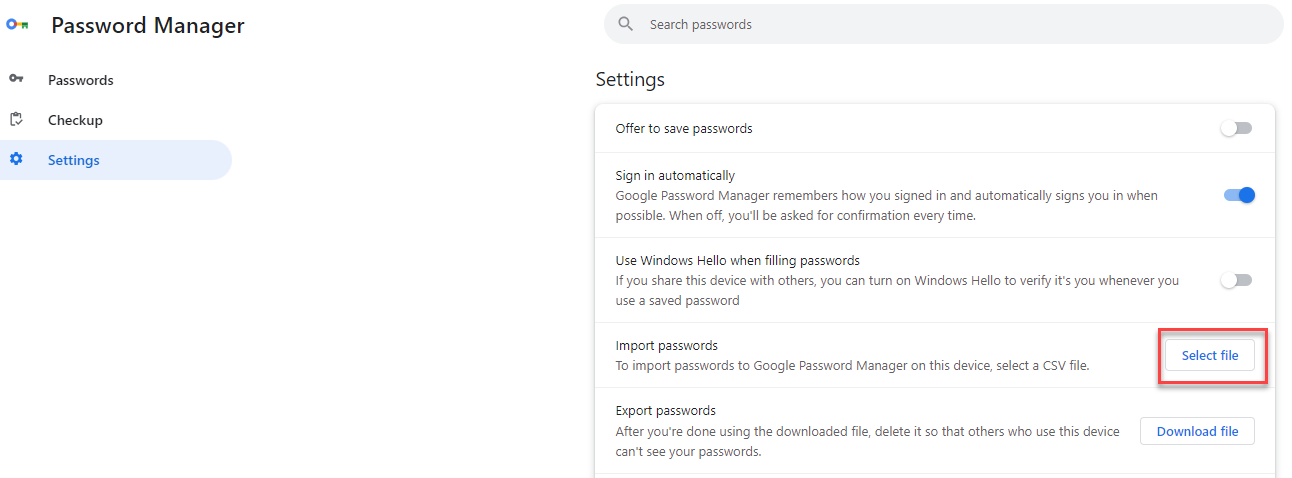
- When prompted, enter the password you use to log in to your computer.
- Save the file to your desktop.
Microsoft Edge
- Open Edge and click the menu icon
 near the address bar, then select Settings.
 - Under Profiles, find Microsoft Wallet and click Passwords to open the passwords page (or go directly to
edge://wallet/passwords). - Click the menu icon at the top of the passwords page, then click Export Passwords.

- When prompted, enter the password you use to log in to your computer.
- Save the file to your desktop.
Brave
- Open Brave and click the menu icon
 near the address bar, then select Settings.
 - Click Autofill and Passwords, then click Password Manager to open the password manager in a new tab (or go directly to
brave://password-manager/settings). - Click Settings in the left menu, then click Download file in the Export Passwords section.

- When prompted, enter the password you use to log in to your computer.
- Save the file to your desktop.
Vivaldi
- Open Vivaldi and click the settings icon
 on the left panel, near the bottom-left corner of the browser. If you do not see the panel, open it with the toggle button
  near the upper left of the address bar.
 - Click Privacy and Security, then scroll to the Passwords section.
- Click Export Passwords, then click Download file.

- When prompted, enter the password you use to log in to your computer.
- Save the file to your desktop.
Alternatively, open vivaldi://password-manager/settings from within Vivaldi and click Download file.

Step 2 — Import into Password Boss
You now have a CSV export on your desktop. Open the section for whichever Password Boss platform you use.
Desktop App
- Open Password Boss. From the File menu, click Import Passwords → From File.
- In Select the application to import data from, choose Chrome — use this selection for Chrome, Edge, Vivaldi, and Brave exports alike.
- In the second box, click the 3-dots button and select the file containing your exported passwords.
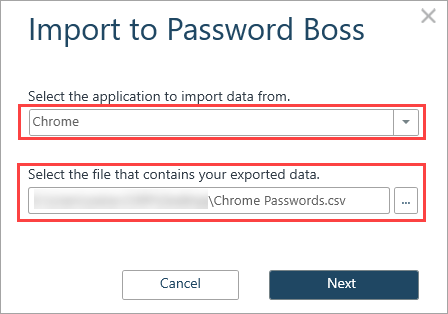
- Click Next.
- Business users: select the profile you want the passwords imported into.
- Click Import.
- Delete your exported file as soon as the import finishes.
Web App
- Log in to Password Boss at https://app.passwordboss.com.
- Click Menu, then Import Passwords, and choose From CSV file.

- Choose the CSV file you exported from your browser and click Next.
- The next screen displays the data from your CSV file. The first row is your header row: click the first column and select Header. To change which profile the items are imported into, change it on the first column. Leave the second column set to Password (Website).

- On the following screen, match the header fields to data types: click the first drop-down and select Name, then repeat for each remaining column until every field is matched. Click Next to complete the import.

Advanced Use Cases
Consolidating several browsers. If your passwords are spread across Chrome, Edge, Brave, and Vivaldi, run Step 1 once per browser — each produces its own CSV — then import each file in turn. The source-application selection in the Desktop App stays Chrome for all four.
Importing into business profiles. Business users choose the destination profile during the Desktop App import, and in the Web App the destination profile can be changed on the first column of the mapping screen — useful when different exports belong in different profiles.
Fixing a nonstandard CSV. The Web App's two mapping screens let you mark the header row and assign every column by hand, which makes it the better import path when a CSV file has been edited or its columns reordered before import.
Best Practices
- Do the export and the import in one sitting, and delete the CSV file the moment the import finishes — it exists only as a bridge between the browser and your vault.
- Spot-check a handful of imported items in Password Boss before removing anything from your browser.
- Keep the export file on your local desktop; never save it to a shared drive or send it by email or chat.
- After migrating, turn off the browser's own password saving and autofill so new credentials are captured by Password Boss instead of drifting back into the browser.
Troubleshooting
I can't find the settings panel in Vivaldi
The settings icon lives on Vivaldi's left panel. If the panel is hidden, click the panel toggle button near the upper left of the address bar to reveal it, then look near the bottom-left corner for the settings icon.
The browser asks for a password before exporting
That prompt is expected on every browser covered here. Enter the password you use to log in to your computer — the browser is confirming it is really you before handing over your saved passwords.
My browser isn't listed in the Desktop App import
Edge, Brave, and Vivaldi exports use Chrome's format. Select Chrome as the application to import data from, then pick your browser's CSV file.
Imported items came in under the wrong fields (Web App)
This usually means the first row was not marked as Header, or a column was matched to the wrong data type. Re-run the import, select Header on the first column of the first mapping screen, and re-match each column carefully on the second screen before clicking Next.
Security & Sync Behavior
The export file contains your passwords in plain, readable text — anyone who opens it can see every saved login. Treat it exactly like a written list of your passwords: keep it on your local desktop only, and delete it immediately after the import completes, then empty your Recycle Bin or Trash.
The password prompt during export is the browser verifying your identity before releasing your saved credentials; it uses your computer's login password, not your Password Boss Master Password.
Imported items are added to your Password Boss vault. With online backups enabled, your vault — including newly imported items — synchronizes automatically across all of your devices. That behavior is governed by the Online Backups and Device Sync security policy.