Using CyberFOX Password Manager to login to Microsoft MFA accounts
Learn how to use Password Boss to securely access and manage your Microsoft MFA accounts.

Written by Owen Parry
Updated at September 12th, 2026
Table of Contents
CyberFOX Password Manager can generate the 2FA codes to log into Microsoft Global Admin accounts protected with MFA.
Using CyberFOX Password Manager to generate the 2FA codes allows you to:
- Enable 2FA on all Global Admin accounts - HIGHLY RECOMMENDED
- Easily share the 2FA codes with your team so any team member can access the 2FA codes from their copy of CyberFOX Password Manager. This replaces workarounds like shared phones, manually sharing codes in Teams, etc.
- Revoke access to 2FA codes at any time.
Adding 2FA to a Microsoft password saved in CyberFOX Password Manager
- Login to your Microsoft work account/profile at https://myworkaccount.microsoft.com
- Open your Profile and select Security Info.
Note - You may be able to navigate directly to https://aka.ms/mfasetup.
- Click Add sign-in method.
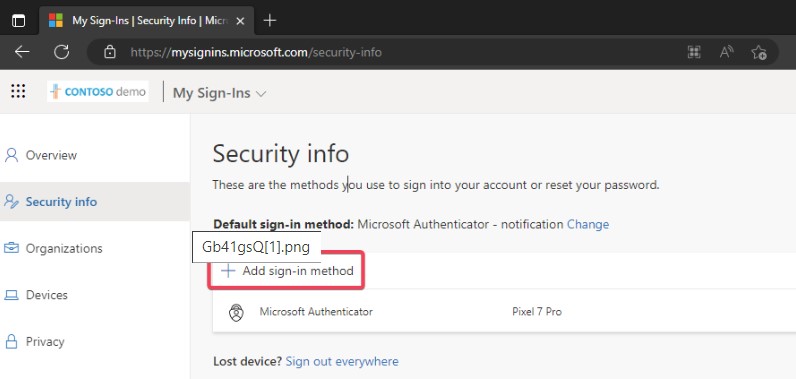
Tip - Click the images to make them larger
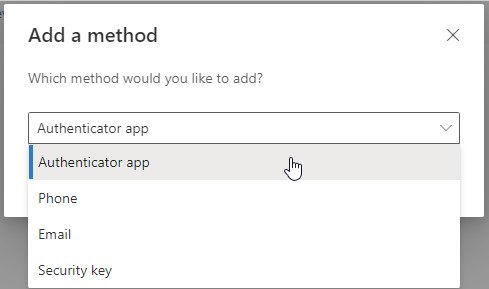
- Select Authenticator App from the drop-down menu
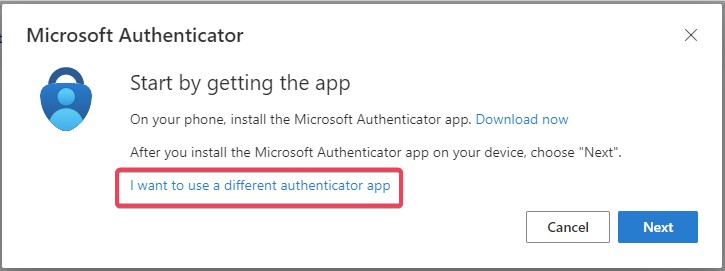
- Do not use the QR code or the code shown on this screen. Click I want to use a different authenticator app.
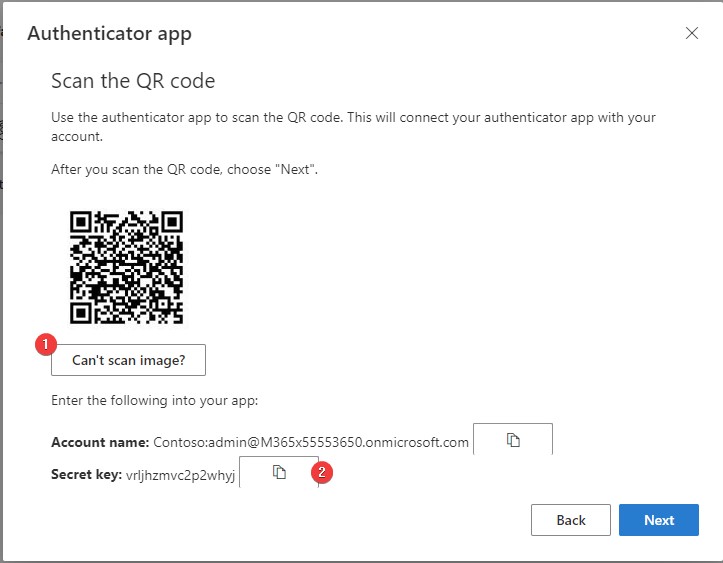
- Continue by pressing Next, either scan the QR code with the CyberFOX Password Manager mobile app or select Can't scan image. Copy the Secret Key shown on the screen and paste the code into the Secret Key field in CyberFOX Password Manager.
- Click the Save button in CyberFOX Password Manager next to the secret key to begin generating codes.
There are no spaces in the secret Key
Remove all spaces from the secret key before saving
- Finish the verification process with Microsoft to enable 2FA.
- Change the default verification method to App-based authentication or hardware token - code.
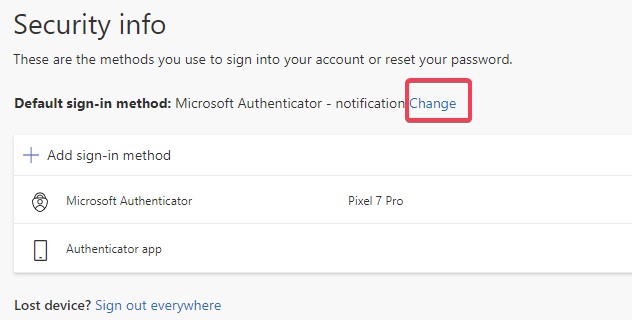
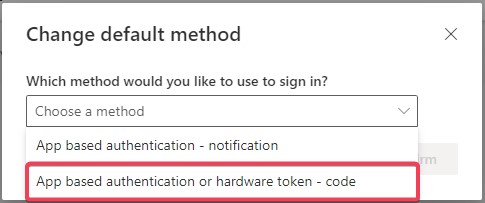
Tip - Click the, the images to make them larger
- CyberFOX Password Manager is now configured to generate 2FA codes for this login.