System Agent Installation
Learn how to install and deploy the AutoElevate System Agent on Windows devices, including manual and scripted installation methods, along with guidance for handling re-imaged or cloned machines and troubleshooting common issues.

Written by Owen Parry
Updated at August 18th, 2026
Table of Contents
Overview
This article explains how to install the AutoElevate System Agent on supported Windows devices, along with common deployment scenarios and troubleshooting guidance.
The AutoElevate Agent enables Privileged Access Management by removing local admin rights and allowing controlled elevation requests from end users.
Supported Systems and Language Packs
The AutoElevate Agent supports:
- Windows 11
- Windows Server 2016, 2019, 2022, 2025
- RDS / Terminal Services / VDI environments
The AutoElevate Agent supports Windows language packs for English, Swedish, French (France and Canada), Spanish (Mexico), German, Irish, Portuguese (Brazil and Portugal), Norwegian (Bokmål and Nynorsk), Italian, Dutch (Netherlands), Danish, Chinese (Simplified, China), Japanese, Korean, Czech, Polish, Romanian, and Slovenian.
Prerequisites
Before installing the Agent:
- A valid AutoElevate license key
- Access to the Agent MSI file from the Admin Portal
- Network access to required AutoElevate services
- (Recommended) PSA or ticketing integration configured prior to large-scale deployment
Note: We recommended that before large-scale deployments, you should first have your ticketing system integration with AutoElevate complete. For limited testing purposes, you can deploy agents manually.
Download the Agent MSI
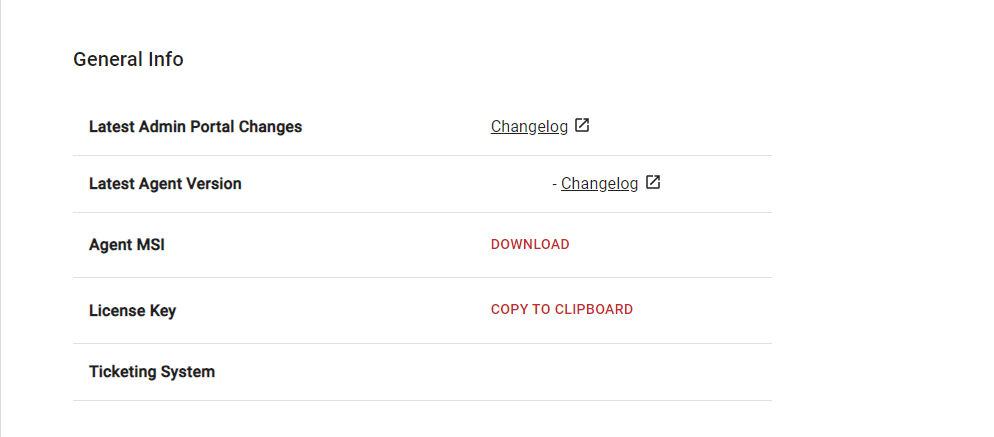
- Log in to the Admin Portal
- Navigate to Settings > General Info
- Download the Agent MSI file
- Copy your License Key
Manual Installation
Manual installation is typically used for testing or small deployments. To manually install the System Agent or use another management tool, here's what you’ll need:
- A valid AutoElevate license key.
- The latest AEAgent.msi file.
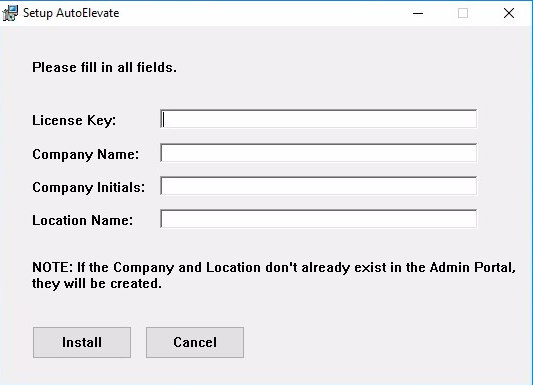
You can install the Agent MSI manually on each machine, allowing you to specify client company names and locations for each installation. Manual installation is especially helpful if you want to deploy a handful of Agents for testing or demonstration purposes. To install manually, you will need to supply the following information during installation:
License Key: Access your license key from the AutoElevate portal by clicking on the “Settings” tab under General Info -> License Key - Copy to Clipboard.
Company Name: Enter a client company name such as “Contoso, Inc.”. If the company name entered here does not exist in the Admin Portal, it will be created automatically.
Company Initials: Enter two or 3-character initials for the company, which will serve as a quick reference in the Mobile Notification app. So, for Contoso, Inc., you may want to enter CI.
Location Name: Enter a location name for the machine to be organized into, such as Laptops, Denver, or Main Office. If the Location doesn’t exist for the company, it will be created automatically.
Missing Required Argument
As of version 2.9.4+ the MSI installer will fail (service will not install) if the License Key, Company Name, or Location Name variables are not included during install. An error message in the msiexec log file will indicate “Missing Required Argument”.
Avoid Duplicate Companies
When installing machines, consider how they are categorized in the Admin Portal. Unique company/location names create separate companies, while the same name groups machines under one company.
To avoid variations in your installations, consider using MSI deployment options along with a deployment tool (such as ConnectWise Automate, Kaseya, Autotask, SolarWinds, etc.), Group Policy, or a deployment script.
Scripted MSI Deployment
Deploying AutoElevate Using CMD
To generate an MSIEXEC command that has all the command line options necessary to install the software, which you then can use with your RMM tool (or other deployment method), you would do the following:
- From the AE Admin Portal, go to the Companies tab
- Create a new Company by clicking the + button at the top of the screen. Enter a Company Name and initials and click save.
- Create a new Location by clicking the + button, entering a location name (locations are machine groups that can be actual locations or any other criteria like laptops or desktops, and then click save.
- Once the Location has been created, click the icon next to the Location that looks like papers and the system will generate an MSI command and arguments you can use.
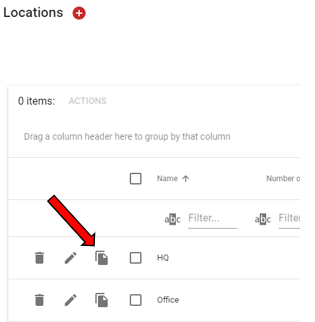
To look at the MSI command for a Company that has already been created, do the following:
- From the Admin Portal, go to the Companies tab
- Click the view button (eyeball) next to a Company Name.
- Click the icon next to the Location that looks like papers, and the system will generate an MSI command and arguments that you can use to build a scripted deployment.
Remember that you will need to modify the file path in this MSI command to match wherever you place the MSI file on the machine.
You will see in that command line argument AGENT_MODE, which can be changed to live when you run it so that the agents are forced into Live mode at installation.
You can see that the MSIEXEC command that is generated uses the following common installation options:
/i = sets the MSI to install. The options below must be set for a successful installation.
/uninstall = sets the MSI to uninstall. Uninstallation should be done from add/remove applications but can also be done from the MSI file directly. When done from the MSI, the other AutoElevate specific options below, such as “LICENSE_KEY” do not need to be specified.
/quiet = silent installation with no user interaction.
/lv = log file with verbose output – specify the log file name that should be created.
The following AutoElevate specific options must be set for successful installation (except for the optional "COMPANY_INITIALS"). Use values specific to your needs and practice:
LICENSE_KEY="123456789ABCDEFGYOURLICENSEKEYHERE" – Access your license key from the AutoElevate portal by clicking on the “Settings” tab under General Info -> License Key - Copy to Clipboard.
COMPANY_NAME="Contoso, Inc." – Setting this value categorizes the workstation in the Web Admin Portal by this company name. For best results, match the Company Name to an existing Company Name or reference in your RMM or Ticketing system.
LOCATION_NAME="Main Office" – This should match the Location Name or reference in your RMM or Ticketing system.
ELEVATION_MODE="live" (optional) – This can be set to live, policy, or audit so that the Agent installer can override the current mode or be set to install in the mode of your choice automatically. Audit mode is the default if this argument is not specified. If the script is performing an upgrade on an agent already installed, this argument will have no effect and the agent will still maintain the agent mode that is currently set. See System Overview - System Agent for details on the different modes.
BLOCKER_MODE="audit" (optional) – This can be set to live, audit, or disabled so that the Agent installer can override the current mode or be set to install in the mode of your choice automatically. Disabled mode is the default if this argument is not specified. If the script is performing an upgrade on an agent already installed, this argument will have no effect and the agent will still maintain the blocker mode that is currently set. See Managing Blocker (Beta) Rules for details on the different modes.
Mode Option
These mode options are case-sensitive and should be in lowercase; otherwise, this command part will fail, and the agent will set to its default mode.
Here is an example of what the installation command might look like (assuming the AESetup.msi file is located in the “C:\Downloads” folder) for a silent unattended installation and to make a log file called AEInstallLog:
msiexec /i AESetup.msi /quiet /lv AEInstallLog.log LICENSE_KEY="123456789ABCDEFGYOURLICENSEKEYHERE" COMPANY_NAME="Contoso, Inc." COMPANY_INITIALS="CI" LOCATION_NAME="Main Office" ELEVATION_MODE="audit" BLOCKER_MODE="disabled"
Re-running the Installer on an existing installation
If you try to run your script again after a successful installation and attempt to change the settings, the installation will fail because the agent is already installed. To modify the settings of the installed agent, you can do so from the Portal. Alternatively, you can uninstall the agent before redeploying it.
New Companies/Locations Driven By MSI Deployment
To create additional companies, you can use the same MSI command script and change the Company Name, Company Initials, and Location, which, once used on a new workstation, will cause those companies/locations to automatically be set up on the admin portal.
Scripted Un-Installation
Here is an example of what the uninstall command might look like (assuming the AESetup.msi file is located in the “C:\Downloads” folder) for a silent unattended uninstallation and to make a log file called AEUnInstallLog:
msiexec /uninstall C:\Downloads\AESetup.msi /quiet /lv AEInstallLog.logManual Uninstallation
After manually uninstalling the agent, Computers will be removed from the Admin portal after 30 days of not checking in.
After Deployment
Upon successful installation of the AEAgent.msi on the target system, you should have a new service named AutoElevate Agent, which will start as part of the installation and is also set to start automatically at Windows startup. If you check running processes, you should see the AutoElevate Agent process, which is started by the service, as well as the AEAlert and AEUACAgent application processes, which are spawned and monitored to run anytime a user is logged into the system.
If an Agent has not previously been installed on the machine, the AutoElevate Agent will automatically be set to run in Audit mode after installation.
When Audit mode is active, all UAC activity for the user is tracked, but there is no change in the user experience. When Live mode is active, the UAC events are intercepted and replaced by customized AutoElevate dialog boxes.
After onboarding, it is recommended that you run for a period of time in Audit mode to evaluate the current user behavior, system settings, and activity and then make a corresponding plan of action for each client before switching them to Live mode.
Please see our guide on Client Onboarding.
Special Installation Scenarios on Re-Imaged or Previously Installed Machines
If a device is re-imaged without uninstalling the AutoElevate Agent, it may still exist in the Admin Portal as the previously registered machine.
When the Agent is installed again on the same hardware, AutoElevate attempts to associate the device using its underlying system identity (hardware-based identifiers).
Expected Behavior
- The Agent may reassociate with the original device record
- Existing Company and Location assignments may persist
- In some cases, a new device entry may be created if the system identity has changed
This behavior is similar to cloned machine handling.
Recommended Best Practices
- Uninstall the Agent before re-imaging whenever possible
- If uninstall is not possible:
- Reinstall the Agent after imaging
- Verify the device in the Admin Portal
- If duplicate devices appear:
- Remove the inactive or stale record
Notes on Device Identification
AutoElevate uses system-level identifiers tied to the device (such as hardware-derived attributes) to determine whether a machine already exists.
- Same hardware → more likely to reuse the existing record
- Different or modified hardware → may create a new record
Special Installation Scenarios on Cloned Machines
If a system image is cloned with the Agent already installed:
- Multiple machines may attempt to register as the same device
- This can result in inconsistent behavior or duplicate records
Best Practice
- Do not clone images with the Agent installed
- Install the Agent after deployment instead
Re-imaged systems behave similarly to cloned systems. Device identity determines whether an existing record is reused or a new one is created.
Antivirus Whitelisting
Ensure the following are allowed:
- AutoElevate Agent processes
- Required URLs and endpoints
Failure to whitelist may result in:
- Missed check-ins
- Devices not appearing in the portal
Troubleshooting
Device Not Appearing in Admin Portal
Check:
- License Key is valid
- Device has internet connectivity
- Firewall or content filtering is not blocking communication
If still not appearing:
- Re-run the installer
- Confirm Company and Location values
Duplicate Devices in the Portal
This can occur when:
- Devices are cloned
- Machines are re-imaged without uninstalling
- System identity changes
Resolution
- Identify the active device (recent check-in)
- Remove stale or inactive entries
Incorrect Company or Location
If devices are showing under the wrong Company or Location:
- Re-run the installer with correct parameters
- Verify naming consistency with PSA/RMM
Installation Failures
Check:
- MSI logs using
/lvparameter - Endpoint protection interference
- Administrative permissions
Best Practices Summary
- Use scripted deployment for consistency
- Avoid cloning systems with the Agent installed
- Uninstall the Agent before re-imaging when possible
- Standardize Company/Location naming
- Validate deployment using a small test group first