Removing Elevation or Blocking Rules
Learn how to remove elevation or blocker rules from the Admin Portal.

Written by Owen Parry
Updated at October 23rd, 2026
-
AutoElevate Knowledgebase
Getting Started with AutoElevate AutoElevate Concepts Admin Portal & Settings Elevation & Blocker Rules Technician Mode & Approvals Deploying via RMM Tools PSA & Ticketing Integrations Other Integrations Troubleshooting AutoElevate Features & Troubleshooting Managing Rules in AutoElevate Integrations for AutoElevate AutoElevate FAQ Selling AutoElevate
- CyberFOX Password Manager Knowledgebase
- CyberFOX DNS Filtering
- Marketing Toolkit
- Changelogs for Autoelevate and Password Boss
- CyberFOX Product Roadmap
- Current Status
Table of Contents
Removing Rules
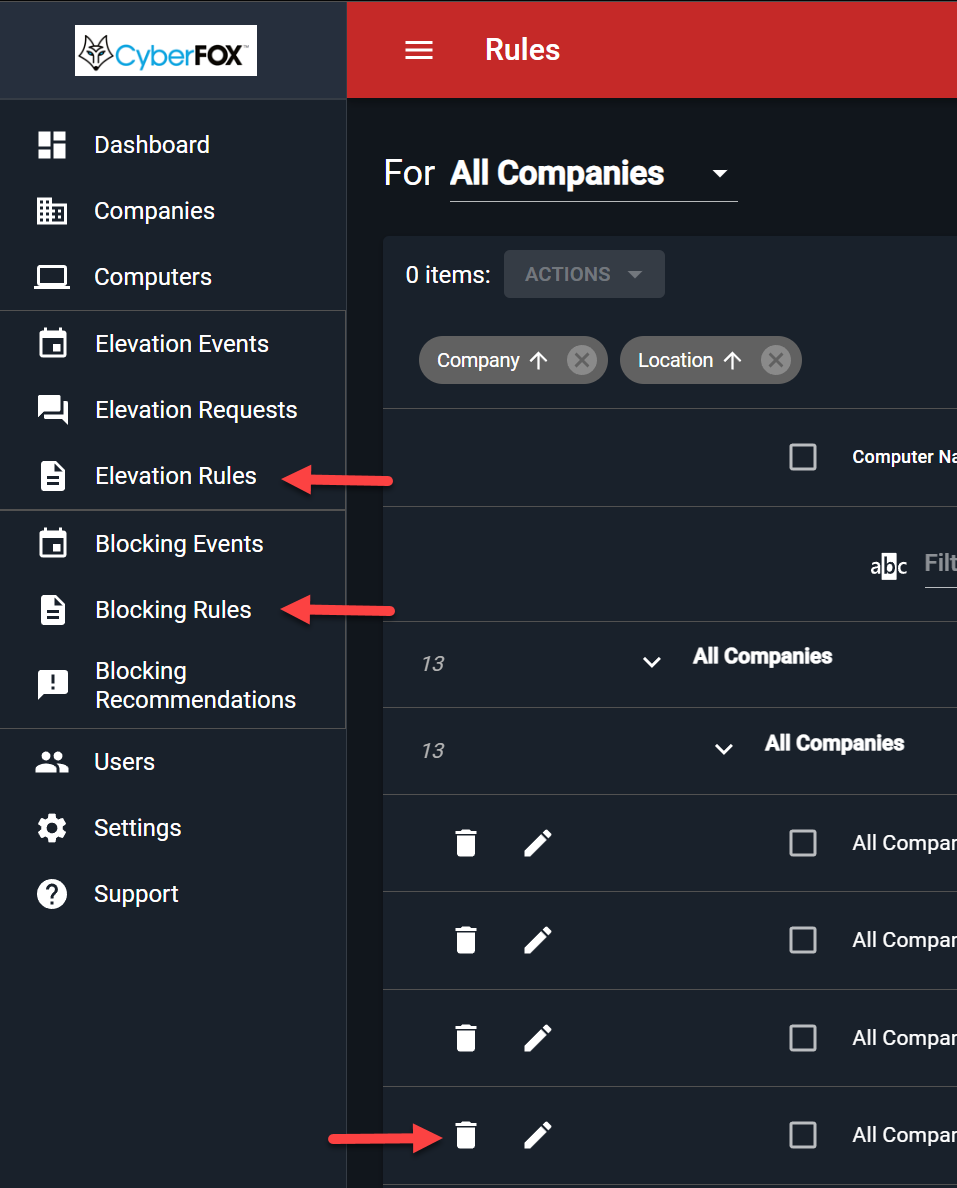
To remove Elevation or Blocking rules, do the following:
- Login to the Web Admin Portal at https://msp.autoelevate.com using your email address and AutoElevate password.
- In the left-hand column, click the Rules (Elevation or Blocking) you wish to manage
- On the Rules grid, click the arrow next to the Company/Location/Computer where the rule is listed and click the Trash Can symbol.
- You will be prompted to confirm the deletion.