CLSID Support
Learn how to use and understand CLSIDs to identify software components.

Written by Owen Parry
Updated at October 23rd, 2026
-
AutoElevate Knowledgebase
Getting Started with AutoElevate AutoElevate Concepts Admin Portal & Settings Elevation & Blocker Rules Technician Mode & Approvals Deploying via RMM Tools PSA & Ticketing Integrations Other Integrations Troubleshooting AutoElevate Features & Troubleshooting Managing Rules in AutoElevate Integrations for AutoElevate AutoElevate FAQ Selling AutoElevate
- CyberFOX Password Manager Knowledgebase
- CyberFOX DNS Filtering
- Marketing Toolkit
- Changelogs for Autoelevate and Password Boss
- CyberFOX Product Roadmap
- Current Status
Table of Contents
Starting with Agent 1.8.0.0, CLSID UAC prompts are detected and handled by AutoElevate. In previous agent versions, if a UAC dialog (User Account Control) were generated (which referenced the source as being a CLSID), then the AutoElevate agent would ignore the request and allow the UAC to come up.
What is CLSID?
A CLSID is a com object reference. Some Windows UAC elevation requests reference a CLSID instead of a file.
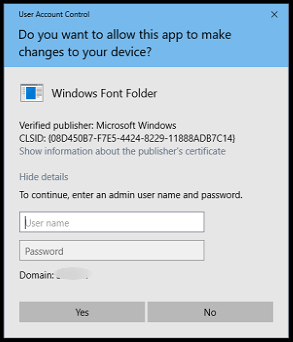
Examples - A few Windows functions that require elevated privileges and reference a CLSID include:
- Changing a network adapter setting
- Installing a font
-
Un-installing certain types of applications
How it Works Now
Starting with Agent 1.8.0.0, when a Windows UAC dialog box referencing a CLSID comes up, AutoElevate will process it in a similar fashion to how it currently handles other file-based requests.
When a CLSID is detected, AutoElevate will read the CLSID title and description and follow the registry reference to its corresponding file (ie, .dll, .cpl, etc.). A file hash will be generated and checked against the Virus-Total database to identify the source positively. The normal privilege evaluation process is then followed.
If approved by the technician, the end-user will need to manually launch the function again, as AutoElevate is not able to do it automatically. They will be prompted with a new AutoElevate dialog message asking them to re-launch.
Once re-launched, the function will be elevated using the Admin Elevation method, causing the UAC to be filled in with a Local Admin credential.