UAC Levels & Windows User Account Control Settings

Written by Owen Parry
Updated at August 20th, 2026
Table of Contents
Overview
AutoElevate relies on Windows User Account Control (UAC) to detect and process elevation events. If UAC is disabled or Windows policies substantially change the normal elevation prompt, AutoElevate may not receive the information required to process the event.
This article explains:
- Recommended UAC settings for AutoElevate
- How UAC levels appear in the Admin Portal
- How AutoElevate changes UAC settings
- Windows policies that can interfere with elevations
- Compatibility considerations for Windows Hello and Windows Passwordless Experience
Recommended UAC Configuration
For most environments, CyberFOX recommends the following configuration:
- UAC Status: On
- Secure Desktop: Enabled
- Administrator Level: Level 3
- Standard User Level: Level 4
This appears in the AutoElevate Admin Portal as:
- UAC Status: On (Dimmed)
- UAC Admin Level: Level 3
- UAC User Level: Level 4
This configuration corresponds to the following Windows registry values:
EnableLUA = 1
PromptOnSecureDesktop = 1
ConsentPromptBehaviorAdmin = 5
ConsentPromptBehaviorUser = 1
AutoElevate onboarding documentation also identifies On (Dimmed), Level 3 for administrators and Level 4 for users as the recommended configuration.
Important: AutoElevate requires UAC to be enabled and configured to display elevation prompts. When UAC is disabled or set too low to generate a prompt, AutoElevate has no UAC event to detect or process.
Understanding UAC Levels
AutoElevate reads the computer’s Windows UAC registry values and reports them in the Computers grid of the Admin Portal.
The reported UAC level corresponds to the slider position in Windows User Account Control Settings.
Administrator Levels
| Level | Windows behavior |
|---|---|
| Level 4 | Always notify when applications or the administrator make system changes. |
| Level 3 | Notify when applications attempt to make system changes. The prompt appears on the Secure Desktop. |
| Level 2 | Notify when applications attempt to make system changes. The prompt does not appear on the Secure Desktop. |
| Level 1 | UAC notifications are disabled. |
Standard User Levels
| Level | Windows behavior |
|---|---|
| Level 4 | Prompts for administrator credentials on the Secure Desktop. |
| Level 3 | Prompts for administrator credentials on the regular desktop. |
| Level 1 | Automatically denies elevation requests. |
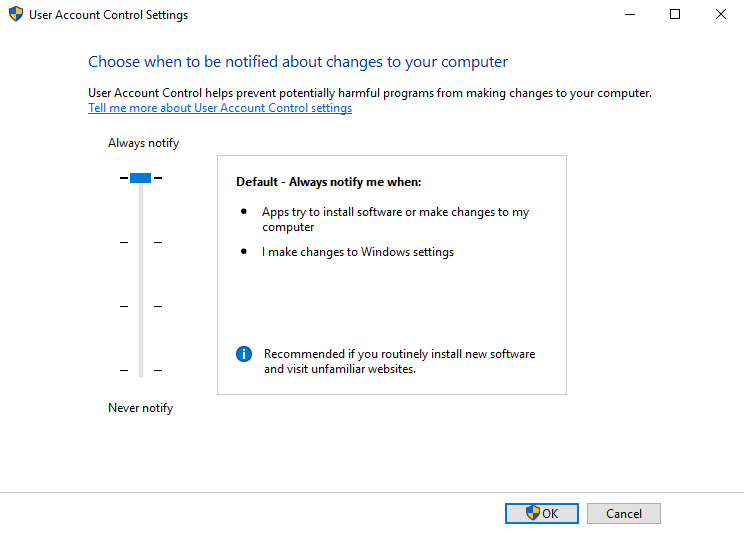
UAC Values in the Admin Portal
The UAC Status, UAC Admin Level, and UAC User Level columns are calculated from several Windows registry values.
| Admin Portal value | Registry configuration |
|---|---|
| UAC Status: Off | EnableLUA = 0 |
| UAC Status: On (Dimmed) |
EnableLUA = 1 and PromptOnSecureDesktop = 1
|
| UAC Status: On (Not Dimmed) |
EnableLUA = 1 and PromptOnSecureDesktop = 0
|
| Admin Level 4 | ConsentPromptBehaviorAdmin = 1, 2, 3, or 4 |
| Admin Level 3 |
ConsentPromptBehaviorAdmin = 5 with Secure Desktop enabled |
| Admin Level 2 |
ConsentPromptBehaviorAdmin = 5 with Secure Desktop disabled |
| Admin Level 1 | ConsentPromptBehaviorAdmin = 0 |
| User Level 4 | ConsentPromptBehaviorUser = 1 |
| User Level 3 | ConsentPromptBehaviorUser = 3 |
These registry values are located under:
HKEY_LOCAL_MACHINE\SOFTWARE\Microsoft\Windows\CurrentVersion\Policies\System
Changing UAC Settings from AutoElevate
UAC settings can be changed from the Computers screen in the Admin Portal.
- Open Computers.
- Select the affected computer.
- Select Actions.
- Choose the required UAC Settings action.
- Restart the computer if the UAC status was changed between On and Off.
The available actions apply the following configurations:
| Admin Portal action | Result |
|---|---|
| Set to On (Not Dimmed) | Admin Level 2 and User Level 3 |
| Set to On (Dimmed) | Admin Level 3 and User Level 4 |
| Set to On (Maximum) | Admin Level 4 and User Level 4 |
| Set to Off | Disables UAC |
Changing UAC between On and Off requires a restart before Windows and AutoElevate will reflect the new behavior correctly.
Elevation Behavior by AutoElevate Mode
AutoElevate’s response to a UAC event also depends on the computer’s Elevation Mode.
Live Mode
In Live Mode, AutoElevate can display its elevation dialog and allow the user to request access when no matching rule exists.
Policy Mode
In Policy Mode, events without a matching rule display the standard Windows UAC prompt. The AutoElevate request-access dialog is a Live Mode behavior and is not displayed for unmatched events in Policy Mode.
If a customer reports seeing only the standard Windows UAC prompt, verify both:
- The computer’s UAC configuration
- The computer’s AutoElevate Elevation Mode
Windows Policies That Can Affect AutoElevate
Windows security policies can change whether UAC appears, what information it displays, and which authentication methods are available. These changes may prevent AutoElevate from detecting or completing an elevation.
Behavior of the Elevation Prompt for Administrators
Location:
Computer Configuration
└ Windows Settings
  └ Security Settings
    └ Local Policies
       └ Security Options
         └ User Account Control:
           Behavior of the elevation prompt for administrators
           in Admin Approval Mode
Common options include:
- Prompt for consent
- Prompt for credentials
- Elevate without prompting
Avoid Elevate without prompting when AutoElevate must process elevation events. If Windows does not display an elevation prompt, AutoElevate may have no event to intercept.
For environments where administrators receive only a Yes or No consent prompt, Prompt for credentials forces Windows to display a credential-based elevation prompt.
Behavior of the Elevation Prompt for Standard Users
Location:
Computer Configuration
└ Windows Settings
  └ Security Settings
    └ Local Policies
      └ Security Options
        └ User Account Control:
          Behavior of the elevation prompt for standard users
Options include:
- Prompt for credentials
- Automatically deny elevation requests
If this policy is set to automatically deny requests, Windows can display the message:
This app has been blocked by your system administrator.
For standard-user elevations, ConsentPromptBehaviorUser should not be set to 0.
Switch to the Secure Desktop When Prompting for Elevation
This policy controls whether the UAC prompt appears on the isolated Secure Desktop.
CyberFOX’s recommended On (Dimmed) configuration enables the Secure Desktop:
PromptOnSecureDesktop = 1
Run All Administrators in Admin Approval Mode
This policy controls whether administrator accounts use Admin Approval Mode and receive UAC prompts. Disabling this behavior can allow administrators to perform actions without generating the expected UAC prompt.
Only Elevate Executables That Are Signed and Validated
When enabled, Windows permits only signed and validated executables to elevate. Unsigned applications may be blocked before AutoElevate can process them.
Detect Application Installations and Prompt for Elevation
When enabled, Windows attempts to identify application installers and display an elevation prompt. Disabling the policy can change whether some installers generate a UAC event.
Windows Hello and Windows Passwordless Experience
Windows Hello and Windows Passwordless Experience are related, but they are not the same configuration.
Windows Hello provides authentication methods such as:
- PIN
- Facial recognition
- Fingerprint authentication
- FIDO2 security keys
Windows Passwordless Experience is a Windows 11 policy that removes the password option from certain authentication scenarios for eligible Microsoft Entra users who sign in with Windows Hello or a FIDO2 security key.
When enabled, users are not prompted to enter a password during supported in-session authentication scenarios, including UAC elevation. Microsoft states that the feature applies to Microsoft Entra-joined devices and does not apply to Microsoft Entra hybrid-joined or Active Directory domain-joined devices.
Impact on AutoElevate
AutoElevate user elevation currently depends on Windows credential and UAC workflows that may require the user’s password.
Windows Passwordless Experience can:
- Hide password-based authentication options
- Change the available fields in a UAC prompt
- Prevent users from supplying the password expected by the elevation workflow
- Cause user elevation requests to fail or not complete as expected
Internal investigation indicates that the primary compatibility issue is the passwordless workflow, not simply the use of Windows Hello for workstation sign-in.
Recommended Configuration
If a user elevation fails in an environment using Windows Hello:
- Determine whether Enable Passwordless Experience is enabled.
- Confirm that the standard Windows credential prompt is available during UAC elevation.
- Disable Enable Passwordless Experience on affected computers if password-based UAC authentication is required.
- Test the elevation again.
Windows Hello may remain enabled for computer sign-in. The setting being disabled is Windows Passwordless Experience, not necessarily Windows Hello itself.
The policy is available in Intune under:
Devices
└ Configuration
  └ Create policy
    └ Settings catalog
      └ Authentication
        └ Enable Passwordless Experience
Set the policy to Disabled or remove its assignment from affected devices.
Troubleshooting AutoElevate UAC Events
No AutoElevate Event Appears
Verify the following:
- UAC is enabled.
- The computer has been restarted after changing UAC from Off to On.
- The applicable Windows policy generates a prompt rather than automatically approving or denying the elevation.
-
ConsentPromptBehaviorUseris not set to0for standard users. - Windows Passwordless Experience is not altering the required UAC workflow.
- The computer is in the expected AutoElevate Elevation Mode.
The User Sees Only a Yes or No Prompt
Windows is prompting the administrator for consent rather than credentials.
If credentials are required, configure:
User Account Control:
Behavior of the elevation prompt for administrators
in Admin Approval Mode
Set the policy to:
Prompt for credentialsThe User Sees “This App Has Been Blocked by Your System Administrator”
Check:
ConsentPromptBehaviorUserA value of 0 automatically denies standard-user elevation requests. Review the applicable local policy, domain policy, Intune policy, or registry configuration before changing the value.
Elevations Fail After Enabling Passwordless Sign-In
Confirm whether the environment enabled the separate Windows Passwordless Experience policy. A Windows Hello PIN or biometric sign-in does not automatically prove that this policy is enabled. Check the assigned Windows or Intune configuration directly. If the policy is enabled, temporarily disable it for the affected device and test the elevation again.
The Portal Shows a Pending UAC Change
Restart the computer when changing UAC between On and Off. If the pending status remains after the restart:
- Confirm that the AutoElevate agent service is running.
- Check the current registry values under the Windows UAC policy path.
- Review whether domain policy or device-management policy is reapplying a different setting.
- Contact CyberFOX Support if the portal and computer continue to report different values.
Frequently Asked Questions
Does AutoElevate require UAC?
Yes. AutoElevate processes Windows UAC events. If UAC is disabled or configured not to generate a prompt, AutoElevate may have no elevation event to process.
Does AutoElevate support Windows Hello?
The use of Windows Hello for workstation sign-in is not the same as enabling Windows Passwordless Experience.
Compatibility issues can occur when passwordless policies remove or alter the credential-based UAC workflow required for AutoElevate user elevation. Verify the passwordless policy configuration before disabling Windows Hello entirely.
Should administrators use Prompt for Consent or Prompt for Credentials?
The correct setting depends on the environment’s elevation workflow. CyberFOX’s standard recommended configuration uses Administrator Level 3, which corresponds to the standard consent prompt on the Secure Desktop.
Use Prompt for credentials when the workflow specifically requires a credential-based UAC prompt.
Why are no AutoElevate prompts displayed in Policy Mode?
Policy Mode displays the standard Windows UAC prompt when no matching elevation rule exists. Request-access functionality is available through the richer AutoElevate dialog in Live Mode.
Common Windows Policies That Affect AutoElevate
Windows User Account Control (UAC) behavior can be modified through local security policies, Group Policy, Intune policies, and other endpoint-management tools. These settings may alter how elevation requests are presented to users, which credentials are accepted, or whether a UAC prompt is displayed at all.
If AutoElevate is not detecting or processing elevations as expected, review the following policies first. Several of these settings directly affect AutoElevate's ability to observe and respond to Windows UAC events.
High-Impact Policies
These are the most common Windows configuration settings that affect AutoElevate behavior.
1. User Account Control: Behavior of the Elevation Prompt for Administrators in Admin Approval Mode
Description
Determines how Windows responds when an administrator performs an action requiring elevation.
Location
Computer Configuration
└ Windows Settings
  └ Security Settings
    └ Local Policies
      └ Security Options
        └ User Account Control:
          Behavior of the elevation prompt for administrators in Admin Approval Mode
Available Options
- Prompt for consent – Displays a Yes/No confirmation prompt.
- Prompt for credentials – Requires the administrator to enter credentials.
- Elevate without prompting – Automatically elevates without displaying a UAC prompt.
AutoElevate Considerations
AutoElevate relies on Windows generating a UAC event. If elevation occurs without a prompt, AutoElevate may not be able to process the event as expected.
For environments requiring credential-based elevations, the recommended setting is:
Prompt for credentialsThis setting is frequently reviewed during AutoElevate troubleshooting and is often the first policy Support will verify.
2. User Account Control: Behavior of the Elevation Prompt for Standard Users
Description
Controls how Windows responds when a standard user attempts to perform a task requiring administrative privileges.
Location
Computer Configuration
└ Windows Settings
  └ Security Settings
    └ Local Policies
      └ Security Options
        └ User Account Control:
          Behavior of the elevation prompt for standard users
Available Options
- Prompt for credentials – Requests administrator credentials.
- Automatically deny elevation requests – Blocks the elevation attempt without prompting.
AutoElevate Considerations
If this setting is configured to automatically deny requests, users may receive elevation failures without seeing a normal credential prompt.
This configuration is commonly associated with errors such as:
This app has been blocked by your system administratorWhen troubleshooting standard-user elevation failures, verify that Windows is configured to prompt for credentials rather than automatically deny requests.
3. User Account Control: Run All Administrators in Admin Approval Mode
Description
Controls whether administrator accounts must pass through the standard Windows UAC approval process.
Location
Computer Configuration
└ Windows Settings
  └ Security Settings
    └ Local Policies
      └ Security Options
        └ User Account Control:
          Run all administrators in Admin Approval Mode
Settings
- Enabled – Administrators receive UAC prompts.
- Disabled – Administrators can perform elevated tasks without UAC approval.
AutoElevate Considerations
This setting should remain enabled in most environments.
If disabled, Windows may perform administrative actions without generating the UAC events that AutoElevate expects to process.
4. User Account Control: Switch to the Secure Desktop When Prompting for Elevation
Description
Determines whether UAC prompts appear on the Secure Desktop instead of the standard user desktop.
Location
Computer Configuration
└ Windows Settings
  └ Security Settings
    └ Local Policies
      └ Security Options
        └ User Account Control:
          Switch to the secure desktop when prompting for elevation
Settings
- Enabled – UAC prompts appear on the Secure Desktop.
- Disabled – UAC prompts appear on the normal desktop.
AutoElevate Considerations
CyberFOX recommends keeping this setting enabled.
The recommended AutoElevate UAC configuration ("On - Dimmed") uses the Secure Desktop and provides the best balance of security and compatibility.
5. Enable Passwordless Experience
Description
A Windows 11 security policy that removes password-based authentication options from certain sign-in and in-session authentication scenarios.
Location
Intune Admin Center
└ Devices
  └ Configuration Profiles
    └ Create Profile
      └ Settings Catalog
        └ Authentication
          └ Enable Passwordless Experience
Settings
- Enabled – Password-based authentication options are hidden in supported authentication scenarios.
- Disabled – Traditional password prompts remain available.
AutoElevate Considerations
Windows Hello and Windows Passwordless Experience are not the same thing.
Windows Hello can be used for workstation sign-in using:
- PIN
- Fingerprint
- Facial recognition
- FIDO2 security keys
However, Windows Passwordless Experience changes how Windows handles authentication during UAC elevation and other in-session authentication events.
When enabled, users may encounter:
- Missing username or password fields
- Different UAC prompt behavior
- Failed user-elevation requests
- AutoElevate approval workflows that do not complete successfully
Current product investigations indicate that most compatibility concerns involve Microsoft's Passwordless Experience rather than Windows Hello itself. Customers experiencing elevation issues should review this setting before disabling Windows Hello entirely.
Additional Policy Considerations
These settings affect UAC behavior but are less commonly responsible for AutoElevate issues.
6. User Account Control: Admin Approval Mode for the Built-in Administrator Account
Description
Controls whether the built-in local Administrator account uses Admin Approval Mode.
Location
Computer Configuration
└ Windows Settings
  └ Security Settings
    └ Local Policies
      └ Security Options
        └ User Account Control:
          Run all administrators in Admin Approval Mode
Settings
- Enabled – Built-in Administrator uses Admin Approval Mode.
- Disabled – Built-in Administrator runs with unrestricted privileges.
AutoElevate Considerations
This setting primarily affects environments that actively use the built-in Administrator account. Most organizations will not need to modify it.
7. User Account Control: Detect Application Installations and Prompt for Elevation
Description
Controls whether Windows attempts to identify software installers and automatically request elevation.
Location
Computer Configuration
└ Windows Settings
  └ Security Settings
    └ Local Policies
      └ Security Options
        └ User Account Control:
          Switch to the secure desktop when prompting for elevation
Settings
- Enabled – Installer detection is active.
- Disabled – Installer detection is disabled.
AutoElevate Considerations
Disabling installer detection can affect whether certain installation programs generate a UAC prompt, which may change the behavior observed by AutoElevate.
8. User Account Control: Only Elevate Executables That Are Signed and Validated
Description
Restricts elevation to digitally signed and validated executables.
Location
Computer Configuration
└ Windows Settings
  └ Security Settings
    └ Local Policies
      └ Security Options
        └ User Account Control:
          Only elevate executables that are signed and validated
Settings
- Enabled – Only signed executables may elevate.
- Disabled – Any executable can request elevation.
AutoElevate Considerations
Unsigned installers or legacy applications may fail before AutoElevate has an opportunity to process the elevation request.
This setting is uncommon but should be reviewed when elevation failures appear to affect only a specific application.
Legacy Compatibility Setting
9. User Account Control: Virtualize File and Registry Write Failures to Per-user Locations
Description
Allows Windows to redirect certain legacy application writes into user profile locations when the application is not fully UAC-aware.
Location
Computer Configuration
└ Windows Settings
  └ Security Settings
    └ Local Policies
      └ Security Options
        └ User Account Control:
          Virtualize file and registry write failures to per-user locations
Settings
- Enabled – File and registry virtualization is allowed.
- Disabled – Virtualization is disabled.
AutoElevate Considerations
This setting generally affects legacy application compatibility rather than AutoElevate functionality directly.
In most environments, this policy is unlikely to be the root cause of elevation-processing issues and should typically only be reviewed after higher-impact policies have been ruled out.
Reference: UAC Registry Mapping
Registry Path
HKLM\SOFTWARE\Microsoft\Windows\CurrentVersion\Policies\SystemUAC Status Mapping
| Portal Value | Registry Values |
|---|---|
| Off | EnableLUA = 0 |
| On (Dimmed) | EnableLUA = 1, PromptOnSecureDesktop = 1 |
| On (Not Dimmed) | EnableLUA = 1, PromptOnSecureDesktop = 0 |
Admin Level Mapping
| Level | ConsentPromptBehaviorAdmin |
|---|---|
| Level 4 | 1, 2, 3, or 4 |
| Level 3 | 5 with Secure Desktop |
| Level 2 | 5 without Secure Desktop |
| Level 1 | 0 |
User Level Mapping
| Level | ConsentPromptBehaviorUser |
|---|---|
| Level 4 | 1 |
| Level 3 | 3 |
Admin Portal Grid Value to Registry Mapping
| Grid Values | Registry Keys |
| UAC Status - Off | EnableLUA = 0 |
| UAC Status - On (Dimmed) |
EnableLUA = 1 PromptOnSecureDesktop = 1 |
| UAC Status - On (Not Dimmed) |
EnableLUA = 1 PromptOnSecureDesktop = 0 |
|
UAC Status - On (Maximum) UAC Admin Level - Level 4 UAC User Level - Level 4 |
EnableLUA = 1 PromptOnSecureDesktop = 1 ConsentPromptBehaviorAdmin = 1, 2, 3, OR 4 ConsentPromptBehaviorUser = 1 |
| UAC Status - On (Dimmed) UAC Admin Level - Level 3 UAC User Level - Level 4 |
EnableLUA = 1 PromptOnSecureDesktop = 1 ConsentPromptBehaviorAdmin = 5 ConsentPromptBehaviorUser = 1 |
| UAC Status - On (Not Dimmed) UAC Admin Level - Level 4 UAC User Level - Level 3 |
EnableLUA = 1 PromptOnSecureDesktop = 0 ConsentPromptBehaviorAdmin = 3 OR 4 ConsentPromptBehaviorUser = 3 |
| UAC Status - On (Not Dimmed) UAC Admin Level - Level 2 UAC User Level - Level 3 |
EnableLUA = 1 PromptOnSecureDesktop = 0 ConsentPromptBehaviorAdmin = 5 ConsentPromptBehaviorUser = 3 |
| UAC Status - On (Not Dimmed) UAC Admin Level - Level 1 (Off) UAC User Level - Level 3 |
EnableLUA = 1 PromptOnSecureDesktop = 0 ConsentPromptBehaviorAdmin = 0 ConsentPromptBehaviorUser = 3 |
Admin Portal Action to Registry Mapping
| Action | Registry Keys |
|---|---|
|
UAC Settings - Set to On (Not Dimmed) UAC Admin Level - Level 2 UAC User Level - Level 3 |
EnableLUA = 1 PromptOnSecureDesktop = 0 ConsentPromptBehaviorAdmin = 5 ConsentPromptBehaviorUser = 3 |
|
UAC Settings - Set to On (Dimmed) UAC Admin Level - Level 3 UAC User Level - Level 4 |
EnableLUA = 1 PromptOnSecureDesktop = 1 ConsentPromptBehaviorAdmin = 5 ConsentPromptBehaviorUser = 1 |
|
UAC Settings - Set to On (Maximum) UAC Admin Level - Level 4 UAC User Level - Level 4 |
EnableLUA = 1 PromptOnSecureDesktop = 1 ConsentPromptBehaviorAdmin = 2 ConsentPromptBehaviorUser = 1 |
| UAC Settings - Set to Off |
EnableLUA = 0 PromptOnSecureDesktop = 0 ConsentPromptBehaviorAdmin = 0 ConsentPromptBehaviorUser = 3 |
Additional Resources