NL Dutch
FR French
IT Italian
JP Japanese
DE German
US English (US)
ES Spanish

Contact Us

If you still have questions or prefer to get help directly from an agent, please submit a request.
We’ll get back to you as soon as possible.

  • Contact Us
English (US)
NL Dutch
FR French
IT Italian
JP Japanese
DE German
US English (US)
ES Spanish
  • Home
  • Password Boss Knowledgebase
  • Using Password Boss
  • Password Boss in Your Browser

Enabling the Password Boss Safari extension in iOS

Learn how to enable the Password Boss Safari extension on iPhones and iPads for maximum security.

Written by Owen Parry

Updated at September 17th, 2024

Contact Us

If you still have questions or prefer to get help directly from an agent, please submit a request.
We’ll get back to you as soon as possible.

  • AutoElevate Knowledgebase
    New to AutoElevate? START HERE AutoElevate Features & Troubleshooting Managing Rules in AutoElevate Integrations for AutoElevate AutoElevate FAQ Selling AutoElevate
  • Password Boss Knowledgebase
    Using Password Boss Administrating Password Boss Legacy Password Boss
  • CyberFOX DNS Filtering
    Getting Started with DNS Filtering DNS Filtering Concepts Network Requirements for DNS Filtering DNS Filtering Company and Location Setup Managing your DNS Filtering Policies Using Roaming Clients for DNS Filtering DNS Filtering Reports & Logs DNS Filtering Troubleshooting
  • Marketing Toolkit
    MSP Marketing & Education Toolkit CyberFOX Brand Guidelines
  • Changelogs for Autoelevate and Password Boss
  • CyberFOX Product Roadmap
  • Current Status
+ More

Table of Contents

Enabling the Safari extension

Password Boss includes an additional option called a Safari Extension that allows you to fill in passwords and other data while you are using Safari on your iPhone or iPad. Before using it, you must enable the setting the first time.


Enabling the Safari extension


  1. Open Password Boss.
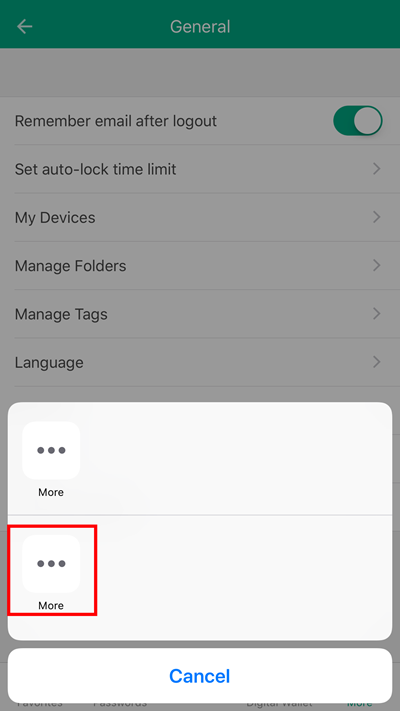
  2. Tap the More ios_more_button.png  button at the bottom of the screen.
     
  3. Tap Settings.
     
  4. Tap Safari Extension. 
     
  5. Tap Next - > Install 


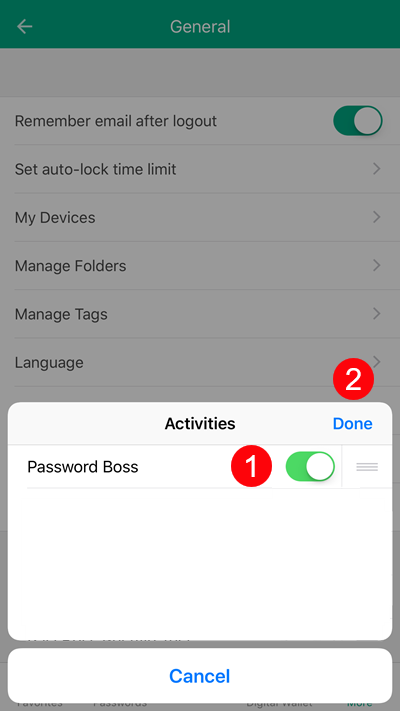
  6. Tap the slider to enable Password Boss and then tap Done.


  7. The Password Boss Safari extension is now enabled.  

After you have enabled the Safari extension, you can start using Password Boss while you browse in Safari. 

The Password Boss Safari extension fills in usernames and passwords, as well as all of your personal information, such as name, email address, or credit card details, making it easy to fill in forms even when using a mobile device.


safari password

Was this article helpful?

Yes
No
Give feedback about this article

Related Articles

  • Troubleshooting Password Boss in your browser
  • Uninstalling the browser buttons
  • Logging into websites ⭐
CyberFOX

PRACTICAL CYBERSECURITY FOR LEAN IT TEAMS

Platforms
  • Privileged Access Management
  • Password Management
  • DNS Filtering
  • SASE
Industry
  • Higher Education
  • K-12 Education
  • State and Local Government
  • Manufacturing
Company
  • About
  • Awards
  • Partnerships
  • Trust & Legal
  • Contact
  • Login
  • FAQ
  • Referral Program
  • Support
© 2026 CYBERFOX LLC ALL RIGHTS RESERVED | Privacy Policy | Terms of Service | Sitemap
Expand