NL Dutch
FR French
IT Italian
JP Japanese
DE German
US English (US)
ES Spanish

Contact Us

If you still have questions or prefer to get help directly from an agent, please submit a request.
We’ll get back to you as soon as possible.

  • Contact Us
English (US)
NL Dutch
FR French
IT Italian
JP Japanese
DE German
US English (US)
ES Spanish
  • Home
  • AutoElevate Knowledgebase
  • AutoElevate Features & Troubleshooting

Just-in-Time (JIT Admin Login)

Discover the benefits of Just-in-Time (JIT) administration for a secure, efficient login process.

Written by Owen Parry

Updated at September 24th, 2026

Contact Us

If you still have questions or prefer to get help directly from an agent, please submit a request.
We’ll get back to you as soon as possible.

  • AutoElevate Knowledgebase
    Getting Started with AutoElevate AutoElevate Features & Troubleshooting Managing Rules in AutoElevate Integrations for AutoElevate AutoElevate FAQ Selling AutoElevate
  • CyberFOX Password Manager Knowledgebase
    Using CyberFOX Password Manager Administrating CyberFOX Password Manager Legacy Password Boss
  • CyberFOX DNS Filtering
    Getting Started with DNS Filtering DNS Filtering Concepts Network Requirements for DNS Filtering DNS Filtering Company and Location Setup Managing your DNS Filtering Policies Using Roaming Clients for DNS Filtering DNS Filtering Reports & Logs DNS Filtering Troubleshooting
  • Marketing Toolkit
    MSP Marketing & Education Toolkit CyberFOX Brand Guidelines
  • Changelogs for Autoelevate and Password Boss
  • CyberFOX Product Roadmap
  • Current Status
+ More

Table of Contents

Overview Limitations Windows Authentication Products ARM-Based Devices Quick Start Configuration Settings Persistent Users Selecting a Username Authorizations Authorization Rules Example Migrated Authorizations Logo How It Works Self-Recovery and Safe Mode Auditing Troubleshooting "Unauthorized" in the Mobile App "Just-in-Time (JIT) Log In is not enabled for this computer." Lock Screen Message JIT Tile Missing Related Articles

Overview


AutoElevate Just-in-Time (JIT) Admin Login lets a technician sign in to a Windows computer as an administrator by scanning a QR code with the AutoElevate Notify mobile app. No password is shared, and the technician receives administrator access only for the session.

When the agent creates the JIT account, or takes control of an existing account with the same username, access to that account is granted only through the agent.

JIT Admin Login is designed and supported for Windows 10 and Windows 11 workstations on x86, x64, and ARM64. The AutoElevate credential provider is included in the single agent installer for all three architectures, so no separate package is required.

Authorizations are required. Enabling JIT Admin Login is not enough on its own. Until at least one card is added to the Just-in-Time (JIT) Log In - Authorizations setting, nobody can log in. The older Authorized Roles & Users setting has been retired. See Authorizations.


Limitations


Lock screens: JIT Admin Login cannot be used from any Windows lock screen, including the lock screen of an active Remote Desktop Connection. At a lock screen, the tile displays: "JIT Admin cannot currently be used from a lock screen. Please use the Log Out or Switch User functionality." Sign out or use Switch User, then select the JIT tile from the sign-in screen.

Windows 365: JIT Admin Login is not supported on Windows 365 cloud computers.

Domain controllers: Using JIT Admin Login on a domain controller is not recommended. On a domain controller, the JIT account is created as a domain account rather than a local account.

Multi-session computers are not supported.


Windows Authentication Products


Some Windows authentication products prevent the AutoElevate credential provider from loading, which hides the JIT Admin Login tile on the Windows sign-in screen. This is known to occur with DUO and WatchGuard AuthPoint.

To allow AutoElevate with DUO, see Using DUO with AutoElevate.


ARM-Based Devices


JIT Admin Login is supported on ARM64 Windows devices. Starting with Windows agent 2.11.1432.0, the credential provider is included in the same agent installer used for x86 and x64 computers. No ARM-specific installer or additional configuration is required.


Quick Start


JIT Admin Login needs two settings: Configuration turns the feature on, and Authorizations controls who can log in and what access they receive.

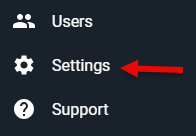
  1. In the Admin Portal, go to Settings → Just-in-Time (JIT) Log In.
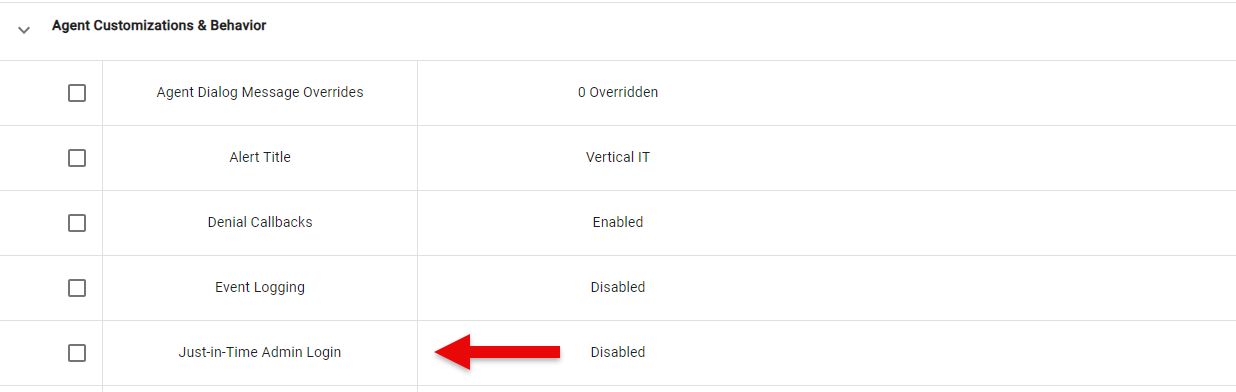
  2. Edit Just-in-Time (JIT) Log In - Configuration at the Global level (pencil icon), or use the + icon at the top of the grid to create a Company, Location, or Computer level setting.
  3. Check Enabled, enter a Username, and select Save.
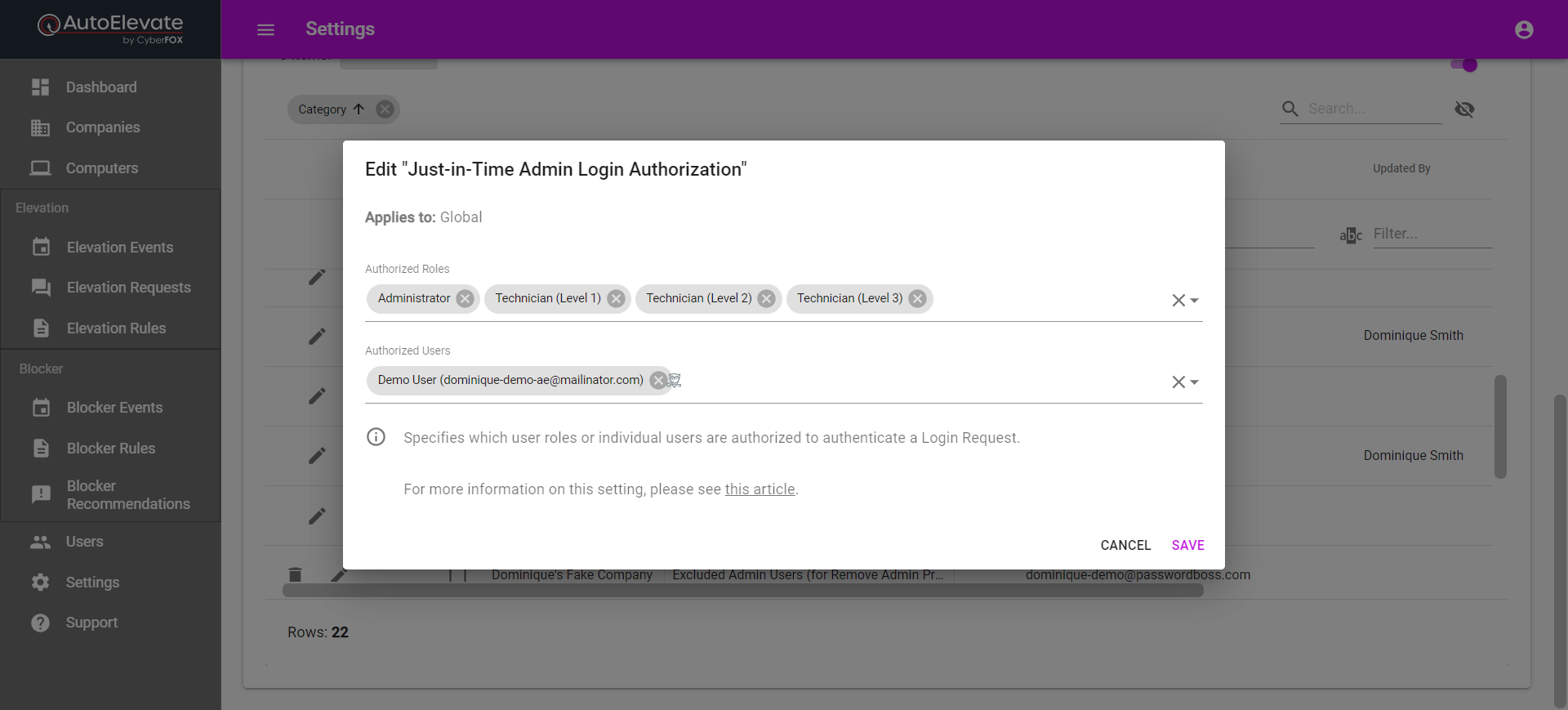
  4. Edit Just-in-Time (JIT) Log In - Authorizations, select Add Authorization, and create at least one card that names who can log in (Roles or Users) and what they receive (Local Groups). For most workgroup computers, a card with your technician role and the Local Group Administrators is enough.
  5. Select Save.
Settings list with the Just-in-Time (JIT) Log In group expanded


Configuration Settings


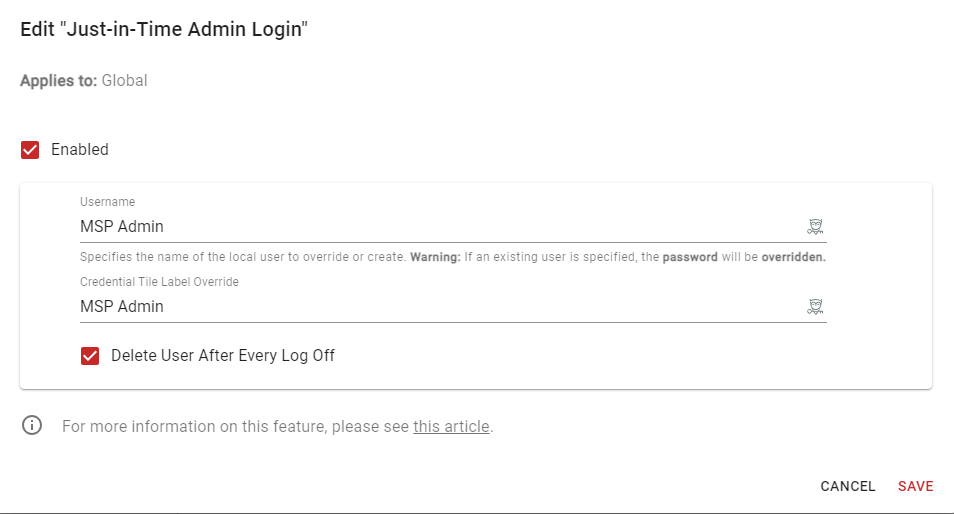
Go to Settings → Just-in-Time (JIT) Log In → Just-in-Time (JIT) Log In - Configuration. Edit the Global setting (pencil icon), or use the + icon at the top of the grid to create a Company, Location, or Computer level setting.

  • Enabled: Turns on JIT Admin Login. The JIT tile appears on the Windows sign-in screen only when this box is checked.
  • Username: The name of the local account the technician signs in as (1–20 characters). If an account with this name already exists on the computer, its password is overwritten. This can be useful for an existing admin account, but verify the username before saving so you do not overwrite the password of an account you did not intend to change.
  • Credential Tile Label Override: Custom text for the JIT tile on the Windows sign-in screen.
  • Delete User After Every Log Off: Deletes the JIT account each time the technician signs out, so the account exists only while it is in use.
  • Domain Log In Enabled: Off by default. Turns on JIT Domain Log In for domain-joined computers. Turning this on also changes which authorization cards apply to those computers, including for local logins. Read Authorizations before enabling it, and see JIT Domain Log In.
Configuration dialog with all five fields

Persistent Users

When Delete User After Every Log Off is not checked, the JIT account persists between sessions. A persistent account is a standard user at rest, not an administrator. It is not deleted when the agent is uninstalled or when JIT Admin Login is disabled.

If Delete User After Every Log Off is enabled and the agent is uninstalled before a JIT account has been removed, that account is left on the computer.

When the technician signs out, the account is removed from the Administrators group. Any other groups granted for the session are removed the next time the account is used for a JIT login.

Persistent JIT user

Selecting a Username

Avoid the usernames Administrator and ~0000AEAdmin. These accounts cannot be deleted, which blocks JIT Admin Login when Delete User After Every Log Off is enabled.


Authorizations


The Just-in-Time (JIT) Log In - Authorizations setting controls who can use JIT Admin Login and what access they receive. It is required for every JIT configuration and is the only way to grant login access. The default is empty, and an empty setting means nobody can log in.

Go to Settings → Just-in-Time (JIT) Log In → Just-in-Time (JIT) Log In - Authorizations, then select Add Authorization to create a card. Each card has six lists, and each list has an All box:

List What it controls
Roles Which technician roles the card applies to.
Users Which individual technicians the card applies to.
Local Groups Which local groups the JIT account can be added to on the computer, for example Administrators. Typed by hand. The name must match the Windows group name exactly, including capitalization.
Domains Which domains the card applies to. Selected from the domains your computers report.
Domain Groups Which domain groups the technician can select for a JIT Domain Log In. Typed by hand. Available only after a Domain is set.
Organizational Units Which organizational units the technician can select for a JIT Domain Log In. Typed by hand. Available only after a Domain is set.
Authorizations editor with a workgroup card (no Domain) expanded
Authorizations card with a Domain and a Domain Group

Levels override each other. The Authorizations setting can be set at the Global, Company, Location, and Computer levels. The most specific level that has the setting wins completely. For example, cards at the Computer level hide all Location, Company, and Global cards for that computer. Cards within the winning level add up. The Global setting can be edited but not deleted.


Authorization Rules

  1. A role or user alone is not enough. Each card must also grant at least one Local Group (or, for domain logins, a Domain Group or Organizational Unit), or have All checked for that list. A technician covered only by a card with a role and no groups sees "Unauthorized" in the mobile app.
  2. Domain-joined computers with Domain Log In Enabled use only cards whose Domains include that computer's domain (or have All checked for Domains). This applies to local administrator logins on those computers too. A card with no Domains has no effect on them.
  3. All other computers use only cards with no Domains. This includes workgroup computers and any computer where Domain Log In Enabled is off.
  4. Grants add up within a level. A technician or role can appear on several cards, and the technician receives everything those cards grant. Cards at different levels do not combine (see the callout above).

Mixed environments need two cards. If a customer has both workgroup computers and domain-joined computers with Domain Log In Enabled, create one card with no Domains (for the workgroup computers) and one card with the domain selected (for the domain-joined computers).


Example

To let the Technician role sign in as a local administrator on workgroup computers and on domain-joined computers in CONTOSO.LOCAL:

  • Card 1: Roles: Technician. Local Groups: Administrators. Domains: none.
  • Card 2: Roles: Technician. Local Groups: Administrators. Domains: CONTOSO.LOCAL. Add Domain Groups or Organizational Units if technicians should also be able to request domain access.

Migrated Authorizations

Authorizations created with the retired Authorized Roles & Users setting have been migrated to a single card with the Local Groups Administrators and Users and no Domains.

  • After migration, rule 2 still applies. Turning on Domain Log In Enabled stops migrated users from logging in to domain-joined computers until a card that includes the domain is added.
  • Authorizations added manually after migration must follow the rules above.


Logo


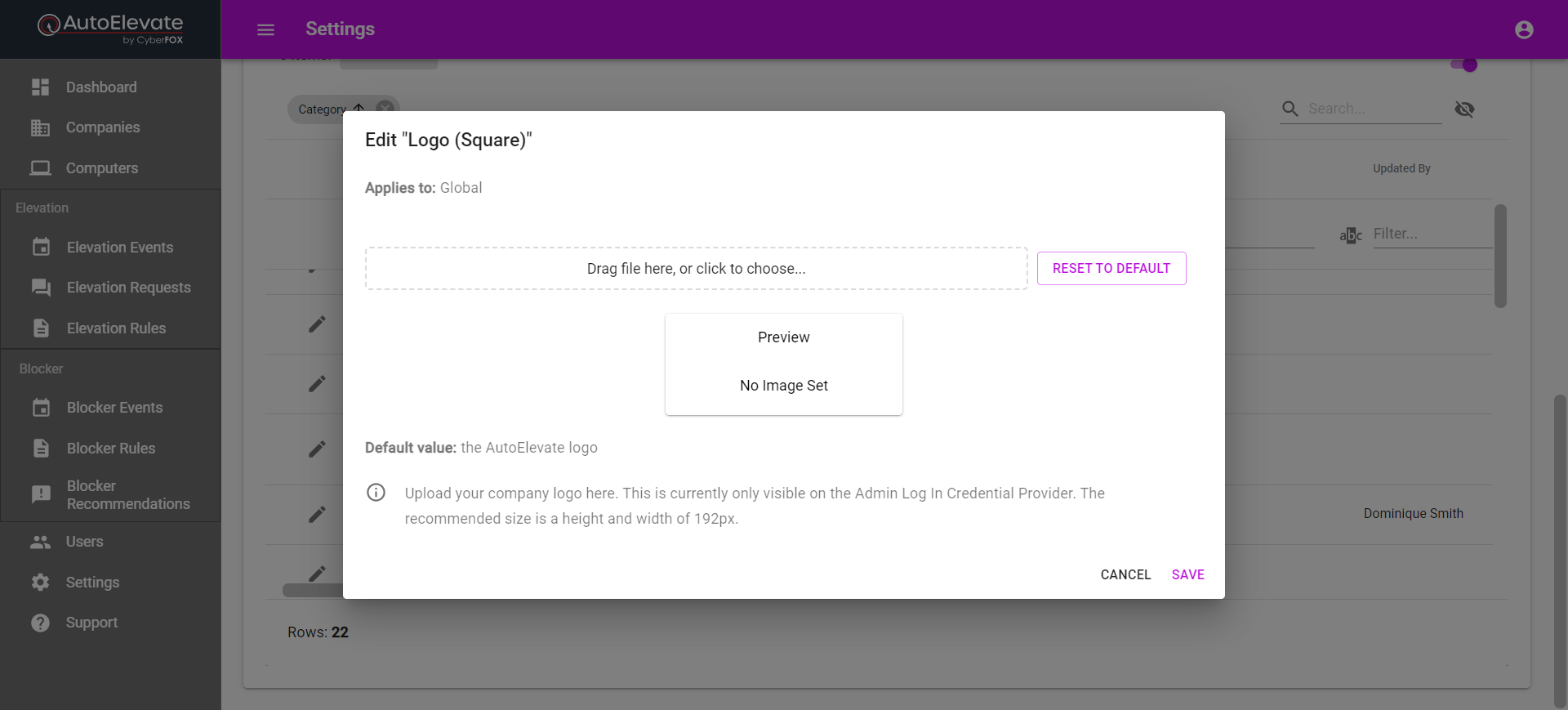
Go to Settings → Just-in-Time (JIT) Log In → Just-in-Time (JIT) Log In - Logo (Square). Edit the Global setting (pencil icon), or use the + icon to create a Company or Location level setting. The logo cannot be set at the Computer level.

Upload an image to use as the JIT tile icon on the Windows sign-in screen, then select Save.

  • The recommended size is 192 × 192 pixels. The image cannot be larger than 1 MB.
  • .webp images are not supported.
  • Transparency is not preserved. Transparent areas are replaced with a white background.
  • If no image is set, the AutoElevate logo is used. Select RESET TO DEFAULT to return to it.
Just-in-Time (JIT) Log In - Logo (Square) editor


How It Works


The AutoElevate credential provider adds a JIT tile to the Windows sign-in screen. The technician selects the tile and authenticates with the AutoElevate Notify app instead of a password.

  1. At the Windows sign-in screen, the technician selects the JIT tile and begins the JIT login. A QR code appears. The QR code expires after 10 minutes.
  2. In the AutoElevate Notify app, the technician selects the scan icon and scans the QR code.
  3. On the Choose Login Options screen, the technician selects at least one Local Group (on domain-joined computers with Domain Log In Enabled, a Domain Group or Organizational Unit can also be selected). Only groups granted by the technician's authorization cards are listed.
  4. The technician taps Submit Just-in-Time Log In Request and completes device authentication (Face ID, Touch ID, fingerprint, or passcode) if prompted.
  5. Windows signs in as the JIT account, and the session starts in Technician Mode.
JIT tile and QR code on the Windows sign-in screen
Choose Login Options screen as it opens
Local Groups picker
Administrators selected, Submit Just-in-Time Log In Request enabled

These screenshots show a workgroup computer, so only Local Groups appears. On a domain-joined computer with Domain Log In Enabled, Domain Groups and Organizational Unit also appear.

Self-Recovery and Safe Mode

The credential provider includes a self-recovery feature. If the JIT tile fails to load more than three times, it turns itself off. It turns back on after the AutoElevate Agent service restarts or the next time a user signs in. To reset it, restart the AutoElevate Agent service or the computer.

If the AutoElevate Agent service is not running, the JIT tile displays "The AutoElevate Agent service is not running." The standard Windows password sign-in is always available.

JIT Admin Login does not work in Safe Mode, because the AutoElevate Agent service does not run there. To sign in to a computer in Safe Mode, use a local administrator or break-glass account.


Auditing


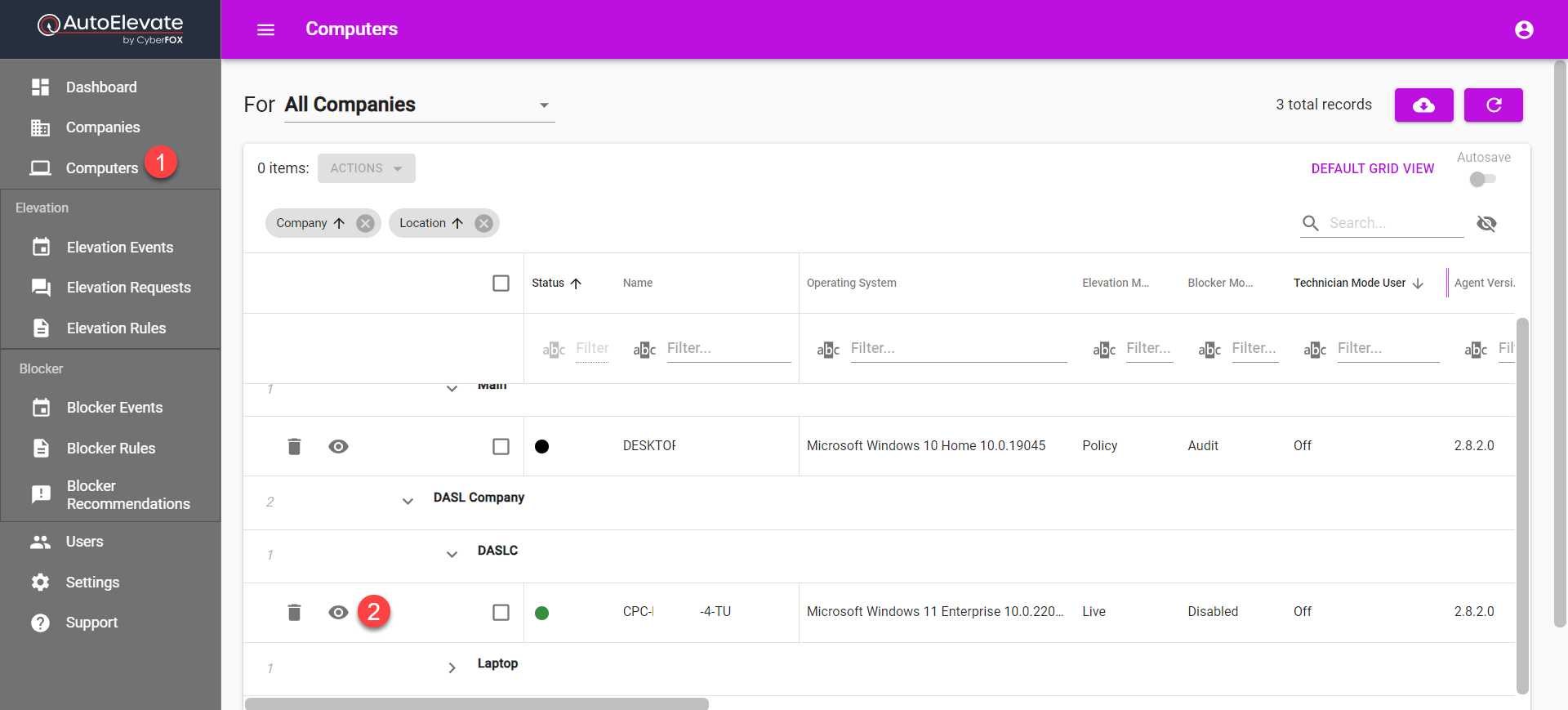
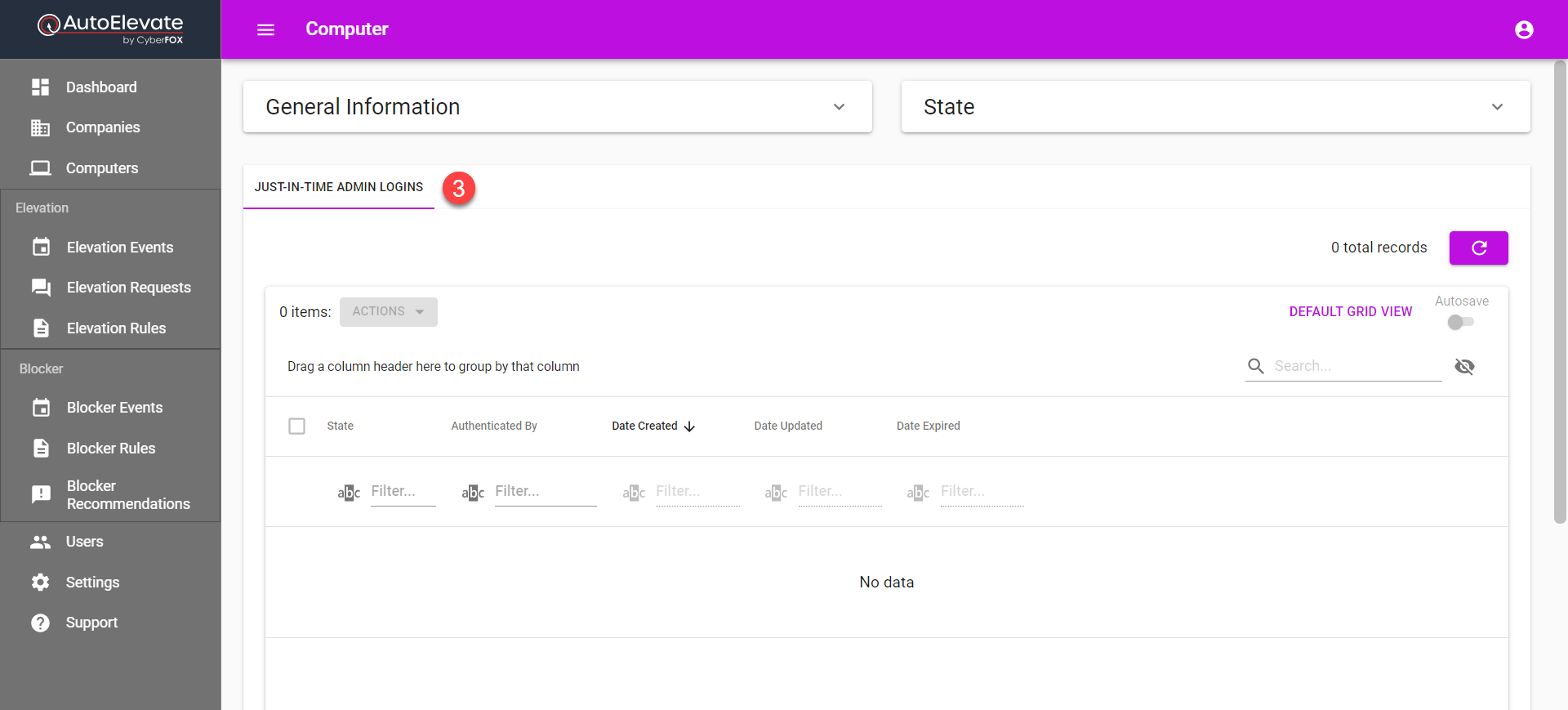
To review JIT logins for a computer, open the computer from the Computers grid (eye icon) and select the Just-in-Time (JIT) Log Ins tab. The tab lists each request with these columns:

  • State: Whether the request was authenticated. A request that was started but never completed shows as Unauthenticated.
  • Authenticated By: The technician who approved the login from the mobile app.
  • Date Created: When the login was started.
  • Date Updated: When the request last changed state.
  • Date Expired: When the login request expires: 10 minutes after it was created, or 5 minutes for an offline request. It does not show when the JIT account was removed.

Select the CSV export button to download the list.

Computers grid view icon
Just-in-Time (JIT) Log Ins tab with an Authenticated row


Troubleshooting


"Unauthorized" in the Mobile App

The app displays: "Unauthorized — You do not have Just-in-Time (JIT) Admin authorization for this computer. Contact your administrator to configure permissions."

  • Confirm that a card in Just-in-Time (JIT) Log In - Authorizations names the technician (Users) or the technician's role (Roles).
  • Confirm that the card grants at least one Local Group, or has All checked.
  • For a domain-joined computer with Domain Log In Enabled, confirm that the card's Domains include the computer's domain. For any other computer, confirm that the card has no Domains.
  • Check whether a more specific level (Company, Location, or Computer) has its own Authorizations setting. The most specific level replaces the others.
  • If the authorizations were created with the retired Authorized Roles & Users setting, see Migrated Authorizations.
Unauthorized screen

"Just-in-Time (JIT) Log In is not enabled for this computer."

Enabled is not checked in the Configuration setting that applies to this computer. Check the Global, Company, Location, and Computer level settings.

Lock Screen Message

"JIT Admin cannot currently be used from a lock screen. Please use the Log Out or Switch User functionality." Sign out of the current session, or select Switch User, and start the JIT login from the sign-in screen.

JIT Tile Missing

  • Confirm that Enabled is checked for the computer.
  • Confirm that the computer is at the Windows sign-in screen, not a lock screen.
  • Confirm that no third-party authentication product (such as DUO or WatchGuard AuthPoint) is preventing the credential provider from loading.
  • Restart the AutoElevate Agent service or the computer to reset the credential provider.


Related Articles


  • JIT Domain Log In
  • Offline Technician Mode and Just-in-Time Admin Login
  • Technician Mode - 2FA Authentication & Command Tray
  • Using DUO with AutoElevate
admin login jit just-in-time jit admin login jit log in autoelevate notify qr code credential provider jit authorizations add authorization local groups administrators group roles and users unauthorized choose login options temporary admin delete user after every log off persistent user credential tile lock screen domain log in enabled arm64 duo watchguard authpoint technician mode jit log ins jit audit windows sign-in

Was this article helpful?

Yes
No
Give feedback about this article

Related Articles

  • Enabling Browser Based Notifications For Technicians
  • Troubleshooting: Computers Not Appearing in Admin Portal After Install
  • Elevation Types
  • How to Automatically Remove Admin Privileges
CyberFOX

PRACTICAL CYBERSECURITY FOR LEAN IT TEAMS

Platforms
  • Privileged Access Management
  • Password Management
  • DNS Filtering
  • SASE
Industry
  • Higher Education
  • K-12 Education
  • State and Local Government
  • Manufacturing
Company
  • About
  • Awards
  • Partnerships
  • Trust & Legal
  • Contact
  • Login
  • FAQ
  • Referral Program
  • Support
© 2026 CYBERFOX LLC ALL RIGHTS RESERVED | Privacy Policy | Terms of Service | Sitemap
Expand