NL Dutch
FR French
IT Italian
JP Japanese
DE German
US English (US)
ES Spanish

Contact Us

If you still have questions or prefer to get help directly from an agent, please submit a request.
We’ll get back to you as soon as possible.

  • Contact Us
English (US)
NL Dutch
FR French
IT Italian
JP Japanese
DE German
US English (US)
ES Spanish
  • Home
  • AutoElevate Knowledgebase
  • Managing Rules in AutoElevate

Moving Elevation or Blocking Rules

Learn how to move elevation or blocker rules within the Admin Portal.

Written by Owen Parry

Updated at July 31st, 2025

Contact Us

If you still have questions or prefer to get help directly from an agent, please submit a request.
We’ll get back to you as soon as possible.

  • AutoElevate Knowledgebase
    New to AutoElevate? START HERE AutoElevate Features & Troubleshooting Managing Rules in AutoElevate Integrations for AutoElevate AutoElevate FAQ Selling AutoElevate
  • Password Boss Knowledgebase
    Using Password Boss Administrating Password Boss Legacy Password Boss
  • CyberFOX DNS Filtering
    Getting Started with DNS Filtering DNS Filtering Concepts Network Requirements for DNS Filtering DNS Filtering Company and Location Setup Managing your DNS Filtering Policies Using Roaming Clients for DNS Filtering DNS Filtering Reports & Logs DNS Filtering Troubleshooting
  • Marketing Toolkit
    MSP Marketing & Education Toolkit CyberFOX Brand Guidelines
  • Changelogs for Autoelevate and Password Boss
  • CyberFOX Product Roadmap
  • Current Status
+ More

Moving Elevation Rules


To move Elevation or Blocking rules from one Computer/Location/Company/Globally to another, please do the following:

  1. Log in to the Web Admin Portal at https://msp.autoelevate.com using your email address and AutoElevate password.
     
  2. In the left-hand column, click the Rules (Elevation or Blocking) you wish to manage.
     
  3. On the rules grid, click the arrow next to the Company/Location/Computer and then select the rule by clicking the square next to the listed rule you want to move.
     
  4. Click on the Actions menu at the top of the screen and then Move under the Rule Management section.

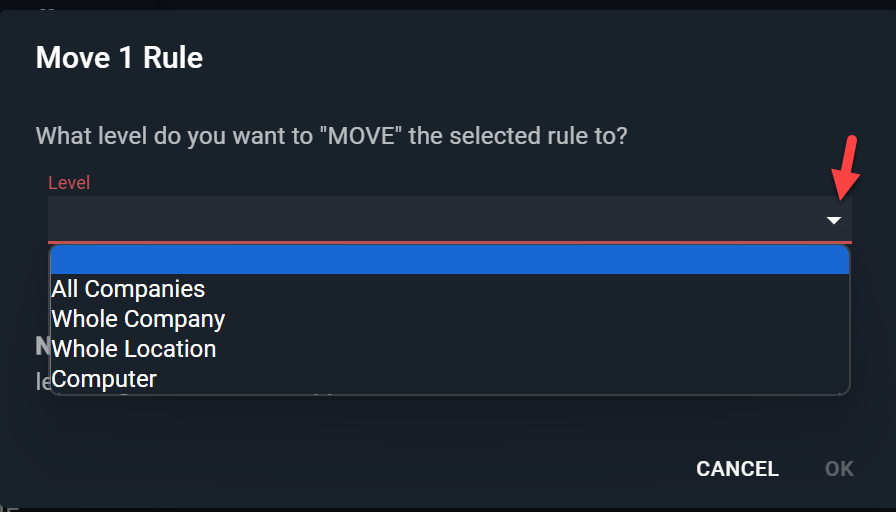
5. A Dialog box will ask you to choose the level to which you want to move the rule. (All Companies, Whole Company, Whole Location, or Computer).

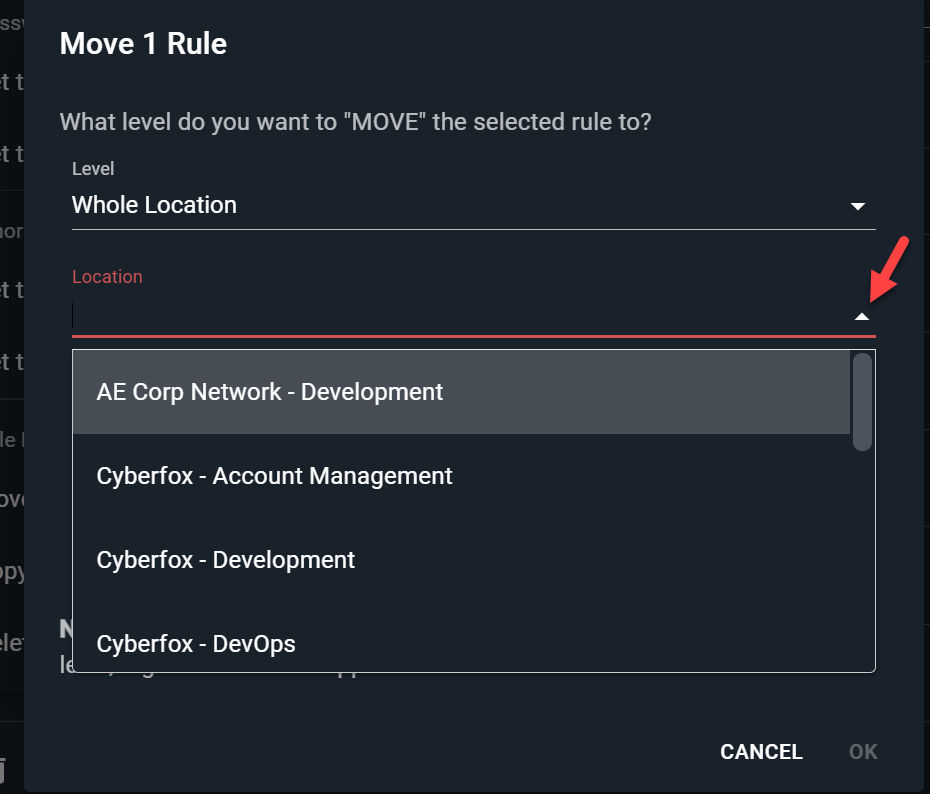
6. Once the Level has been selected, another dropdown menu will appear where you can select the specific location by choosing from the drop-down menu or typing in the space to search.

7. Click OK to accept changes once the specific location (or Company, Computer, etc.) is selected.


regulations relocation

Was this article helpful?

Yes
No
Give feedback about this article

Related Articles

  • Removing Elevation or Blocking Rules
  • Creating Elevation Rules From UAC Events
Request a Demo
  • Get Pricing
  • Start Trial
  • Contact
  • Support Center
  • Login
Solutions
AutoElevate
  • AutoElevate Overview
  • Remove Admin Privilege
  • Just-in-Time Admin
  • Blocker
Password Manager
  • Password Manager Overview
  • Features
DNS Filtering
  • DNS Filtering Overview
MSPs
IT Departments
  • Overview
  • State and Local Government
  • K-12 Education
  • Manufacturing
  • Higher Education
Resources
  • Resource Center
  • Group Demos
  • Events
  • The Simple 7™
Company
  • About
  • Leadership
  • Culture & Values
  • News & Press
  • Awards
  • Partnerships
  • Referral Program
  • Trust Center
CyberFox Logo

CALL US (813) 578-8200

© 2025 CYBERFOX LLC ALL RIGHTS RESERVED | Privacy Policy | Terms of Service | Sitemap


Knowledge Base Software powered by Helpjuice

Expand