Understanding profiles (Legacy)
Gain insight into how profiles in Password Boss

Written by Owen Parry
Updated at April 17th, 2026
Table of Contents
What are profiles?
Overview
A profile is a structured set of personal details used for identity autofill. Instead of manually typing your name, address, email, or phone number on websites, Password Boss uses your profile to automatically populate the required fields.
Each profile is a distinct identity and can be completely different from another — allowing you to switch as needed during online activities.
Why Profiles Are Useful
Profiles help you:
- Autofill forms consistently and accurately
- Prevent errors in registration, checkout, and address entry
- Keep Work and Personal information separate
- Speed up online tasks and eliminate repetitive data typing
- Maintain structured, organized identity information across devices
Types of Information Stored in a Profile
Standard Fields
Profiles typically include core personal details:
- First name, middle name, last name
- Primary email address
- Secondary or alternate emails
- Mobile, work, and home phone numbers
- Home, business, or alternate addresses
- Country, state, postal code
- Optional company/organization fields
Additional Data
Depending on your workflow, profiles can store:
- Business‑specific contact details
- International phone formats
- Delivery addresses for travel
- Temporary residence addresses
- Alternate spellings or legal names
How Profiles Work with Autofill
Automatic Field Matching
Password Boss detects form fields and matches them against your saved profile data:
- Name fields → your profile name
- Address fields → any address saved in the profile
- Email fields → primary or secondary email
- Phone fields → any stored number in matching format
Password Boss uses intelligent field recognition to ensure only relevant fields are filled.
Switching Profiles
If you have multiple profiles, Password Boss detects this and prompts you to select the correct one when filling a form.
Examples include:
- Using your Personal Profile when ordering a gift
- Using your Work Profile when registering for a conference
- Using a Travel Profile when booking accommodations
Creating and Editing Profiles
Creating a New Profile
- Open Password Boss.
- Go to Identities.
- Select Add New.
- Enter the required identity details.
- Save the profile.
Editing an Existing Profile
- Open the profile you want to modify.
- Select Edit.
- Update any fields.
- Save the changes.
Using Profiles for Autofill
How Autofill Works
When you encounter a form requesting personal details:
- Password Boss detects the fields
- Your profiles appear as autofill options
- Selecting a profile fills the form instantly
When to Use Profiles
Profiles are recommended when filling out:
- Registration forms
- Shipping or billing forms
- Account creation pages
- Contact information forms
Managing Multiple Profiles
Why Use Multiple Profiles
Separate profiles allow you to:
- Keep business and personal identities isolated
- Maintain different billing and shipping addresses
- Support household members with shared devices
- Use region‑specific information (e.g., U.S. vs. EU addresses)
Examples of Useful Profiles
- Work Profile — office info, corporate phone, business email
- Personal Profile — home address, personal email
- Travel Profile — temporary addresses, hotel/residence details
- Household Profiles — spouse, partner, child, household manager identities
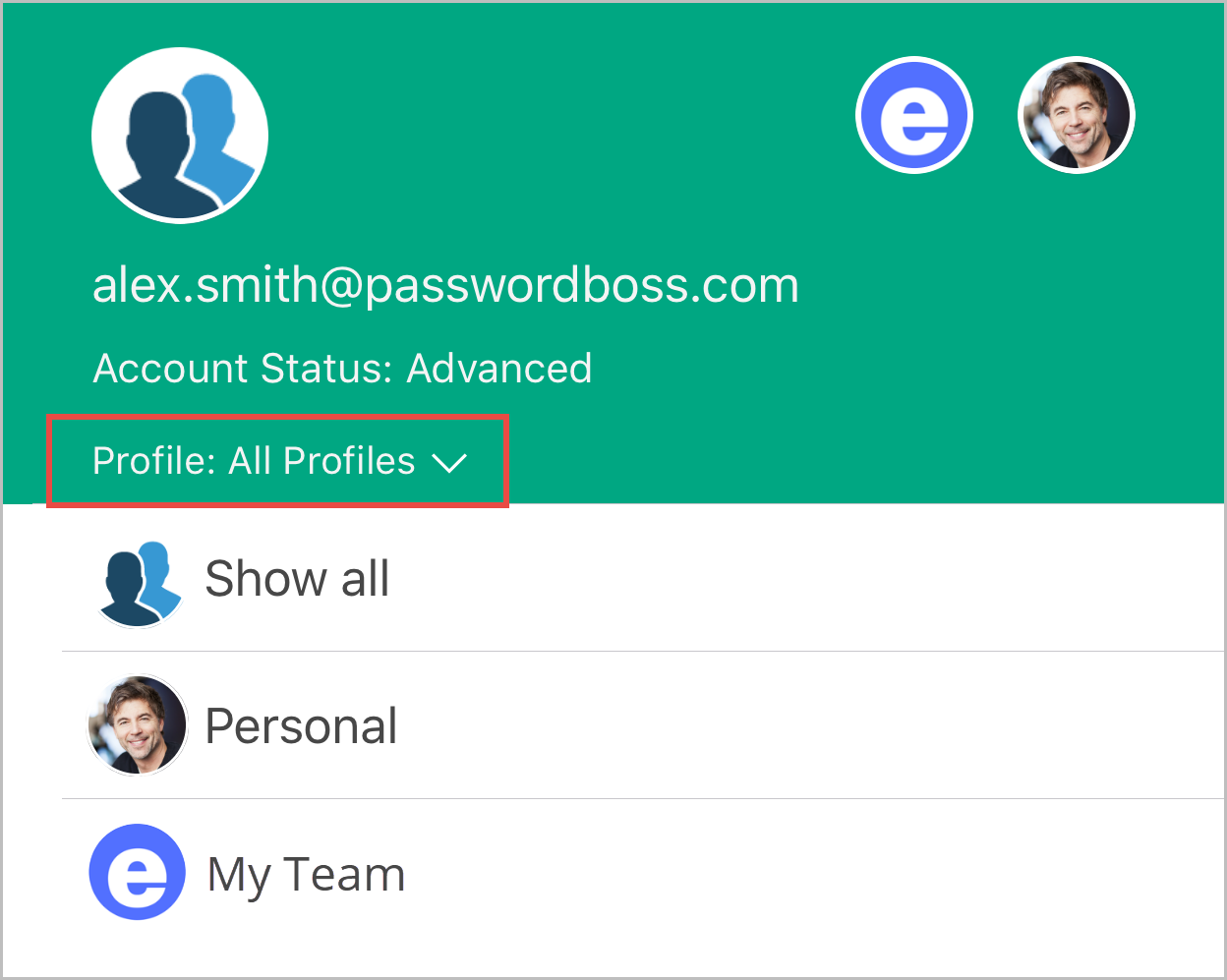
iOS
- From the bottom menu, tap More
-
Tap the profile picker to expand the list of profiles.
- Tap an individual profile to filter your items or All Profiles to see all items. Tip: you can also tap the icons without opening the profile picker.
Android
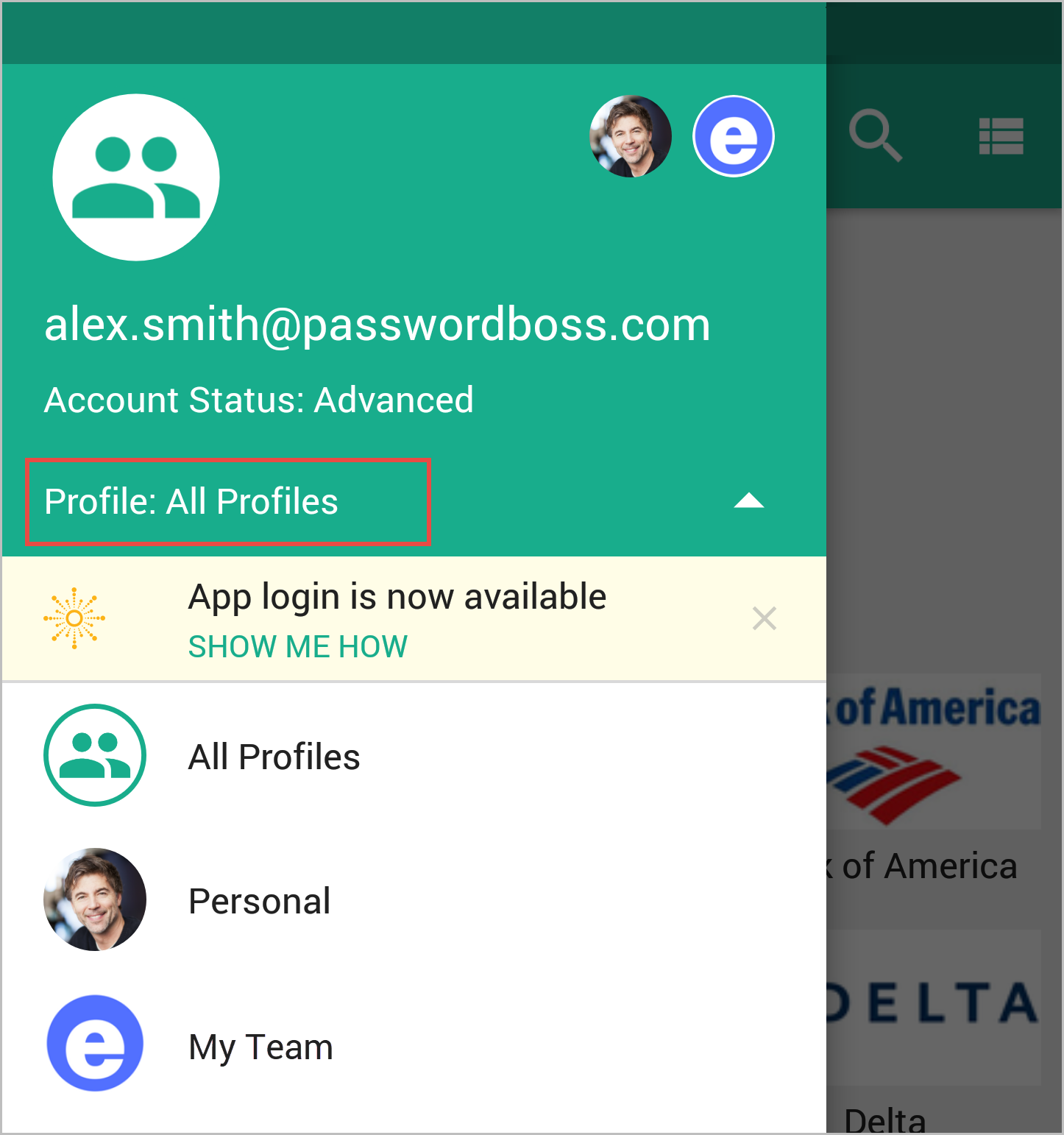
- From the top left tap the menu icon

-
Tap the profile picker to expand the list of profiles.
- Tap an individual profile to filter your items or All Profiles to see all items. Tip: you can also tap the icons without opening the profile picker.
Syncing Profiles Across Devices
Multi‑Device Access
Profiles sync automatically across the Password Boss WebApp, Desktop, iOS, and Android apps.
Encryption
All profile data is encrypted and protected by your Master Password.
Moving items between profiles
Items can be moved between profiles in multiple ways.
WebApp
- Click on the 3 vertical dots for that item.
- Click on Edit and change the profile in the top right.


iOS and Android
-
Tap an item to open it.
- Tap the Edit button.
-
Change the profile and save the item.
Best Practices for Managing Profiles
Keep Information Updated
Review your profile periodically to keep:
- Addresses accurate
- Phone numbers current
- Contact emails are correct
Autofill accuracy depends heavily on data quality.
Use Consistent Naming
Label your profiles clearly:
- “Work – Corporate”
- “Personal – Home”
- “Travel – Winter 2025”
Avoid Overloading a Single Profile
If you notice too many conflicting details (e.g., four emails or multiple addresses), split them across the appropriate profiles.
Test Autofill
Use a dummy form to verify:
- Field matching
- Regional address formatting
- Phone number formats
Troubleshooting Profile Autofill
Fields Not Filling
- Ensure the information exists in the profile
- Verify the field type matches the stored data
- Try selecting another profile if multiple exist
Wrong Profile Suggested
- Rename profiles more clearly
- Remove outdated profiles
- Prioritize commonly used profiles
Incorrect Address Formatting
- Adjust region settings for the address
- Ensure postal code formats (U.S., UK, EU) match expected input