Organizing your items with tags (Legacy)
Learn how to effectively use tags to manage and quickly locate the items in your collection.

Written by Owen Parry
Updated at April 17th, 2026
Table of Contents
Overview
Tags are short text labels you assign to items to help you categorize and quickly find related information.
- You can add multiple tags to any item.
- Tags are unique to your account and are not shared when you share an item.
- Tags work across Passwords, Notes, Digital Wallet, and other item types.
When to Use Tags
Use tags when you need flexible grouping that folders cannot provide, such as:
- Organizing by client name, project, or department
- Grouping items for temporary tasks
- Creating multi‑category filtering (e.g., “#ClientA” + “Finance”)
Best Practices for Tags
Naming Conventions
Use simple, predictable naming standards so tags remain consistent:
- Use case‑sensitive naming if you want grouping (e.g., “HR” vs “hr”).
- Use prefixes to group related tags (e.g., “#ClientA”, “#ClientB”).
- Decide whether to use abbreviations or full names and stick to one style.
Reusable Tag Strategy
Avoid creating multiple tags with similar meaning.
Examples of good reusable tags:
- Client names
- Department names
- Project codes
- Device types
- “Personal / Work” distinctions
Keep Tags Short
Tags should be one to two words. If longer, split into multiple tags.
How to add tags to items
Desktop
- Open a saved item.
- Click or tap the "Add tag..." button
 located near the top of the item.
- Type the name for the tag. Any saved tags will show as suggestions as you type.
- Click or tap enter to save tag.
How to remove and edit tags from items
Desktop
-
Open a saved item.
- Right-click the tag and choose Delete.
- Click Save.
Mobile
- Tap an item to open it.
- Tap the Edit button.
- Tap the tag.
- Tap Delete.
- Tap Save.
Managing and Reviewing Your Tags
Central Tag Management
Use the Settings → Tags section (WebApp) to:
- Review all existing tags
- Merge or rename tags
- Delete unused tags
- Clean up duplicates after imports
Printing or Exporting Tag Lists
For large environments or shared documentation workflows, periodically export or print your tag list to maintain consistency.
Using Tags to Create Custom Views
How Custom Views Work
Tags unlock dynamic filtering:
- Combine multiple tags
- Build reusable filtered lists
- Create category‑specific dashboards
Where to Create Custom Views
Custom views are available on:
- Desktop
- WebApp
- Mac
Creating a Custom View
Desktop
- Click Settings->Custom Views.
- Click Add.
- Add a name for the view. From the list of available tags in the left column, select the tags to include in the custom view and click Add >
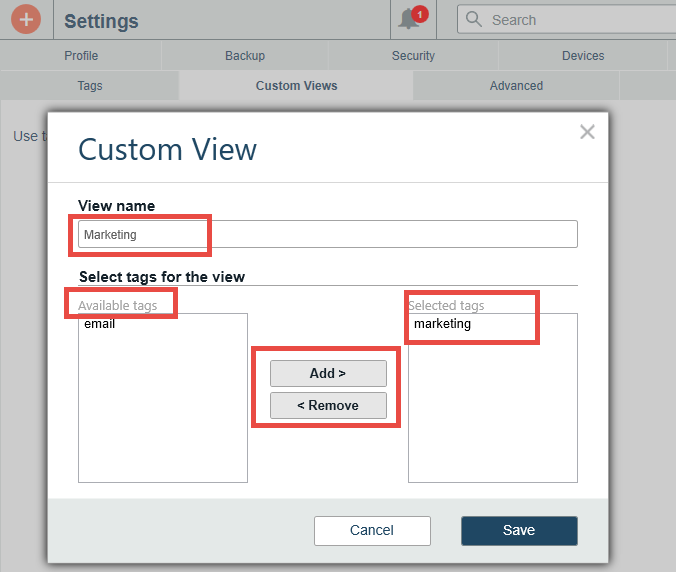
- Click Save.
Searching for Tagged Items
Using Search
- Type a tag name into the Search bar.
- All items containing that tag will appear in the results.
- Combine tag names with item names for faster filtering.
Search Tips
- Searching “#client” will group all client‑tagged items.
- Use unique prefixes to ensure tags don’t overlap.
Tags vs. Folders
Choosing the Right Method
Use folders when you need structure.
Use tags when you need flexibility and multi‑category grouping.
When Tags Are Better
- Items need to appear in multiple contexts
- You want fast filtering
- You want to build custom views