How to use Autofill in Android
Learn how to quickly fill out forms by using Autofill in your Android device.

Written by Owen Parry
Updated at September 12th, 2026
Table of Contents
Overview
CyberFOX Password Manager uses Android Autofill to offer your saved logins directly in supported Android apps and Chrome. This allows you to sign in without opening CyberFOX Password Manager and manually copying your username and password.
Autofill requires Android 8.0 Oreo or later. It is the only supported automatic login method for CyberFOX Password Manager on Android.
Note: CyberFOX Password Manager’s Accessibility-based login option has been removed for all Android versions. Google no longer allows apps to publish using that accessibility capability, so Autofill is now the only supported way to log in to apps and Chrome.
What Autofill Is
Android Autofill is a system feature that allows a password manager such as CyberFOX Password Manager to provide saved credentials to supported apps and websites.
When an app supports Autofill and CyberFOX Password Manager is selected as the device’s Autofill service, your saved logins may appear beside the username or password field or in the keyboard suggestion area.
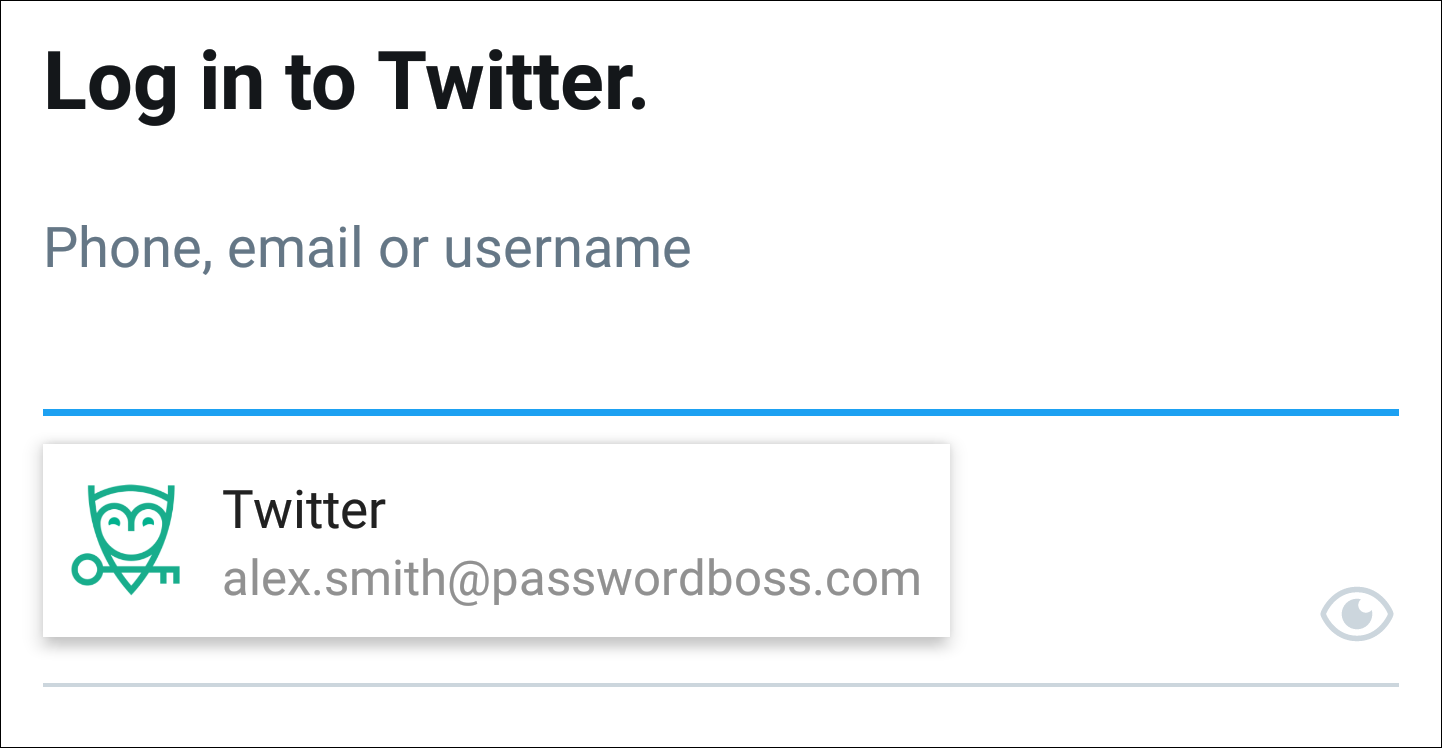
With Autofill, you can:
- Sign in to supported Android apps with a saved login
- Sign in to supported websites in Chrome
- Select between multiple saved logins
- Save a new login after signing in manually
- Fill credentials without copying them to the Android clipboard
Not every app supports Android Autofill. Support depends on how the app developer implemented its login fields.
Android Version Requirements
Android 8.0 or Later
Devices running Android 8.0 Oreo or later support the Android Autofill framework. CyberFOX Password Manager must be selected as the device’s Autofill service before it can provide saved logins to supported apps and Chrome.
Android 7 or Earlier
CyberFOX Password Manager cannot automatically fill logins in apps or Chrome on devices running Android 7 or earlier. The Android Autofill framework is unavailable, and the former CyberFOX Password Manager Accessibility-based login option is no longer supported.
You can still use your saved credentials manually:
- Open CyberFOX Password Manager.
- Find the saved login.
- Copy the username or password.
- Return to the app or website and paste the information into the appropriate field.
To use automatic login through Autofill, update the device to Android 8.0 or later. If the device cannot be updated, you will need to use a newer supported device.
Enable CyberFOX Password Manager Autofill
- Open CyberFOX Password Manager.
- Select the menu icon in the upper-left corner.
- Select Settings.
- Under Login for Android Apps, select Use Autofill with CyberFOX Password Manager to login to apps (Oreo+).
- On the Android Autofill service screen, select CyberFOX Password Manager.
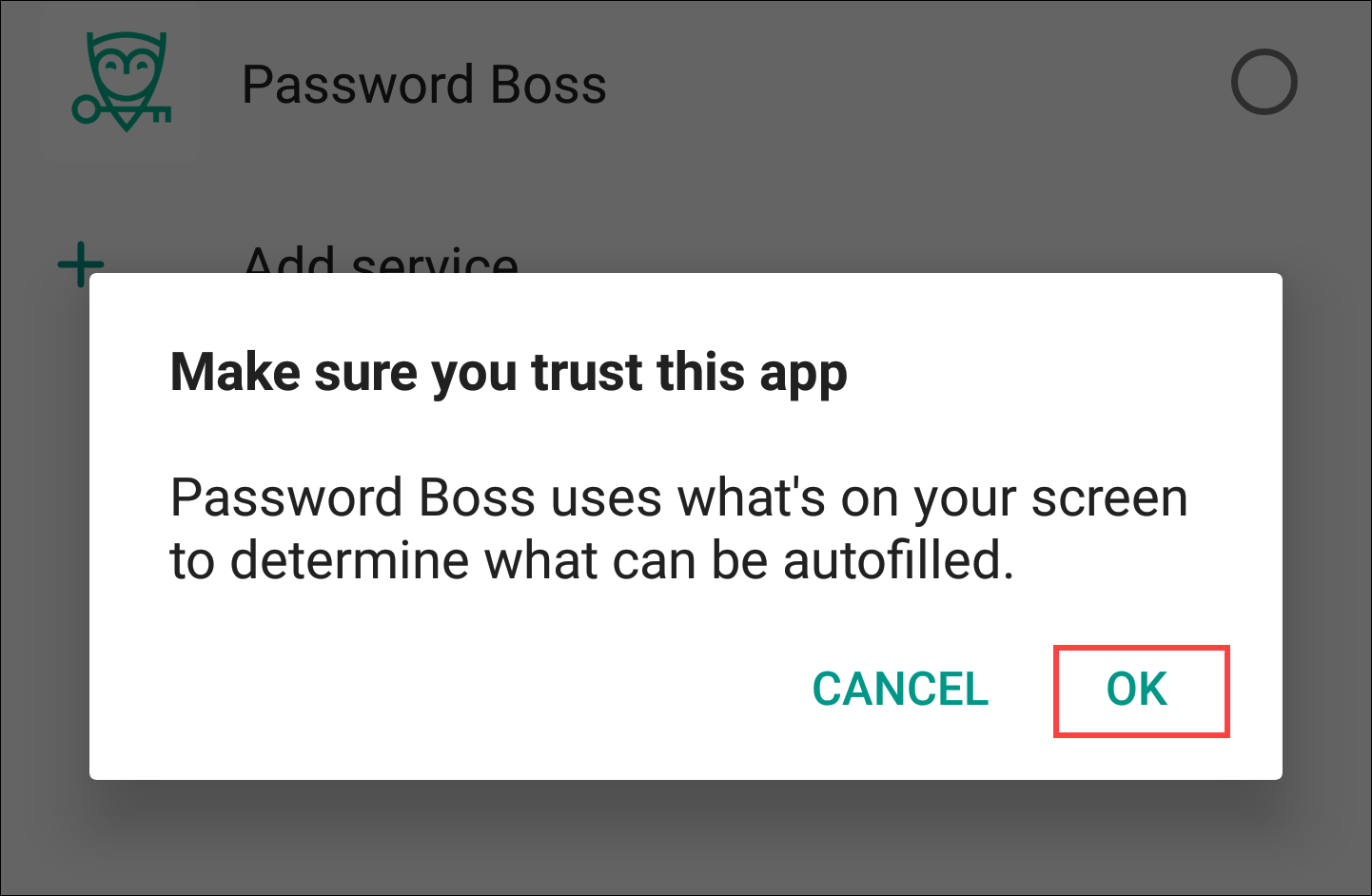
- Select OK to confirm that you trust CyberFOX Password Manager.
CyberFOX Password Manager is now enabled as the Autofill service.
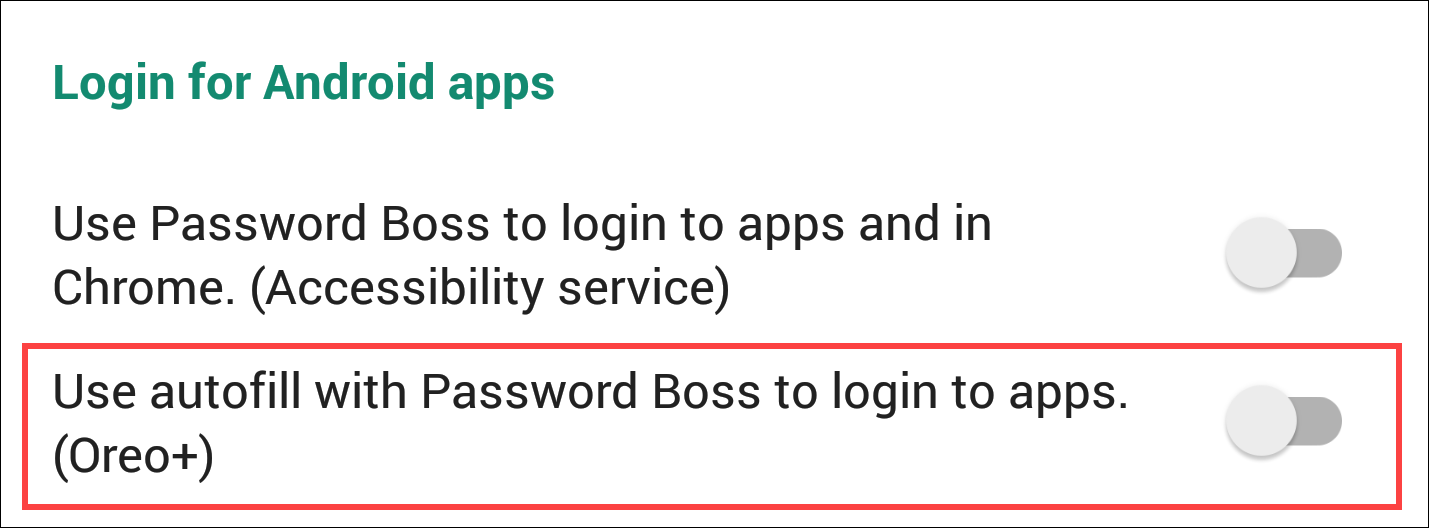
Android setting names may vary by Android version and device manufacturer.
Confirm CyberFOX Password Manager Is the Active Autofill Service
Enabling Autofill inside CyberFOX Password Manager may open the correct Android setting, but you should confirm that Android is using CyberFOX Password Manager as the active provider.
Open the Android Settings app and search for Autofill service. Confirm that CyberFOX Password Manager is selected.
On many Android devices, the setting is located under:
Settings > System > Languages & input > Autofill service
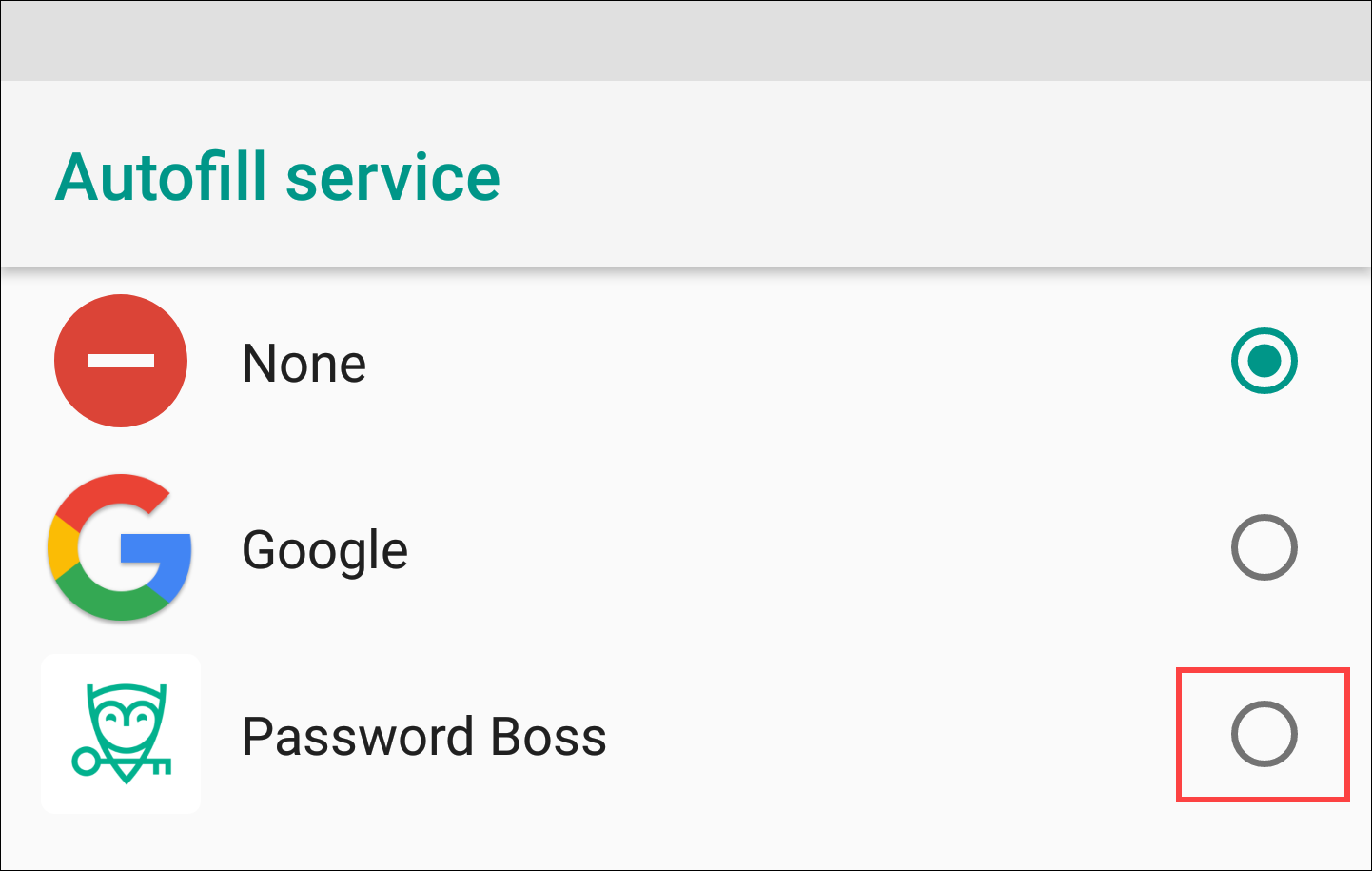
If another password manager is selected, CyberFOX Password Manager will not provide Autofill suggestions.
Use Autofill in an App or Chrome
- Open a supported Android app or website in Chrome.
- Select the username or password field.
- Select the appropriate CyberFOX Password Manager login when the Autofill suggestion appears.
- Unlock CyberFOX Password Manager if prompted.
- Confirm the credentials and complete the sign-in.
If multiple saved logins match the app or website, CyberFOX Password Manager may display more than one option. Review the username before selecting the login.
Save a New Login
If CyberFOX Password Manager does not contain a saved login for the app, sign in manually. When supported by the app, CyberFOX Password Manager may prompt you to save the credentials after the login is completed.
Review the username and password before saving the new item.
Unverified App Notices
CyberFOX Password Manager attempts to confirm that a saved login matches the Android app requesting the credentials.
If CyberFOX Password Manager cannot confirm the app’s identity, it displays an Unverified app notice. CyberFOX Password Manager may still allow you to fill the login, but you should verify the app before continuing.
An unverified notice does not automatically mean the app is malicious. It means CyberFOX Password Manager could not confirm the relationship between the app and the saved login.
Before filling the credentials:
- Confirm that you installed the official app
- Verify the app publisher
- Confirm that the selected login belongs to that service
- Do not continue if the app or request appears unfamiliar
Manage or Delete Autofill
“Delete Autofill” can mean removing one login from the suggestions or disabling CyberFOX Password Manager Autofill completely. These actions have different results.
Remove a Login from Autofill Suggestions
Autofill suggestions come from saved login items in CyberFOX Password Manager. Android does not maintain a separate CyberFOX Password Manager Autofill list.
To remove an unwanted suggestion:
- Open CyberFOX Password Manager.
- Find the saved login for the app or website.
- Edit the item if the username or password needs to be corrected.
- Delete the item if it is no longer needed.
Deleting a saved login removes the credential from your CyberFOX Password Manager vault. The deletion will also be reflected on your other CyberFOX Password Manager devices after synchronization.
Disable CyberFOX Password Manager Autofill
To stop all CyberFOX Password Manager Autofill suggestions without deleting your saved logins:
- Open the Android Settings app.
- Search for Autofill service.
- Open the Autofill service setting.
- Select None or choose another Autofill provider.
Disabling CyberFOX Password Manager as the Autofill provider does not delete any saved logins from your CyberFOX Password Manager account.
PIN and Biometric Authentication
CyberFOX Password Manager uses the biometric capabilities provided by the Android device, such as fingerprint or face authentication.
If the device does not meet current Android biometric hardware or software requirements, biometric authentication will not be available. CyberFOX Password Manager will offer a PIN instead.
This is a device limitation, not a setting that can be enabled within CyberFOX Password Manager. Older devices may still support a CyberFOX Password Manager PIN even when they do not support current biometric authentication or Android Autofill.
Best Practices
- Keep Android, CyberFOX Password Manager, and Chrome updated.
- Confirm that CyberFOX Password Manager is selected in the Android Autofill service settings.
- Use only one active Autofill provider to avoid conflicting or duplicate suggestions.
- Review the username before selecting a login when multiple accounts are available.
- Verify the app before continuing past an Unverified app notice.
- Edit outdated login items instead of creating unnecessary duplicates.
- Delete saved logins only when the credentials are no longer needed.
- Use a device screen lock and enable supported biometric authentication or a CyberFOX Password Manager PIN.
Troubleshooting
Autofill Does Not Appear
- Confirm that the device is running Android 8.0 or later.
- Confirm that CyberFOX Password Manager is selected as the Android Autofill service.
- Open CyberFOX Password Manager and confirm that you are signed in.
- Confirm that the login is saved in CyberFOX Password Manager.
- Select the username or password field again.
- Close and reopen the affected app.
- Update Android and CyberFOX Password Manager.
- Restart the device and test again.
If Autofill works in other apps, the affected app may not support the Android Autofill framework correctly.
Autofill Does Not Work in Chrome
Work through these steps in order:
- Open Android Settings and search for Autofill service.
- Confirm that CyberFOX Password Manager is selected as the active provider.
- Review Chrome’s password and Autofill settings for another active password manager that may be overriding CyberFOX Password Manager.
- Force-stop Chrome and reopen it after changing the Autofill provider.
- Update Android, Chrome, and CyberFOX Password Manager.
- Test Autofill again on a supported login page.
Confirming the Android system setting is important. Enabling Autofill inside CyberFOX Password Manager does not always confirm that Android has selected CyberFOX Password Manager as the active provider.
The Wrong Login Appears
Open CyberFOX Password Manager and review the saved items for the affected app or website.
- Confirm that the username is correct
- Edit outdated credentials
- Remove duplicate or obsolete entries
- Use clear names to distinguish work, personal, administrative, or test accounts
Autofill Works in Some Apps but Not Others
Autofill support is controlled by each app’s implementation of the Android Autofill framework. CyberFOX Password Manager cannot force Autofill to work in an app that does not expose its login fields correctly.
If an app does not support Autofill, open CyberFOX Password Manager and manually copy the saved credentials.
CyberFOX Password Manager Is Missing After an Android Update
Android updates may require you to select your Autofill provider again.
- Open Android Settings.
- Search for Autofill service.
- Confirm that CyberFOX Password Manager is selected.
- Restart the affected app and test again.
Security and Sync Behavior
Your saved logins are stored in your CyberFOX Password Manager vault and synchronize with your other signed-in CyberFOX Password Manager devices.
Autofill settings are controlled by Android and are stored on the individual device. They do not synchronize through your CyberFOX Password Manager account. If you replace your phone, reinstall CyberFOX Password Manager, or configure another Android device, you must enable CyberFOX Password Manager Autofill on that device.
Deleting a login is different from disabling Autofill:
- Deleting a login removes the saved item from CyberFOX Password Manager and synchronized devices.
- Disabling Autofill stops CyberFOX Password Manager suggestions on that Android device without deleting saved credentials.
Always verify an app before filling credentials, especially when CyberFOX Password Manager displays an Unverified app notice.